Cleverscope CS300 Reference Manual v2.11
Page 124 www.cleverscope.com ©Cleverscope 2004-2015
19 Maths Display [View Menu]
19.1 Maths Display
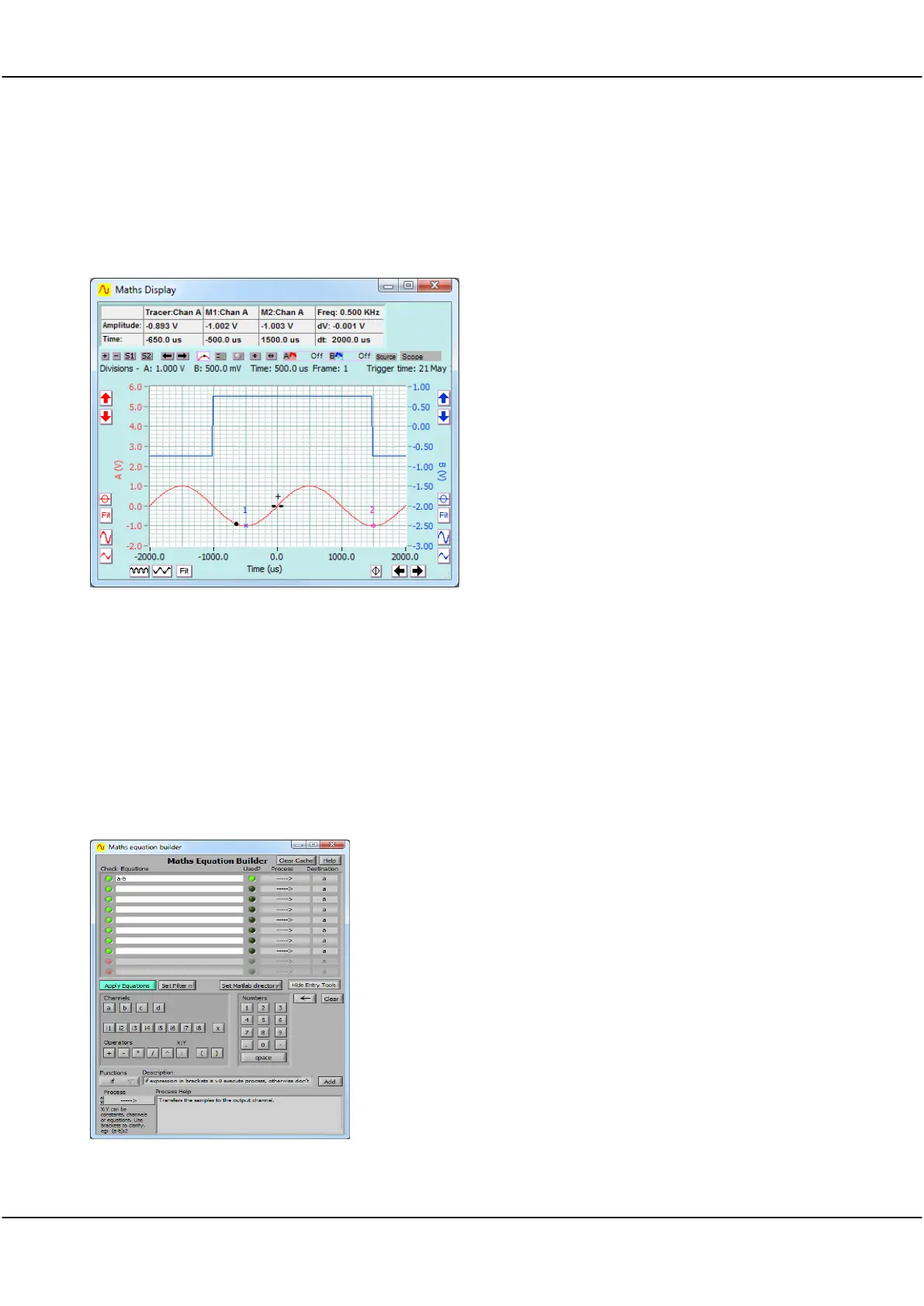
The Maths Display displays the results of the Maths Equation Builder.
Maths Display has a Maths Source control to select
the source data from the Full Buffer, Scope,
Spectrum, or Tracking display.
All the other graph setting buttons work the same as
on the other displays.
Refer Graph Settings section.
Note that Maths works on the Spectrum Display in
the frequency domain.
Also if full frame is selected and there is not a full
frame then it will just use the Scope Display data. Get
Frame will recalculate the maths using the full buffer.
After a full frame transfer using Get Frame, you can
zoom in on the signal as normal. If a full frame is not
used, zooming is limited by the Scope Display time
resolution.
The Trigger time can be used by the Maths system to
calculate the time difference between triggers.
19.2 Maths Equation Builder
The Maths Equation Builder is used to build equations that process the available analog and digital inputs to
generate an output that goes into the channel you choose. You can have up to 10 equations active at one time.
To create an equation, click on the Equations row you wish to edit.
You can enter equations two ways:
Type in the equation directly. To check that it is valid click on the
Check LED. A red LED means an invalid equation.
Build up the equation by clicking on the Channels, Operators or
Numbers buttons. If you want to use a function click on the
Functions drop-down button, and select the right one. Click Add to
enter it into the equation. Use the Backspace or Clear buttons to
edit the equation. The equation will be checked as you go.
Equations work on each individual sample in the channel signal,
from beginning to end. Channel signals a-d are the analog
channels A-D, i1-i8 are digital input channels 1-8 and x is the
external trigger.
Note You must enable the Digital Inputs if the equations contain
i1-i8 and x, otherwise the equations won't work. Intermediate
results (even digital ones) are kept as real numbers.
Click Used? to enable and disable the equation. Button indicates



 To Next Page