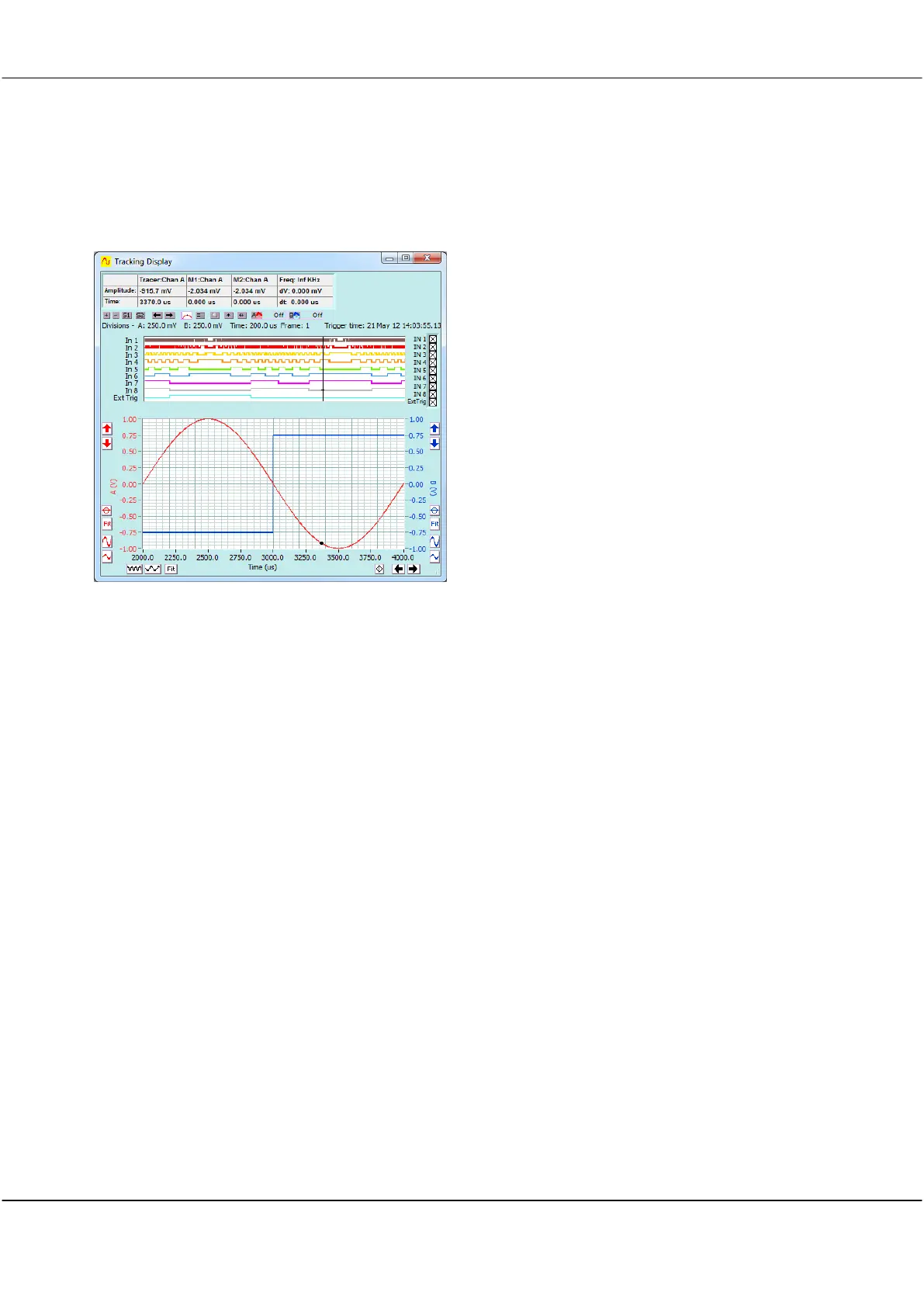
As you move your mouse along the signal trace in the Scope Display, the Tracking Display window will also
move and give a close-up view of the signal centred on the position of the tracer in the Scope Display. The
tracer positions in both graphs will refer to the same point. (With
View/Displays are linked
ticked).
The Tracking Display zoom, pan, and annotate, work the same way as in the Scope Display. The Tracking
Display has its own markers and annotations.
As you move the mouse/tracer outside the current window view in the Scope Display, the tracking window will
move to accommodate the new tracer position. This ensures that the tracer is always in view.
As with the Scope Display, when Digital Inputs is selected on the View menu, the Tracking Display also displays
the Digital Inputs.
There are many occasions where you find a feature of interest in the Scope Display and wish to examine it more
closely. To do this, position the tracer on the feature in the Scope Display, type ‘L’ to temporarily lock the
Tracking Display position. You can now manipulate the Tracking Display view.
Click on the Tracking Display to clear the lock.
As with the Scope Display, the Tracking Display has an Information zone that displays information about the
position of the Tracking Display tracer, markers, marker differences, and signal frequency. The Tools Zone is
used for Display Specific commands.



 To Next Page