v2.13 Cleverscope CS300 Reference Manual
©Cleverscope 2004-2018 www.cleverscope.com Page 59
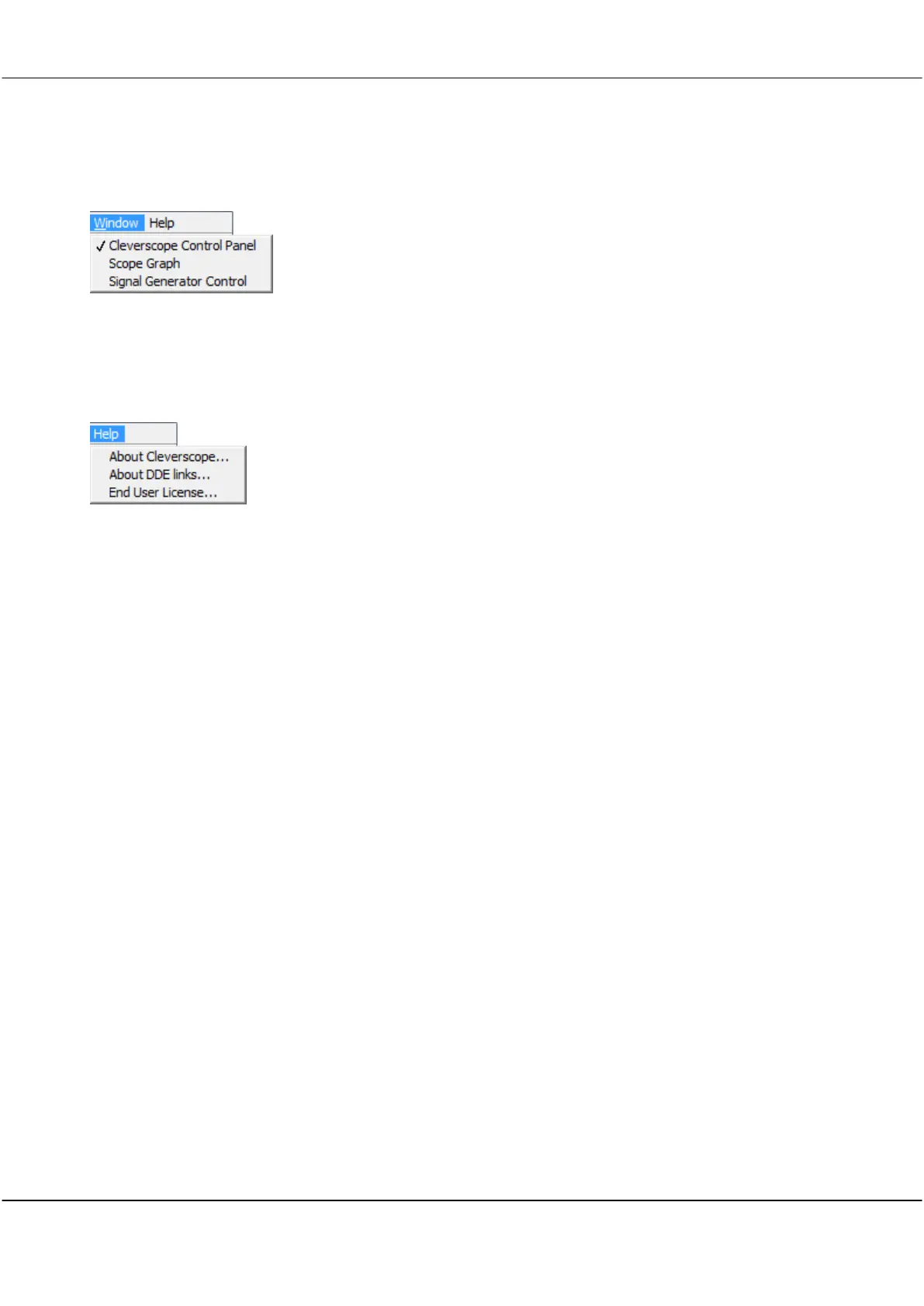
5.5 Window Menu [Control Panel]
Click on one of the Cleverscope displays listed in the menu to bring it to the front
Note: Displays in the Window menu are only listed if they have already been
selected in the View menu
Note: A window can also be made active by simply clicking inside it, but this
presumes that it is visible, or in front on the desktop.
5.6 Help Menu [Control Panel]
Click to display the various keyboard shortcuts and the current version number of
the Cleverscope Application software you have installed
Note You can copy the keyboard shortcut control list from the About Cleverscope
window and paste wherever it is helpful for you.
Click to display DDE (Dynamic Data Exchange) link information if you want to link
live data from Cleverscope to other applications such as Microsoft Excel or Access.
Click to display the License Agreement.



 To Next Page