v2.13 Cleverscope CS300 Reference Manual
©Cleverscope 2004-2018 www.cleverscope.com Page 27
On the Settings menu, click Reset Average (or Ctrl + R) to reset the average to 0.
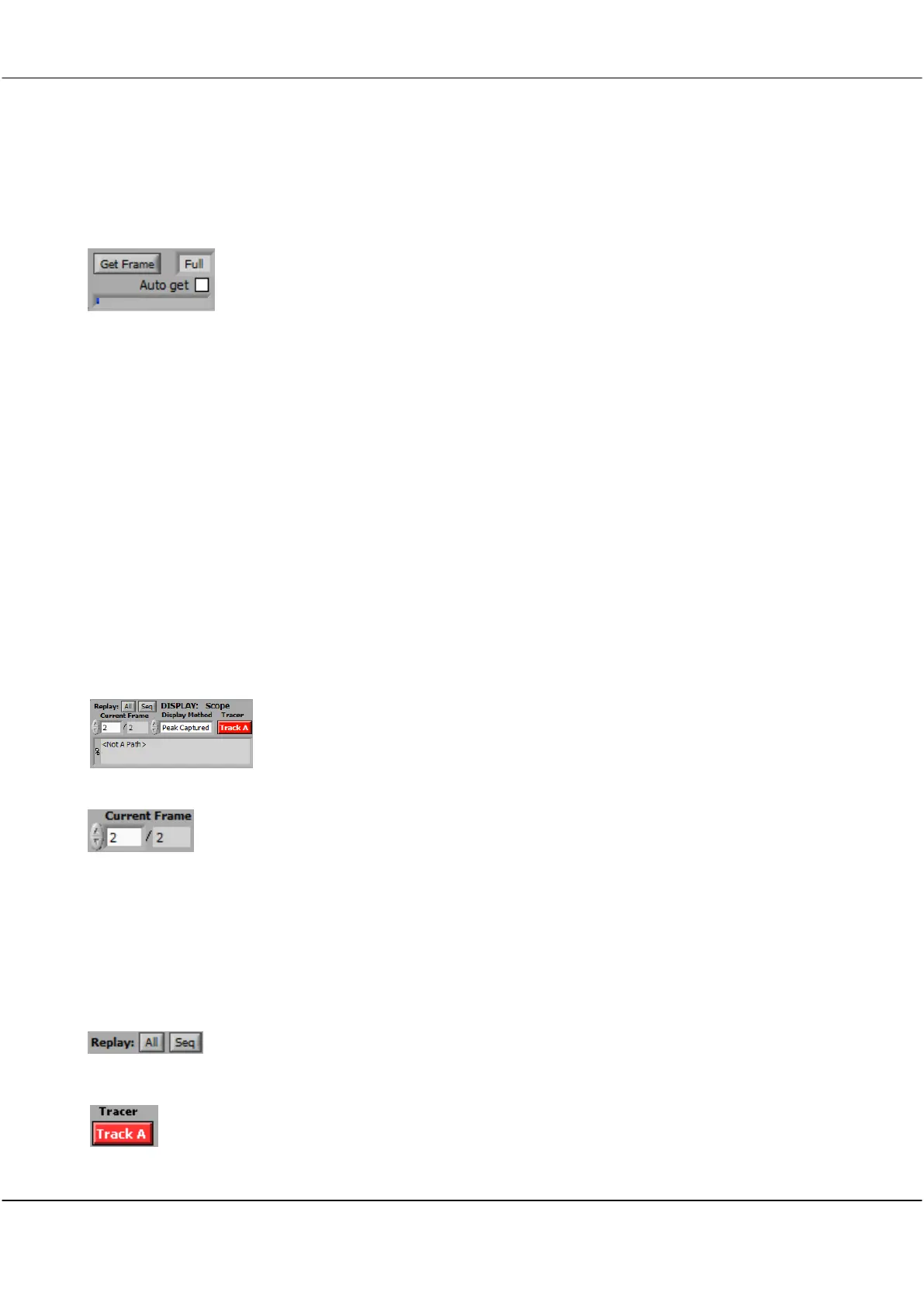
4.2.10 Get Frame
Click Get Frame button to get the Frame Buffer or last sequence into PC memory.
The Cleverscope application usually moves only the sample set required for display from the
Cleverscope Acquisition Unit (CAU) into PC memory. If you perform a zoom or pan this is
done by moving samples from the CAU into the PC. If you Get Frame, the entire sample set is
moved to the PC, and later zoom and pan uses the PC sample set, rather than the CAU
sample set. Save As.. saves the available sample set to disk. N Display will be updated to the
samples in PC memory. The maximum size of a Frame is determined by dividing the total
number of samples in the CAU (4M or 8M) by the number of frames (usually 2). Use 5.3.6
Acquisition settings to set the Number of Frames.
Click Full field to select the size of the frame buffer transferred from a dropdown list.
Options are:
Full
,
50%
,
10%
,
5%
,
2%
or
Seq
.
This is useful to limit the File Size after a Save As.. with a full frame in PC memory.
Click in the checkbox to automatically get a full frame after each acquisition.
4.3 DISPLAY Zone [Control Panel]
The Display zone provides controls related to signal data storage and display are located in the DISPLAY area.
Note: The Cleverscope acquisition unit is able to hold a number of sequential frames so that a history of older
frames can be recalled.
Click on the arrows or type a number directly in the field to display an earlier frame.
Note: Following an acquisition the Current Frame number represents the latest frame
acquired. The number of frames available in the store is displayed to the right of the
Current Frame.
The graphs will update to display the signal in the frame selected. Current Frame ‘1’ is
always the oldest frame, the higher the number, the more recent the frame.
The maximum is set on the Settings menu, clicking Acquisition settings and setting the
Number of Frames. The 4 Million samples available in the Cleverscope acquisition unit
are divided between the Number of Frames allocated.
Click the All button to replay all frames in memory.
Click Seq button to replay all the frames in the last captured sequence. Use in
conjunction with Get Frame.
Click the Tracer button (Track A) to select which channel the tracer will apply to.
The tracer is a small black circle that can be moved along the A or B channel signal
trace by selecting a display (Scope, Spectrum, Tracking, etc.) and simply moving the
mouse left or right.



 To Next Page