Cleverscope CS300 Reference Manual v2.11
Page 82 www.cleverscope.com ©Cleverscope 2004-2015
13 Signal Information [View Menu]
13.1 Signal Information Display
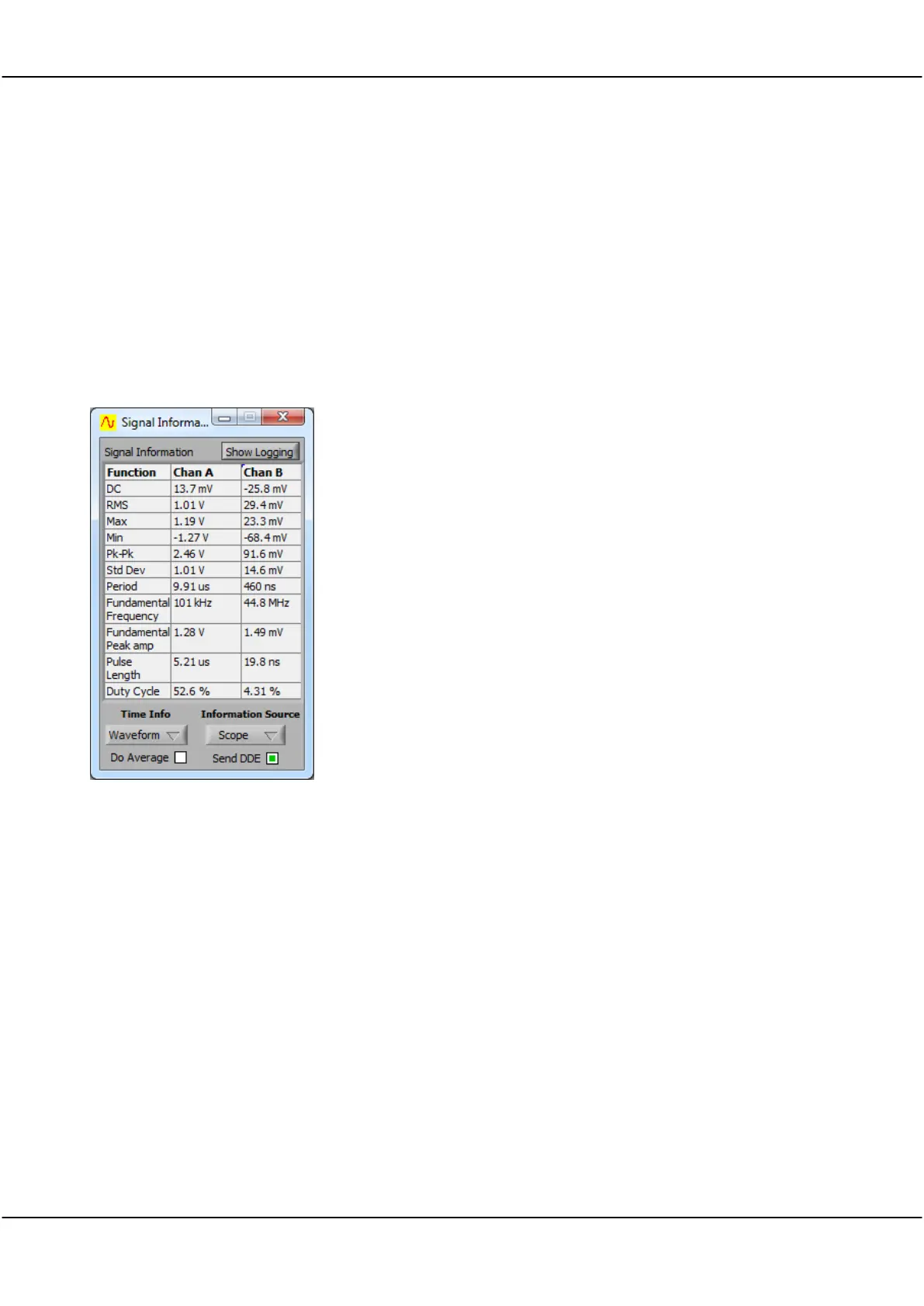
The results of mathematical functions applied to Channel A and B signal data are displayed in the Signal
Information display table.
Signal information values are calculated from the signal on the selected source display specified by Information
Source.
Note: You can use the Tracking Display to derive information over a smaller time period, and by linking the
Tracking Display to the Scope Display, and selecting the Scope Display, and moving the mouse over the display,
trace variations in value such as Frequency, DC or RMS. Data is only updated if the source display is open.
Click on the View menu and click on the Signal Information.
The function column lists set of mathematical functions the
row content for the results of the mathematical functions.
Results for the signal incoming on Channel A.
Results for the signal incoming on Channel B.
Show
logging
Hide
Logging
Click Show Logging button to expand the Signal Information
display to show the Log File setup panel.
The Show Logging toggles to Hide Logging when the
Logging panel is displayed.
Click on the button to select between
Waveform
or
Pulse
information – this also affects the parameters that will be
logged.
Click Do Average box to toggle Averaging on or off to
average all results.
Click the button to select the source to be used for calculating
function values
Sources are: Scope, Tracker, Spectrum, Maths.
The selected source will be shown on the button label.
Click Send DDE to toggle whether data will be transmitted
via DDE links.
Check box is green when data will be sent.
13.2 Signal Information – Show Logging Button (Scope source)
Clicking the Show Logging button on the Signal Information Display opens the Logging Display portion of the
display. Logging provides a log file record of the signal information for the signal on the selected Information
Source display. Log file data can be saved as either a text file or ain an Excel worksheet and recalled for later
analysis.
Note The log file is overwritten when you click Start Logging. Values are only saved after an acquisition has
been made, independent of the update interval. An update interval value of 0 seconds will save on every
trigger.



 To Next Page