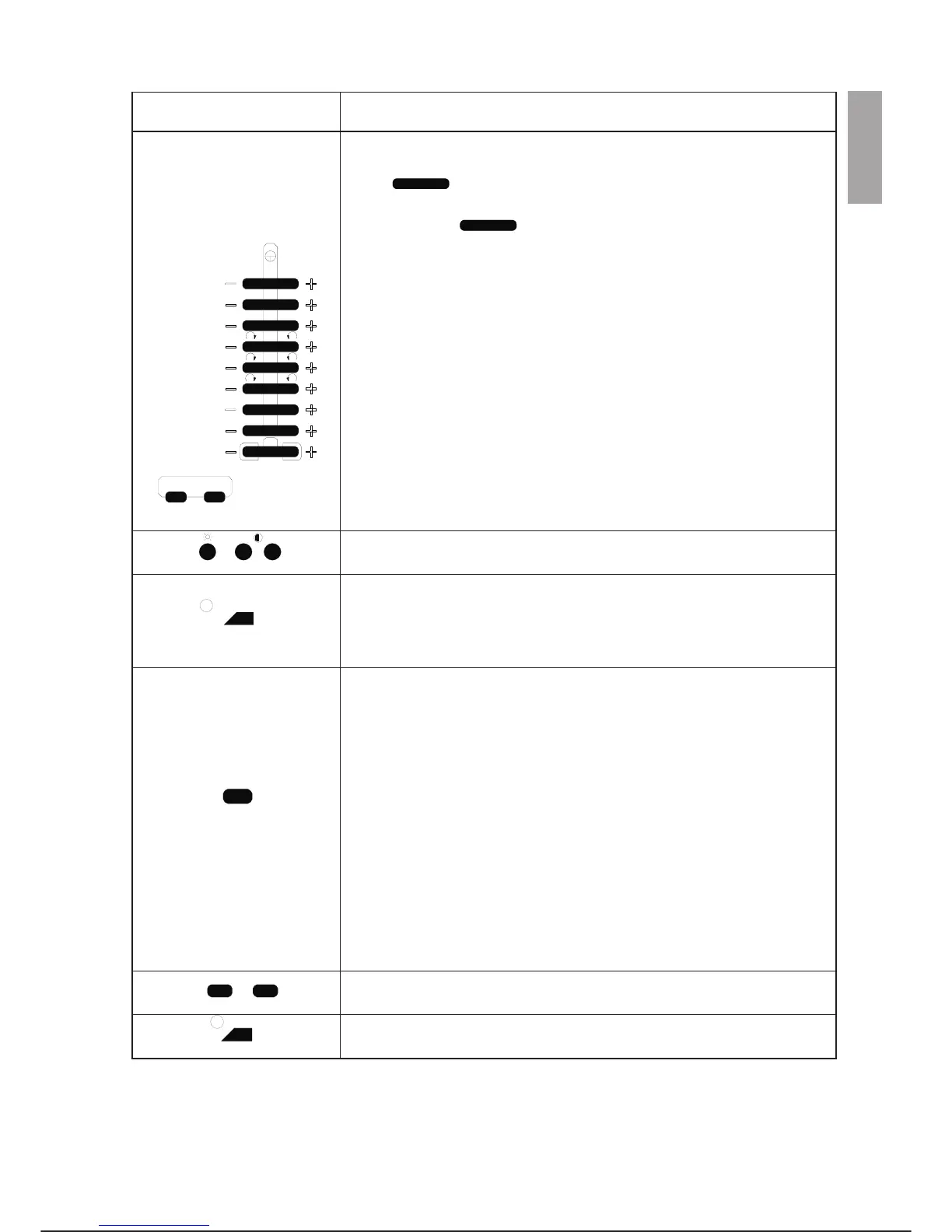
NAME and SYMBOL DESCRIPTION
Single Axis Movement
Keys (cont.)
Usr - linear movement mode according to the user x, y, z reference tern
(for example the tern that describes the piece being machined). The first
three keys allow linear movements in the direction of the three
axes of the user reference system (defined by the variable $UFRAME);
the next three keys allow rotations of the tool around the
same axes keeping the TCP position unchanged.
Bwr, Twr, Uwr,: when pressed together with the SHIFT key, the TYP key
will toggle the mode between Cartesian movement (BASE, TOOL, USER)
and Wrist JNT (X, Y, Z and axis 4,5,6 joints). For further information, refer
to chapter 5 of this manual.
For movements according to Cartesian co-ordinates, keys 1, 2 and 3 cor
-
respond to the movement along axes x, y and z of the Cartesian co-ordi
-
nate system selected, while keys 4, 5 and 6 correspond to movement
around axes x, y and z (rotations).
When the axis jog keys (from 1- to 8- and from 1+ to 8+) are held down,
they move each axis of the arm selected according to the type of move
-
ment chosen. These are rocker type keys.
The ARM key selects an arm (robot) and can be used to select the arms
to be jogged. When pressed together with the SHIFT key, it selects the
synchronised arm in a multi-arm system.
The Brightness and Contrast keys are used to adjust display brightness
and contrast.
The Step Disb key is used in EZ and system editor environment to switch
from the current step mode to Disabled and vice versa. For example, if the
step mode in EZ environment is Statement, this mode is disabled pressing
the Step Disb key. Pressing Step Disb again the Statement mode is re-en-
abled.
The function of the EZ key differs depending on the status in which it is
pressed:
-
In stand-by status (loaded in memory but not active) pressing the EZ key
activates the related status if the EZ package is present and loaded on
the RAM disk. It has the same effect as the Utility Application (UA)
command.
-
If the EZ status is active (after entry of the UA command or pressing the
EZ key), but the screen page is different from the EZ screen page
currently displayed on the programming terminal screen, the EZ screen
page is displayed.
-
With EZ status active and the screen page currently displayed on the
programming terminal screen corresponding to the EZ screen page, this
is suspended and it is possible to access the edit environment again, if
necessary. It has the same effect as entering the EZ Change
Environment command.
Keys A1 and A2 are reserved for future use in application packages.
Pressing the FLY key in the Editor and EZ environments enables or dis
-
ables association of the FLY mode to the MOVE learnt with the REC key.
C3G Plus OPERATOR INTERFACE
00/1097 3-7
1
%
ARM TYP
XX
8
2YY
3ZZ
4XX
5YY
6ZZ
7
-
+
STEP
DISB
EZ
A2
A1
FLY
c3g-ptu4
-


 To Next Page