112 Eos Family v2.9.0 Operations Manual
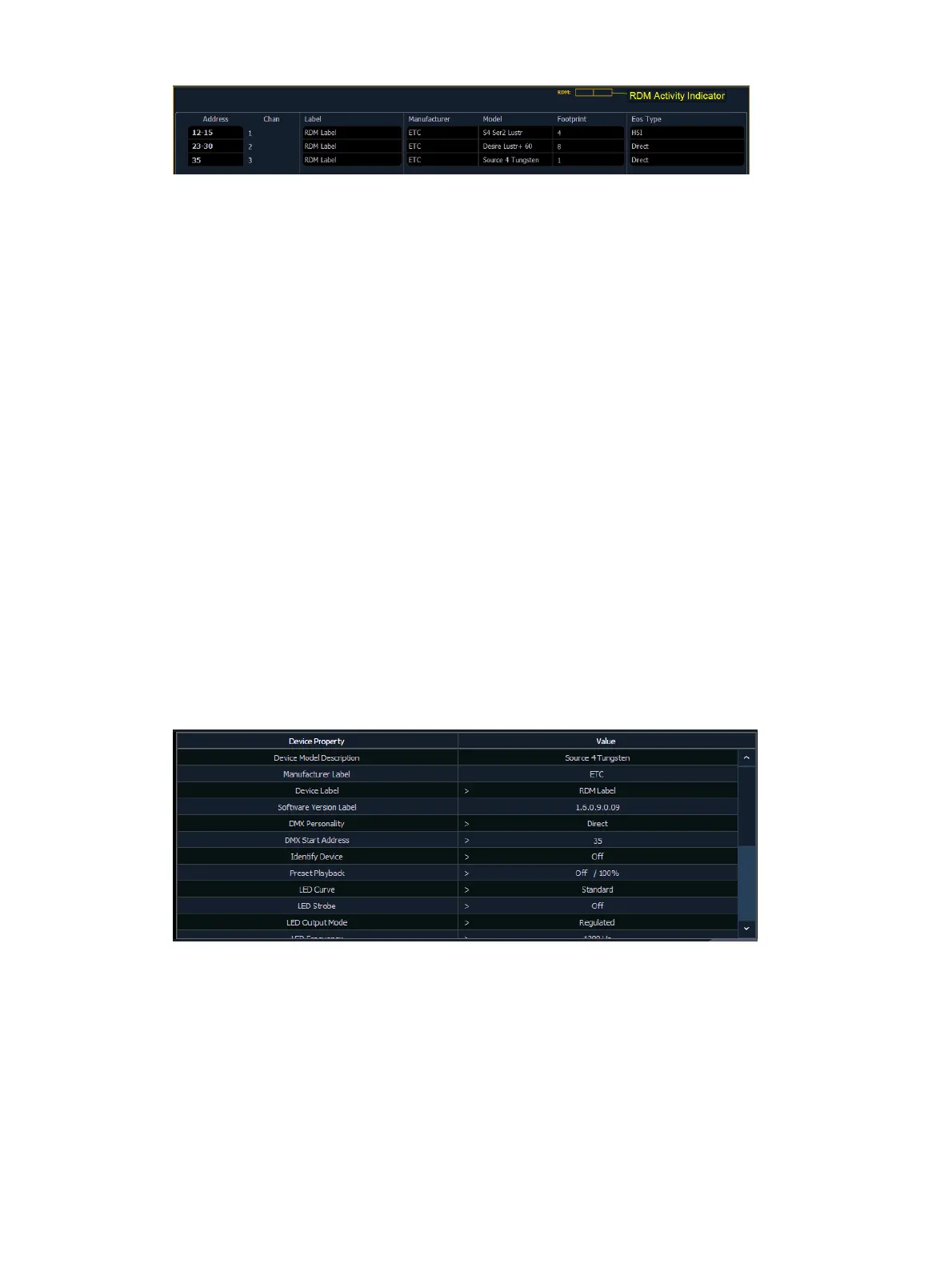
Element will display the following information that it receives from the RDM devices:
Address (a part will be added if multiple devices are discovered with the same address)
Channel
Label
Manufacturer
Model
Footprint
Element will also display what personality from the library the device matches in the Eos Type
column. This information will not display until you first select the device. Once the device has
been selected for the first time, Element will extract the type information from the device and
display it.
The following messages may display in the Eos Type column:
No RDM Data Available - no model specific RDM data has been extracted from the
device.
Extracting RDM Commands - currently getting the command data from the device.
Extracting RDM Fixture -currently getting the data required to create a fixture definition
for the device.
Extracting RDM Sensors - currently getting the sensor definitions from the device.
Offline - no model specific RDM data has been extracted from the device and it is now
offline.
With a device or devices selected, you can edit various device settings in the property view,
which will display in the CIA. Items with a caret (>) are editable. When multiple devices are
selected together for editing, an “*” will show for data that is different between the selected
devices.
The following buttons will also display in the property view:
{Device Properties} - opens the properties list for the selected RDM device.
{Sensors} - displays if the selected device has sensors. Pressing {Sensors} will open the
sensors list.
{Lamp Controls} - displays if the selected device has lamp controls.Pressing {Lamp
Controls} will open the lamp controls list.
{Channel} - channel number of the selected device.
{Address} - address of the selected device.



 To Next Page