8 Eos Family v2.9.0 Operations Manual
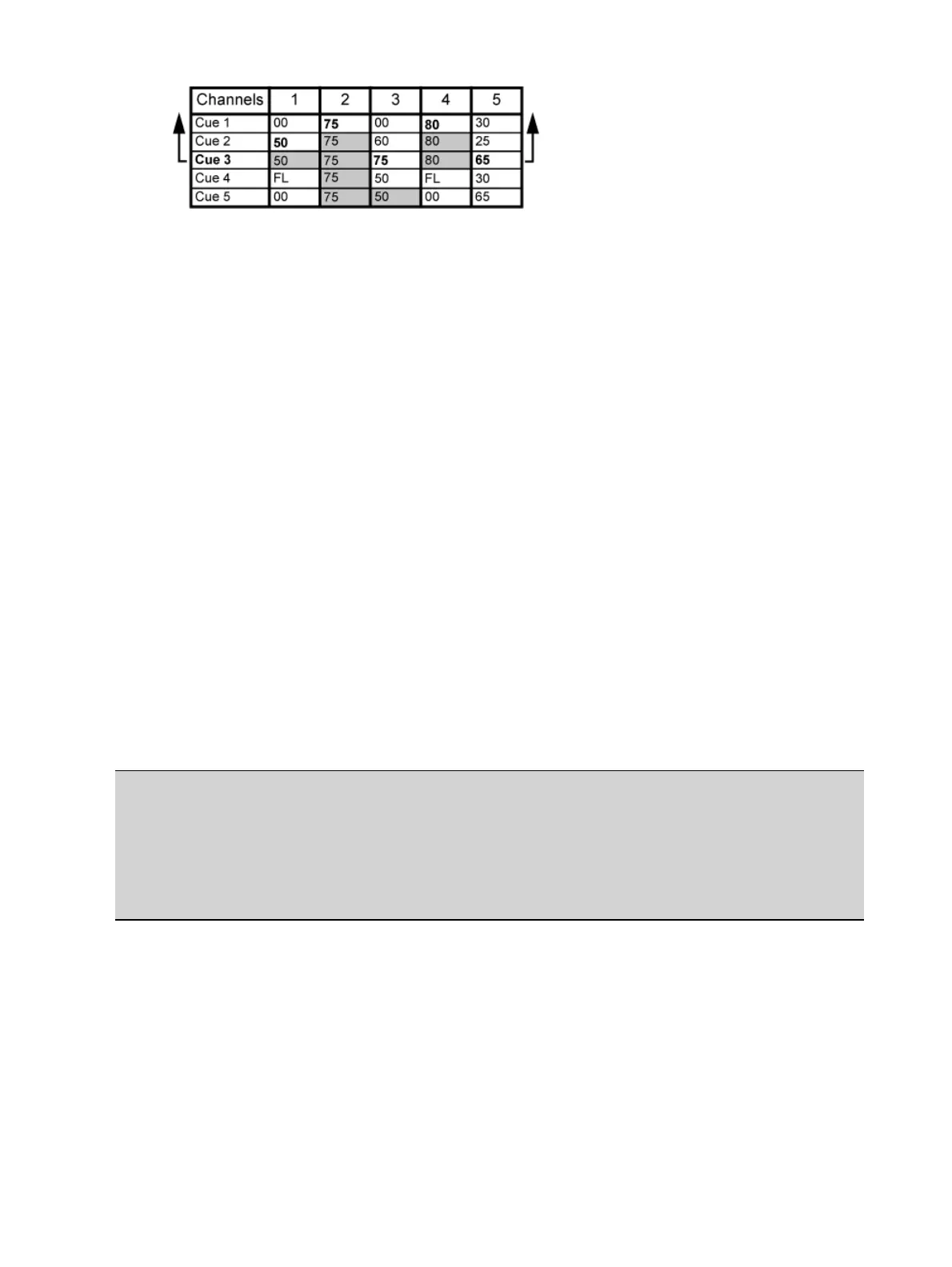
To force that channel’s new value to go backward in the cue list, {Trace} {Trace} can be used.
For information on using [Update] and {Trace}, See
Using Trace (on page237)
.
Move Instruction
A move instruction is any change to a parameter from its previous stored value. A change to a
channel’s intensity is a move instruction. A change to a channel’s pan or tilt is a move
instruction. A change to a channel’s color mixing is a move instruction, and so on.
Manual Data
Manual data is any value set for a channel via the command line. Manual data will remain at its
value until a move instruction is provided for it.
Move Fade
Move Fade is a lighting control philosophy which determines how cues are played back. Element
adheres to this philosophy.
In a Move Fade system, parameters do not change from their current setting until they are
provided a move instruction in a cue or are given a new instruction manually.
Move Fade systems allow for fade-within-fade behavior. Fade-within-fade means that you can
start a long fade in one cue, and the following cues will not affect the long fade as long as none
of the following cues contain move instructions for the channels in the long fade cue. A blocked
value is considered a move instruction.
Additionally, manual changes to channels will not be removed by pressing [Go] unless the
incoming cue contains a move instruction for those channels.
Example:
In cue 1, channel 1 has been given an intensity value of 50%. This value does not
change until cue 20, where channel 1 is moved to 100%. Therefore, channel 1 has a
tracked intensity value of 50% in cues 2-19. If the user applies a manual intensity value
of 25% while sitting in cue 5 (for example), that channel will stay at 25% until Cue 20
is recalled - because 20 is the next cue in which channel 1 has a move instruction.
Live and Blind
Live and Blind are methods to view and edit data in your show files. When you press the [Live]
key, the screen will show you the live display. When you press [Blind], you will see the blind
display. In either case, you may use the [Format] key to alter how the data is displayed (see
Using [Format] (on page37)
).
When in Live, the data displayed represents the data being sent from the console at that
moment. In other words, the parameter data that is “live” on stage. When you edit data in live,



 To Next Page