Working with a Cue List 227
Following is an example of using link:
[Record] <Cue> [2] {Link/Loop} <Cue> [8] [Enter] - records the specified cue 2 and
provides a link to cue 8 in the cue list. When cue 2 is played back, the linked cue is loaded
into the pending queue of the associated fader.
Loop is provided as a method to link a series of cues and loop them a number of times in a
sequence. Once the sequence of cues has played back the first time, the system recognizes the
loop command and plays the sequence again, provided the target of the link is a previous cue.
A loop specified with “0”, loops the sequence indefinitely.
Normally, levels from the cue prior to the start of the loop will track into the loop. To avoid this,
make the first cue in the loop a block cue. See
Block (on page231)
Following is an example of using loop:
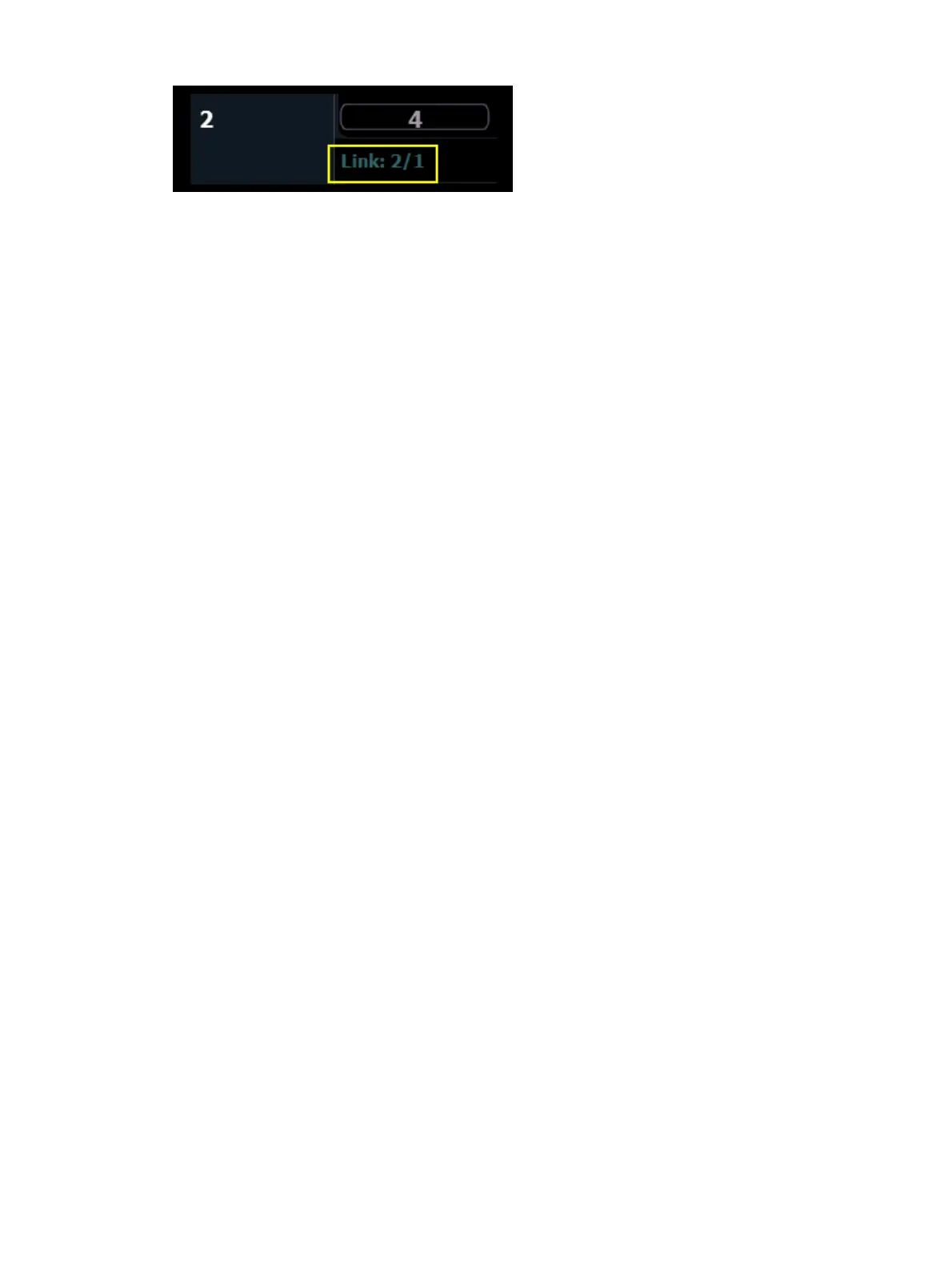
[Cue] [2] {Link/Loop} <Cue> [1] {Link/Loop} [3] [Shift] & [Delay] [4] [Enter] - records a link
from cue 2 back to cue 1. Because there is a follow time, cue 1 will automatically trigger 4
seconds after cue 2. If cue 1 also has follow time, it will automatically trigger cue 2. This
sequence will run 4 times (once plus 3 loops) and then stop in cue 2. The loop value
specifies the number of times the loop instruction will be performed. Since the sequence
has run once prior to the loop command, the total number of passes will be the specified
number of loops +1. You could use {Go After Loop} to execute the next cue after a follow
link/ loop sequence has ended. See
Using External Links (on page232)
Delay Time
Delay can be useful when you do not want a parameter to change (for example - intensity down)
until other changes have begun or completed their transition.
Delay times can be added to any cue or to any specific parameter category within the cue,
which will postpone the parameter transition until the delay time has elapsed.
Following are some examples of recording with a delay:
[Record] <Cue> [2] [Delay] [5] [Enter] - stores cue 2 with a 5 second delay on intensity.
[Record] <Cue> [2] [Time] [9] [Delay] [3] [Enter] - records cue 2 with a 9 second fade for
all parameter categories, delayed from Go by 3 seconds.
[Record] <Cue> [2] [Time] [7] [Delay] [Enter] - records cue 2 with a 7 second fade, and
removes delay time.
[Record] <Cue> [2] [Delay] [/] [5] [Enter] - records cue 2 with a 5 second delay on the
downfade.
Delay can be used to affect only the parameters in the specified category.
[Record] <Cue> [2] {Color} [Delay] [8] [Enter] - records cue 2 with a delay time of 8
seconds for the color category.
[Record] <Cue> [2] [Time] [Time] [Time] [Delay] [7] [Enter] - records cue 2 with a cue
level focus delay time of 7. In this example, each press of the [Time] key steps through
each timing value (up time, down time, focus time, color time and beam time.



 To Next Page