Console Overview 15
Level Wheel
Adjusts intensity for selected channels. It also provides scrolling and zoom functions in various
modes. See
Level Wheel (on page155)
for more information.
Master Playback Controls
The master playback fader pair is located to the left of the control keypad. The master is a split
cross-fader pair. The two buttons beneath the master fader pair are [Go] and [Stop/Back]. The
[Load] button is located directly above the fader pair and is used to load a specified cue onto the
master playback.
Parameter and Category Buttons
Parameter buttons are posted in the Central Information Area (CIA). When certain functions
need to be accessed, a group of related parameters will populate in the parameter category
display.
Ethernet Ports
Ethernet ports are for connecting to a network switch, network gateways, and accessory
devices. Each port is on a separate NIC.
For configuration of your Ethernet ports, please see
Network Settings (on page411)
.
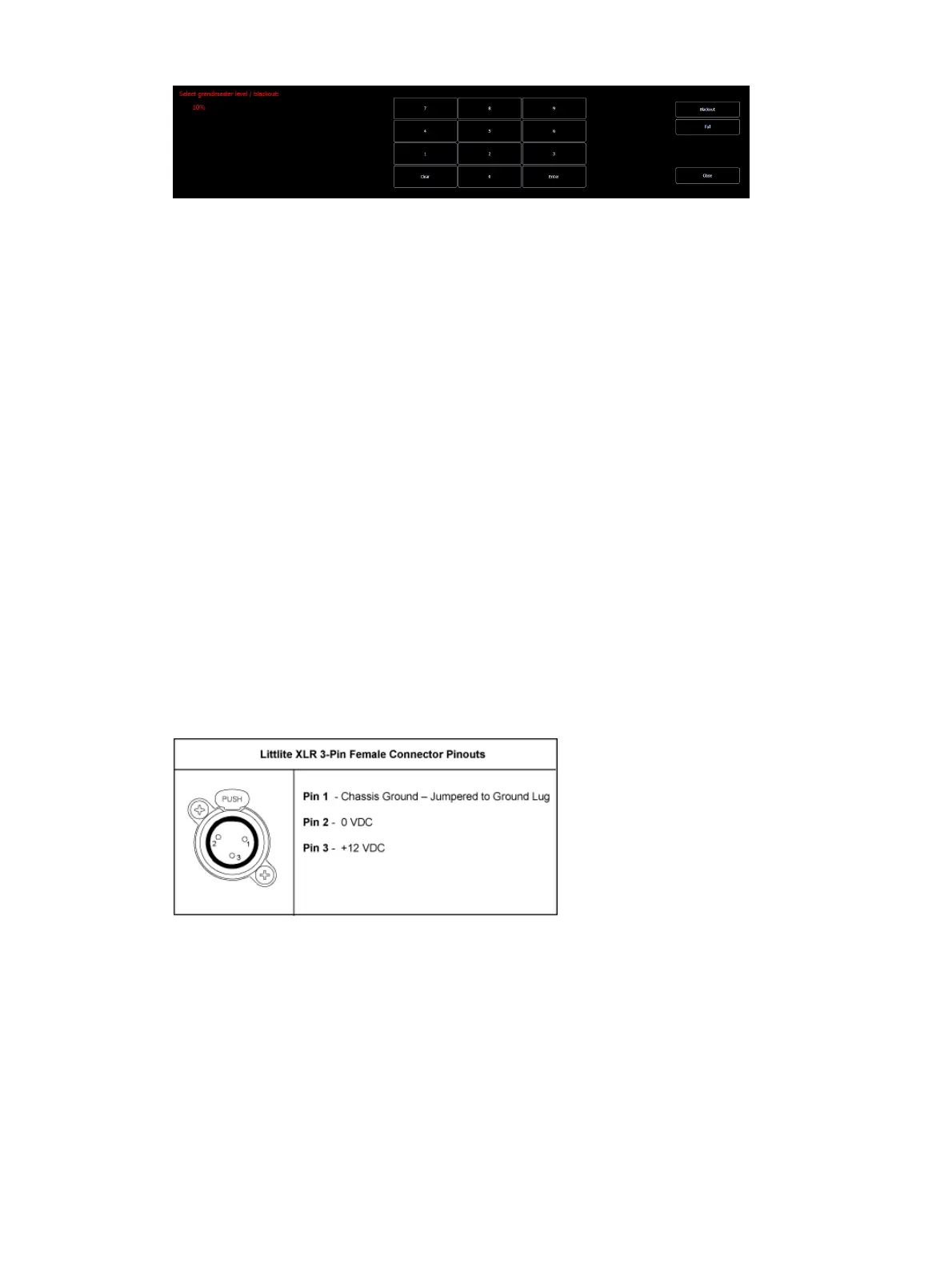
Littlites®
You may connect Littlites to the back of your console.
Dimming Littlites
Desk lamps, such as Littlites, can be dimmed from within the software application. They can
also be dimmed using the desk lamp control knob on the rear panel.
Desk lamp controls are found in Setup> Device> Brightness Settings>Light Levels. The {Desk
Lamp} slider has a range of 0% (dimmest) to 100% (brightest). The default setting is 0%. The
console will set the desk lamp to this setting on startup of the application. See
Brightness
Settings (on page145)
The desk lamps can also be controlled by holding down [Displays] and rolling the level wheel.



 To Next Page