26 Eos Family v2.9.0 Operations Manual
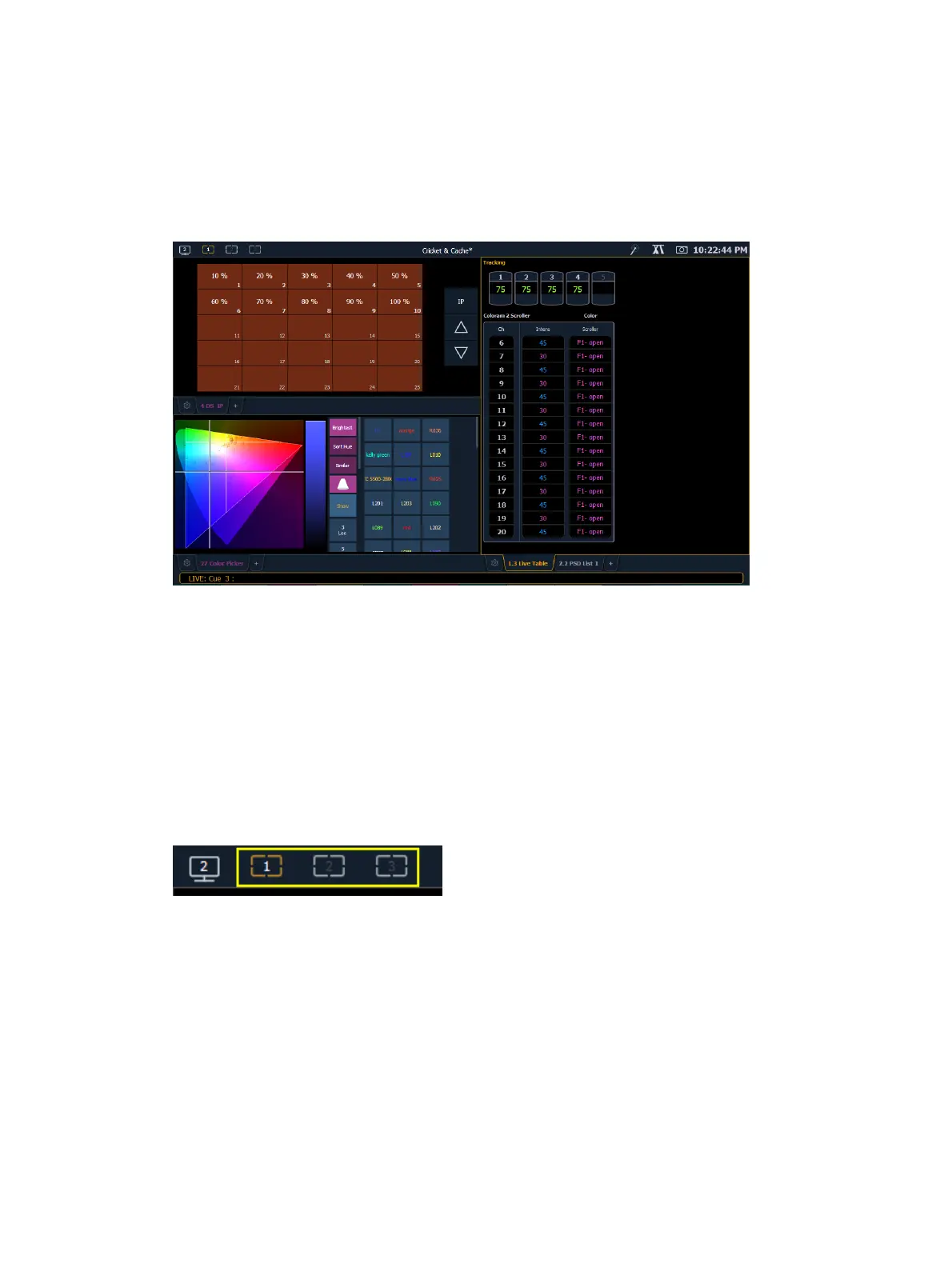
Frames - offers layout options to your workspaces.
Tabs - offers the ability to view multiple displays in one frame.
Displays - are the individual views or tools available for use in programming your console.
They are viewed in tabs.
Element has the ability to have one of three different workspaces active on individual monitors,
as well as to have up to four frames in use in any workspace. Each frame can hold multiple tabs.
Each tab contains one display.
Workspaces
Workspaces offer independent display control on all of your connected monitors. Every monitor
can have up to three workspaces, identified by the workspace icons in the upper left corner of
any monitor.
You can use [Tab] & [Page ▲ ] and [Tab] & [Page ▼ ]to cycle through the workspaces. This will
increment or decrement the current workspace and will then force all of the other workspaces to
match the current workspace’s number (1, 2, or 3). This is so you can quickly step through the
workspaces.
Workspaces 1, 2, and 3
These three monitor icons are used to switch between each monitor’s available workspaces.
Each can be set up to include any of the desired layout, displays, and controls options offered on
the Home Screen. Double-clicking on any of the icons will jump all connected monitors to that
workspace number.
Workspace Access From the Command Line
A {Workspace} softkey is available by pressing [Displays]. Hold {Workspace} and type 1, 2, or 3
to go to that workspace.



 To Next Page