System Basics 27
Note: From an alphanumeric keyboard, hold down either of the bracket buttons
([or]) and type in the number of the workspace you wish to view. For example, hold
down [ and press 2 to view workspace 2.
Frames
Each workspace can have up to four frames in its layout. The number of frames in a workspace
layout is determined by choosing the layout options offered in the Home Screen.
Tabs
Any frame can have multiple tabs open. Tabs are broken down into two categories: Control and
Display. Control tabs are the virtual control options, such as the color picker and the virtual
keyboard. Display tabs are the various displays available on the console, such as the playback
status display and the park display.
You can open or close tabs using the Display Icons, Control Icons, or typing the [Tab] & the tab
number. Pressing [Shift] & [Tab] once will clear all tabs on the selected monitor but tabs in
locked frames will remain. Pressing [Shift] and tapping [Tab]twice will clear all tabs on all
monitors but tabs in locked frames will remain. Tapping [Tab] a third time will clear all tabs on
all monitors including those in locked frames.
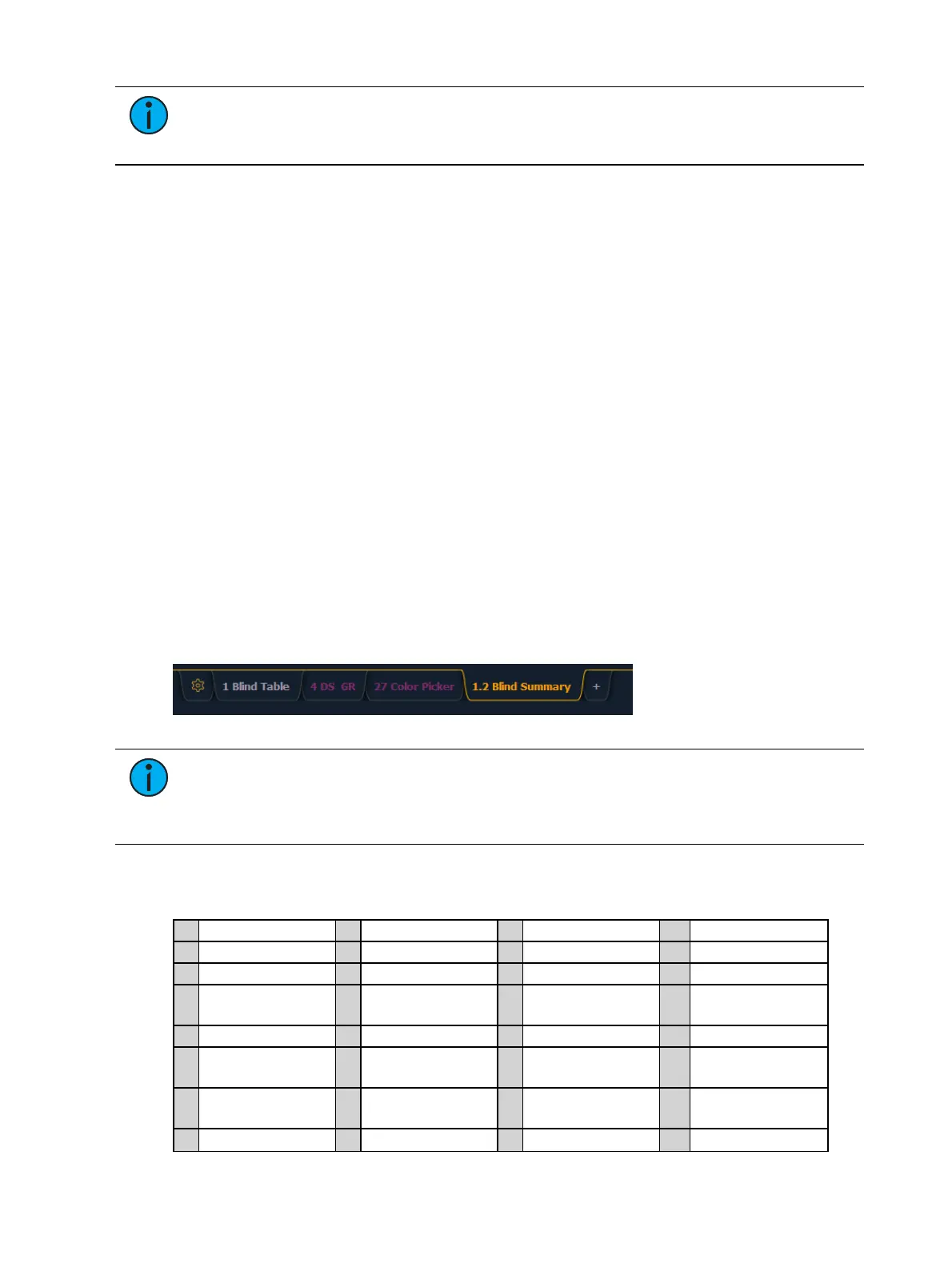
White text in the tab indicates a Display Tab, and magenta text indicates a Control Tab.
All Display and Control Tabs have fixed
Tab Numbers
under which they open (for example,
“Live” opens under Tab 1, “Patch” under Tab 12, and “Color Picker” under Tab 27).
These numbers are identified on the Home Screen in each icon. For multiple instances of the
same display, the tab number will be followed with a decimal number. Additional tabs will start
their numbering with n.2. When you press [Tab], active focus will move numerically through all
open tabs on active workspaces.
Note: Single clicking on a Controls Tab will bring it to the front of the frame but will
not move focus to that tab unless the tab’s frame already has focus. Double clicking on
a Controls Tab will bring it to the front and grab focus. Single clicking on a Display Tab
will bring it to the front and grab focus.
Tab Numbers
The following table lists the tab number for each of the Control and Display tabs:
1 Live/ Blind 11 Show Control 21 Curves 31 Lamp Controls
2 Playback Status 12 Patch 22 Intensity Palettes 32 Channels In Use
3 Magic Sheet 13 Effects 23 FocusPalettes 33 Color Path
4 Direct Selects 14 Magic Sheet List 24 Color Palettes 34
Not Currently
Used
5 MLControls 15 Submaster List 25 Beam Palettes 35 Fader List
6 Effect Status 16 Cue List 26 Presets 36
Fader Con-
figuration
7 Keys 17 Groups 27 Color Picker 37
sACN Output
View
8 Effect Channels 18 Macros 28 Virtual Faders 99 Diagnostics



 To Next Page