System Basics 35
Selecting Displays
When a display is selected, the screen is highlighted in a gold border and the display name (such
as “1. Live Channel”) will be in gold as well. When a display is not selected, there is no border
and the tab name is gray.
If a display is already open, it can be selected in the following ways:
Press [Tab] to change focus between open tabs in chronological order.
Press [Tab] & [n], where “n” represents the tab number of the desired tab.
Press [Live] or [Blind] to automatically bring Live/ Blind into focus. If there are multiple
instances of Live/ Blind, pressing [Shift] & [Live] / [Blind] brings the next Live/ Blind tab into
focus.
Double press a record target button (such as [Preset] or [Submaster]) to either open the
associated display or select it if it is already open.
Zooming Displays
You may zoom in and out on displays. To do this, press and hold the [Format] button and scroll
the Level Wheel to alter the display. Scrolling the wheel up zooms in. Scrolling the wheel down
zooms out. Zooming the channel summary display when it is in 100 channel mode is not
supported. You can also zoom by holding down the left mouse button and rolling the scroll
wheel on a mouse.
Moving Displays
To move the active display from one monitor to another, press and hold the [Tab] key and use
the page arrow keys to move the display in the direction of the desired screen. One press of the
left or right page keys will move the display to the next screen in that direction. To move it back,
press the opposite arrow key.
Clickable Displays
Several displays have click supported cells. Clicking on a cell will select and place it on the
command line. You can click on multiple cells to select a range of items. Double-clicking a row
header will select that row and deselect any other rows. In-Cell editing must be enabled in
Setup>Device>Displays. See
In-Cell Editing (on page144)
The following displays have clickable support:
Show Control List
Cue List
Playback Status Display
Palette Lists
Sub List
Preset List
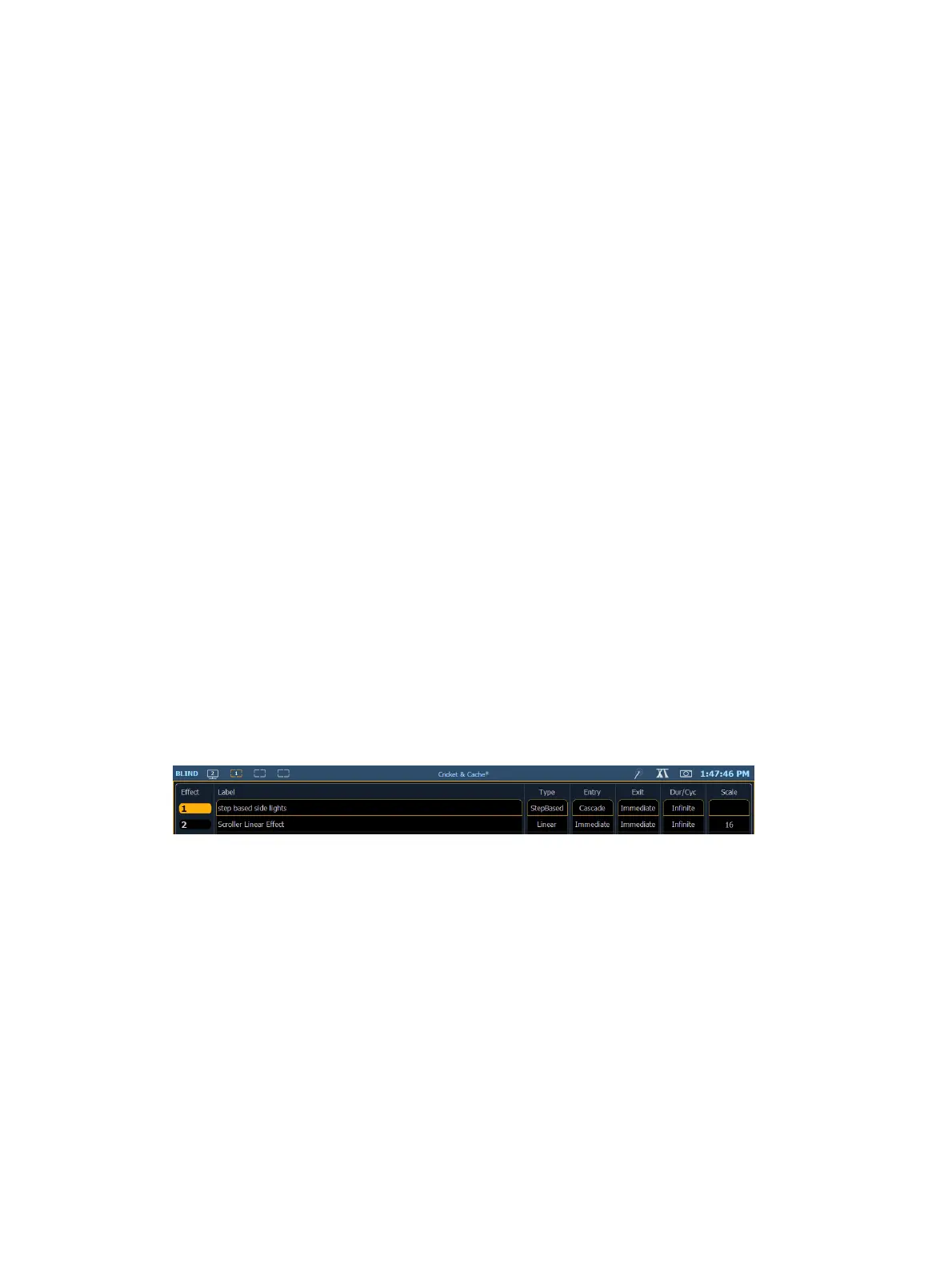
Effect List
Group List
Snapshot List
Curve List
Partition List
Pixel Map List



 To Next Page