144 Eos Family v2.9.0 Operations Manual
{Use Shift as Eos Shift} - allows the SHIFT key on an alphanumeric keyboard to be used as
the console's [Shift] key. If not selected, the Z key on an alphanumeric keyboard will
function as the [Shift] key.
Volume Level
Note: External speakers are required for playing sounds.
You can adjust the frequency and length of the audible signals that your console delivers.
Signals are qualified as being either an error, advisory, or click sound. All types of sounds can be
adjusted from this setup screen in the CIA.
To adjust a sound, move the virtual slider with your finger (or mouse) on the CIA. To hear the
result of your adjustment, press the {Test} button respective to the sound type, located beneath
the sliders.
Auto Repeat
This setting allows you to adjust the auto repeat settings (delay and speed) for the facepanel
keypad.
Displays
This device setting button gives you access to the following settings. See
Live and Blind
Configuration Menu (on page46)
and
Playback Status Display Configuration (on page52)
for
additional display settings.
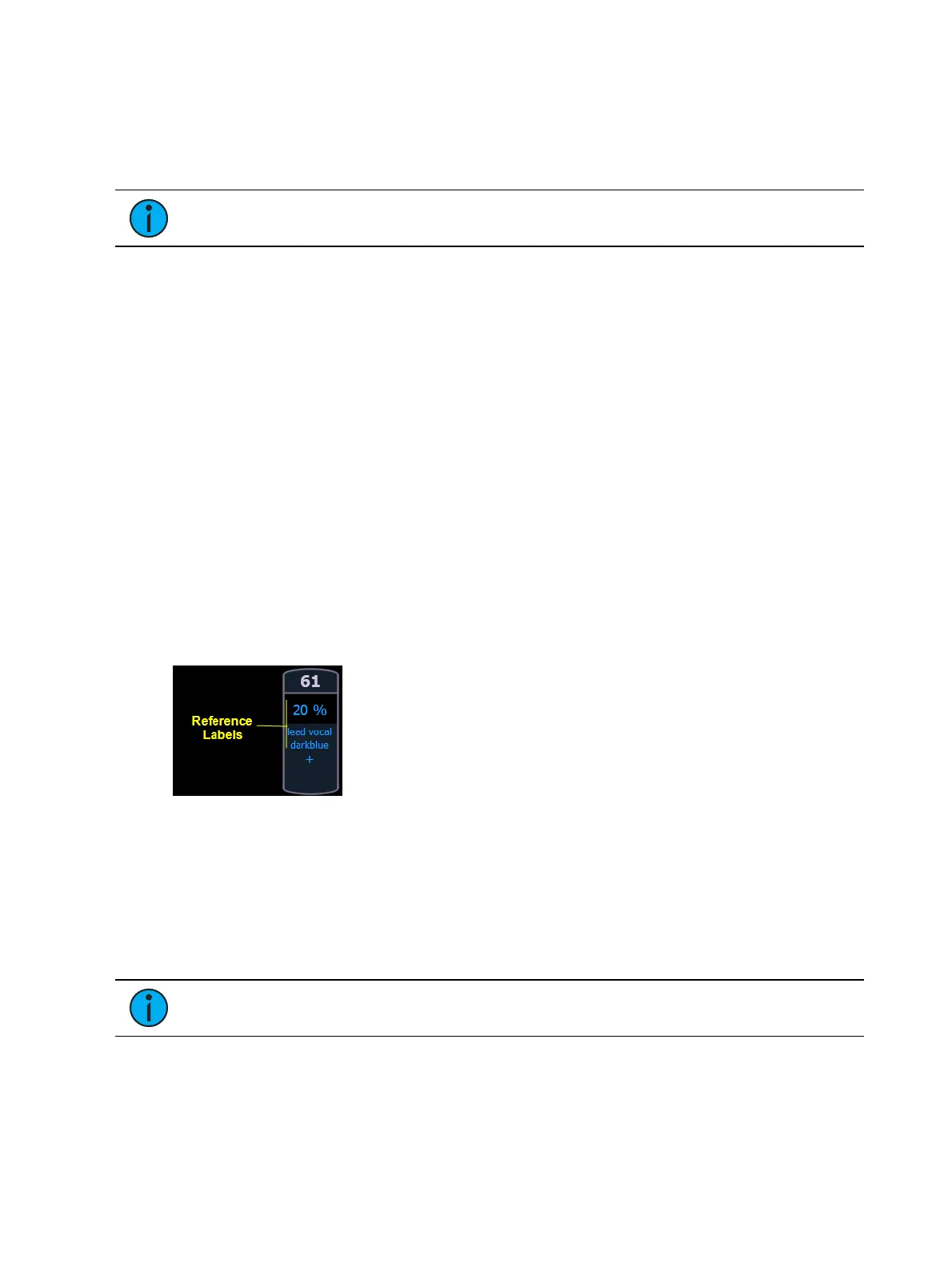
Show Reference Labels
When enabled, referenced record targets (such as presets or palettes) with labels will have their
labels displayed rather than their target type and number. This is disabled by default.
{Show Reference Labels} is a global setting that will affect all displays. For some displays such as
live and blind, {Show Reference Labels} can be enabled at the individual tab level by accessing
the tab's configuration menu. This will override the setting in Setup.
In-Cell Editing
When disabled, this setting prevents changes to be made to the cells in the Live/Blind and
Playback Status Displays. {In-Cell Editing} is enabled by default.
Note: Options in the CIA are not affected by this setting.
DirSel.Dbl Clk
When enabled, double clicking a direct select button will act as [Recall From] [Record Target] to
place the entire contents of that preset, palette, or step-based effect on stage. The default for
this setting is “Disabled”.



 To Next Page