Procedure
Step 1 Choose Monitoring > Cabinet > IT Cabinet1 > Cabinet Collector1 > Running
Parameters, set the door status sensor parameters.
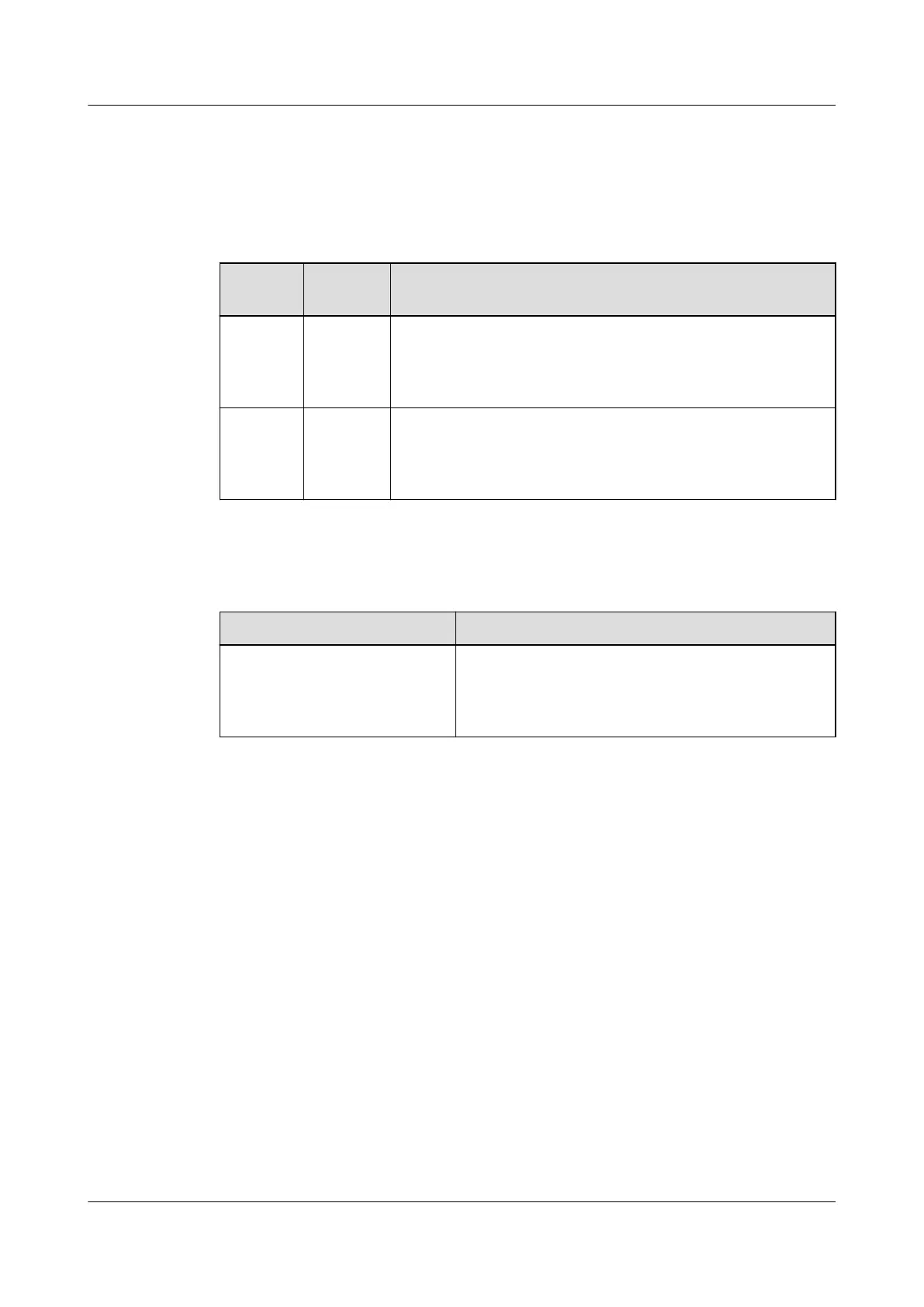
Table 6-5 Parameter settings
Setting
area
Object Method
AI/DI_1
Port
Settings
Front
door
status
(AI/DI_1)
1. Choose AI/DI_1 sensor to Enable, click Submit.
2. Set AI/DI_1 sensor type to Door sensor, click Submit.
AI/DI_2
Port
Settings
Rear
door
status
(AI/DI_2)
1. Choose AI/DI_2 sensor to Enable, click Submit.
2. Set AI/DI_2 sensor type to Door sensor, click Submit.
Step 2 Check the door status sensor functions.
Table 6-6 Function check
Check Method
Normal Connection Status
Close and then open the
door.
If the alarm is enabled for the front and rear
doors, a cabinet door open alarm is displayed on
the active alarm screen of the app or the active
alarm page of the WebUI.
----End
6.4.1.3 Commissioning a Door Status Sensor (Connected to the AI/DI Port on
the UIM20A Expansion Module)
If a door status sensor is installed, perform the following steps to congure it.
Context
● To use the AI/DI sensor, enable the corresponding AI/DI port and name the
sensor. After that, the
specic alarm can be reported.
● If the sensor is prefabricated, only check its settings.
● If multiple door status sensors are connected, commission one door status
sensor rst and then commission the other door status sensors in the same
way.
Procedure
Step 1 Set parameters for a door status sensor.
ECC800 Data Center Controller
User Manual (for ECC800-Pro) 6 Feature Description
Issue 02 (2020-09-07) Copyright © Huawei Technologies Co., Ltd. 133



 To Next Page