8.1.7.8 How Can I Set and Add an SVG-In-Power (Modbus-RTU)?
Prerequisites
One end of the straight-through cable has been connected to pins 4 and 9 of the
COM port on the SVG display, and the other end has been connected to the COM
port on the ECC800-Pro.
Pin 4 denes 485+, and pin 9 denes 485–.
Procedure
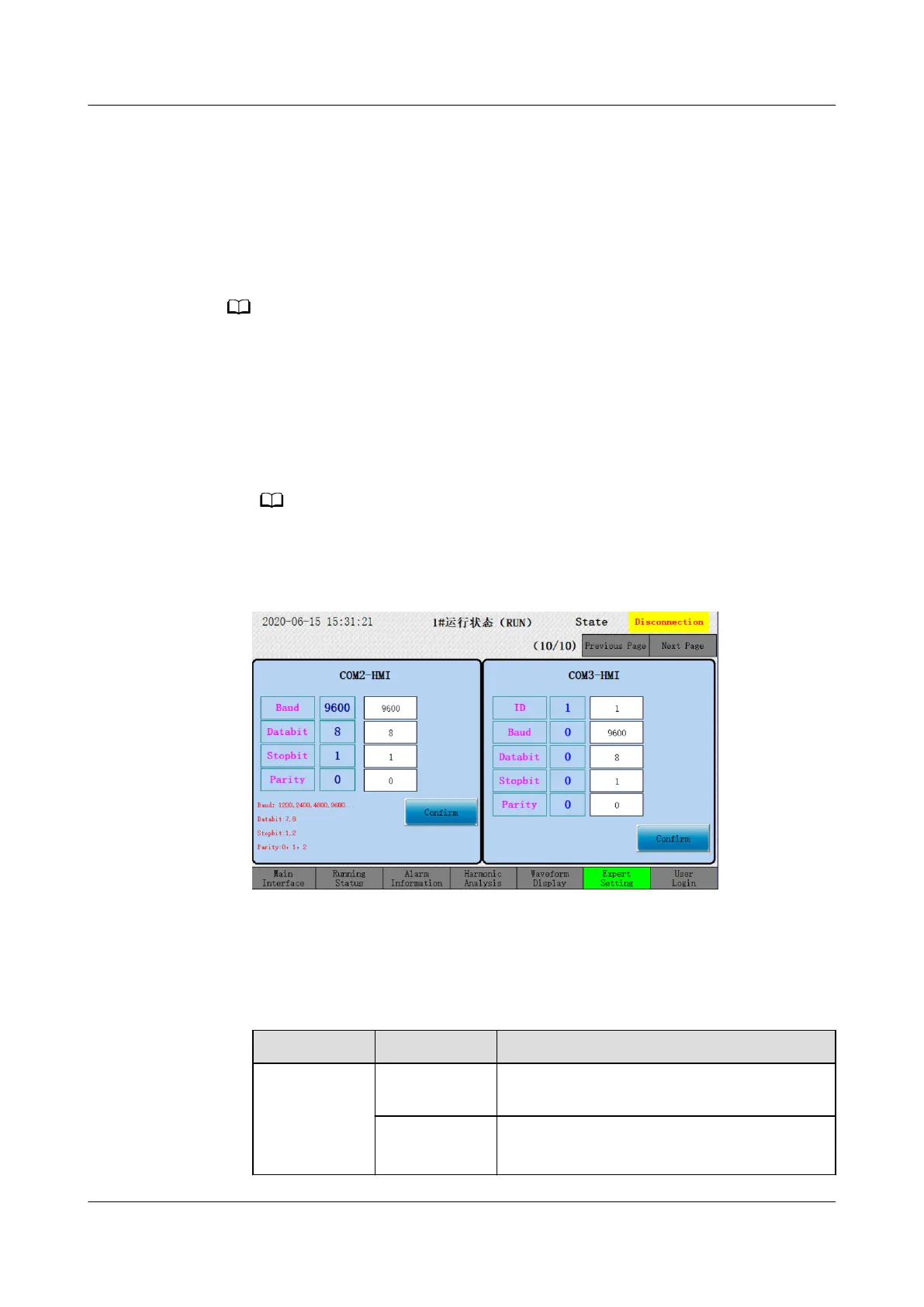
Step 1 Set SVG display parameters.
1. Tap Expert Setting. On the displayed SVG communication settings screen, set
ID to 1 and Baud to 9600.
ID is the communication address, ranging from 1 to 255. This operation uses 1 as an
example.
Figure 8-10 Setting SVG parameters
Step 2 Add an SVG.
1. Log in to the ECC800-Pro WebUI as an administrator.
2. Add an SVG.
Table 8-7 Adding an SVG
Path
Parameter Setting
Choose
System
Settings >
Device
Management
Device
attribute
Select PDU from the drop-down list box.
Device Type Select SVG-In-Power from the drop-down
list box.
ECC800 Data Center Controller
User Manual (for ECC800-Pro) 8 FAQ
Issue 02 (2020-09-07) Copyright © Huawei Technologies Co., Ltd. 270



 To Next Page