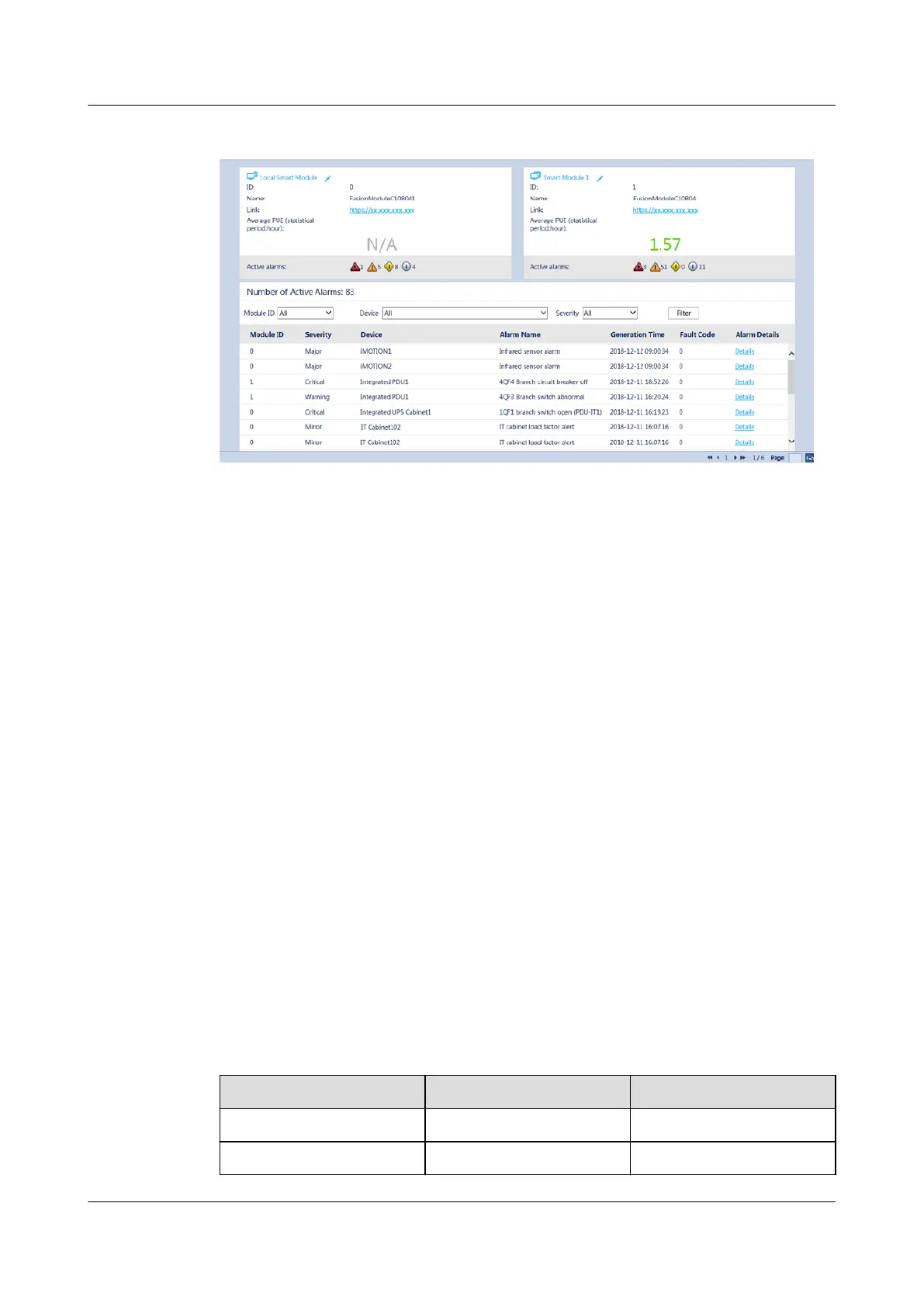
Figure 6-2 ECC800-Pro cascading page
Step 6 (Optional) Click the alarm bubble in the Active alarms area in a smart module to
view the corresponding active alarm information.
Step 7 (Optional) Click the pencil icon next to a smart module name, and the Edit Smart
Module Title dialog box is displayed. Change the smart module name and click
Conrm.
Step 8 (Optional) Click Link in a smart module on the cascading page to access the
corresponding ECC800-Pro login page.
Step 9 (Optional) Filter and query the details of each alarm by smart module, device, or
alarm severity in the Active alarms area.
----End
6.3 Commissioning a UIM20A Expansion Module
Context
Devices connected through the UIM20A expansion module (UIM for short) can be
automatically or manually bound in the smart module view.
Procedure
Step 1 Log in to the ECC800-Pro WebUI as an administrator.
Step 2 Choose System Settings > Device Management, and click Auto Discover Device
to add the device. Devices connected to the UIM can be
identied.
Table 6-1 Devices that support self-identication
Device Name
Device Model Version
T/H sensor ENR1DETA V358
Intelligent rPDU MD-1324-2004 huawei-mpdu-V1.5.4
ECC800 Data Center Controller
User Manual (for ECC800-Pro) 6 Feature Description
Issue 02 (2020-09-07) Copyright © Huawei Technologies Co., Ltd. 128



 To Next Page