Step 7 (Optional) If the management domain is a rack, click the management domain
and choose Design under . The page for adding a device is displayed.
Otherwise, skip this step.
Step 8 In the lower-left corner of the page, click the Device tab. Click the drop-down list
box in Type and select Sensor.
Step 9 In this example, a Polymer temperature and humidity (T/H) sensor is added in the
equipment room of the root node. Select the device to be added and drag its icon
to the management domain.
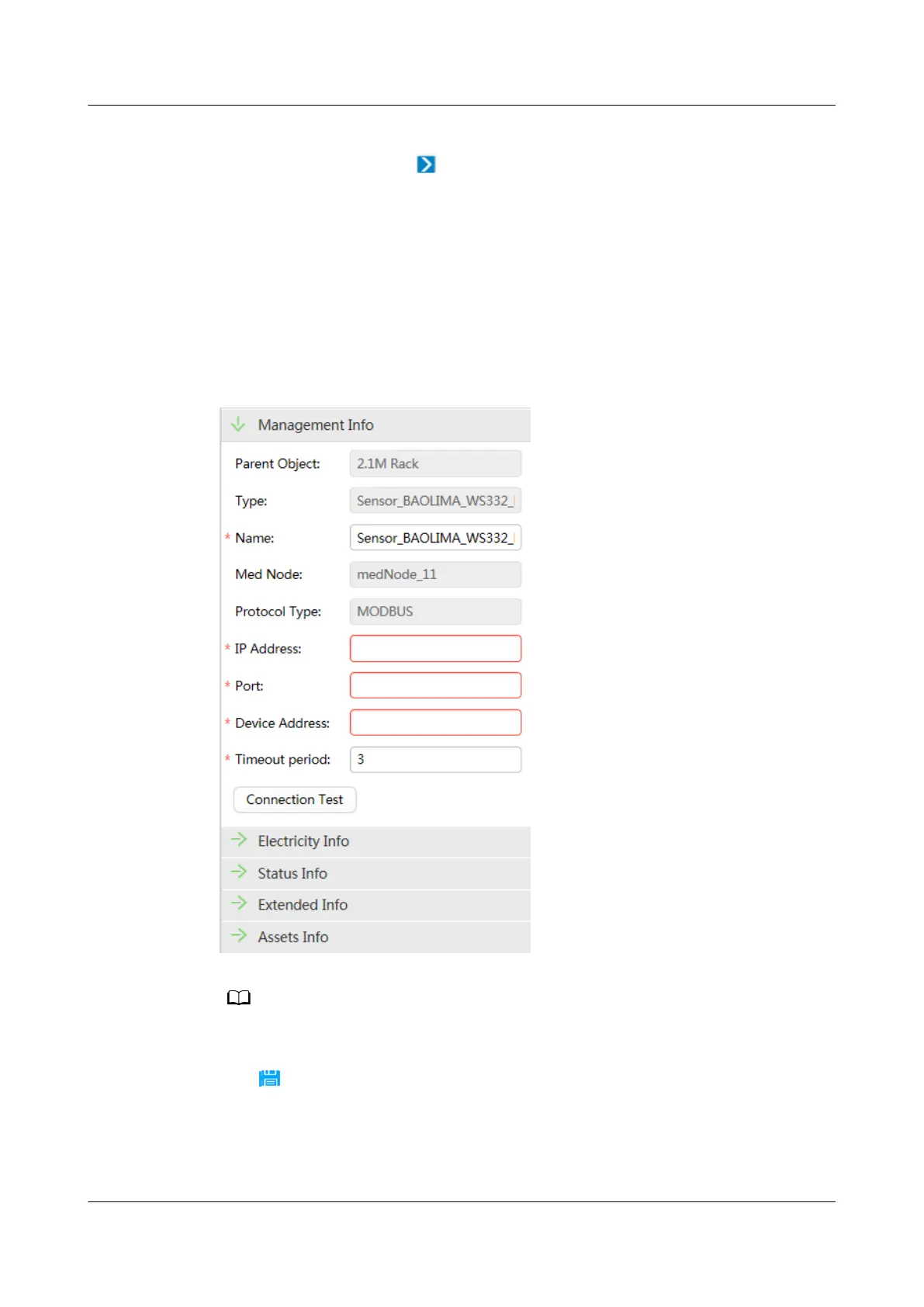
Step 10 Set management attributes.
Figure 6-86 Page for setting management attributes
IP Address indicates the ECC800-Pro login IP address. Port indicates the ECC800-Pro COM2
port (3212). Device Address indicates the Polymer T/H sensor address.
Step 11 Click to save the created device view.
Step 12 Choose System > Conguration > Transmission Channel Management.
Step 13 Click Modify after selecting the IP address of the ECC800-Pro connected to the
NMS.
ECC800 Data Center Controller
User Manual (for ECC800-Pro) 6 Feature Description
Issue 02 (2020-09-07) Copyright © Huawei Technologies Co., Ltd. 240



 To Next Page