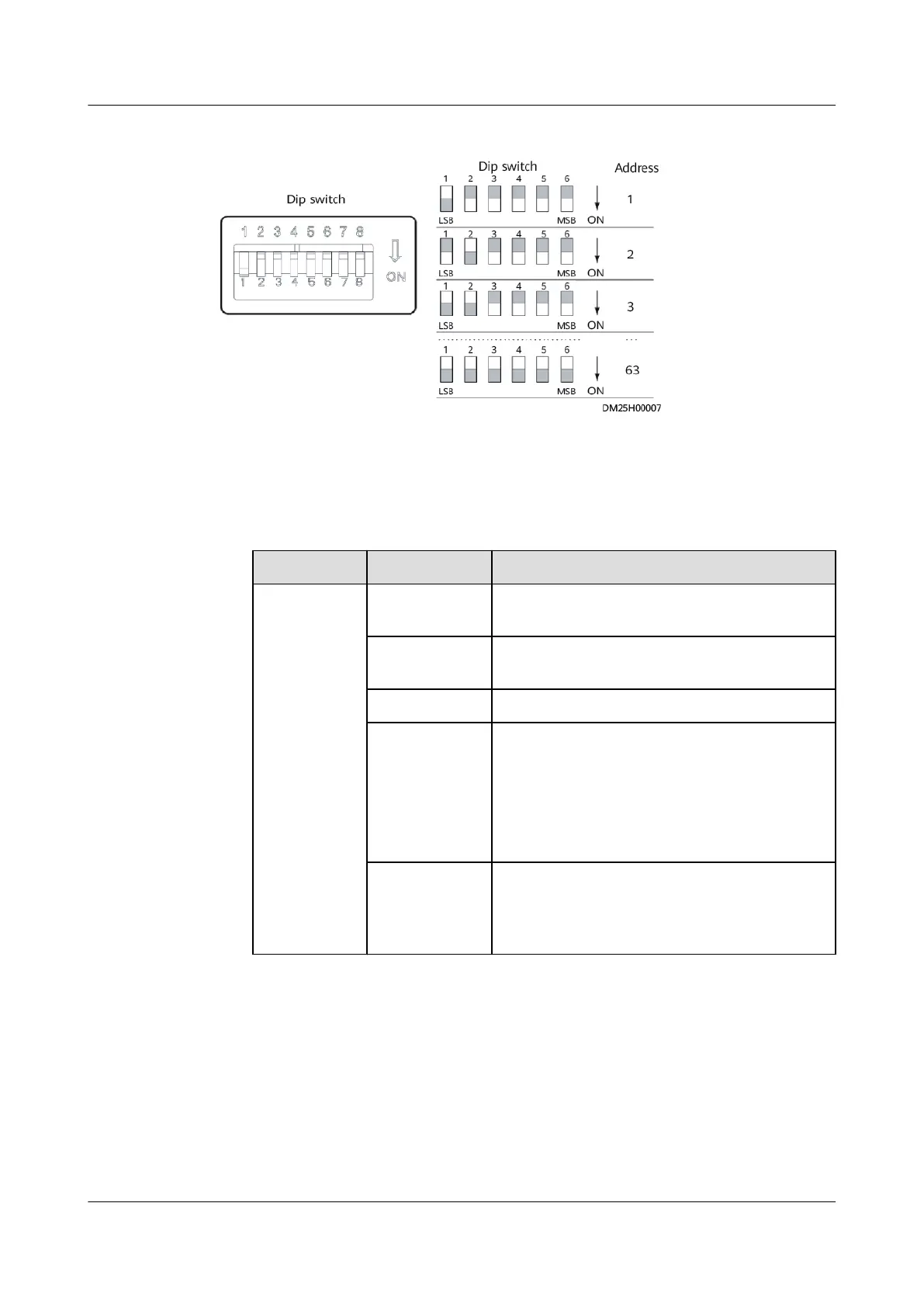
Figure 8-23 T/H sensor DIP switch
Step 2 Add a T/H sensor.
1. Log in to the ECC800-Pro WebUI as an administrator.
2. Add a T/H sensor.
Table 8-44 Adding a T/H sensor
Path Parameter Setting
Choose
System
Settings >
Device
Manageme
nt and click
Add Device.
The
parameters
for adding
devices are
displayed.
Device
attribute
Select Sensor from the drop-down list box.
Device Type Select T/H sensor from the drop-down list
box.
Connect To Select ECC800 from the drop-down list box.
Communicatio
ns Port
Select COM3 from the drop-down list box.
NOTE
The setting example indicates that the T/H
sensor is connected to the COM3 port on the
ECC800-Pro. If the T/H sensor is connected to
another port, enter the number of the connected
port.
Device
Address
In this example, Device Address is set to 1.
During actual conguration, set the device
address for the T/H sensor based on the
actual situation.
3. Click Test Connect to check whether the T/H sensor connects to the ECC800-
Pro properly.
– If the T/H sensor connects to the ECC800-Pro successfully, click
Conrm.
The connected devices are displayed in the Number of connected
devices list.
– If the connection fails, check whether the T/H sensor is properly
connected to the ECC800-Pro, whether the T/H sensor and ECC800-Pro
are running properly, and whether the parameter settings are consistent
with the T/H sensor parameters.
ECC800 Data Center Controller
User Manual (for ECC800-Pro) 8 FAQ
Issue 02 (2020-09-07) Copyright © Huawei Technologies Co., Ltd. 315



 To Next Page