HOTSPOT GATEWAY
System Administration 125
Adding a Realm Routing Policy
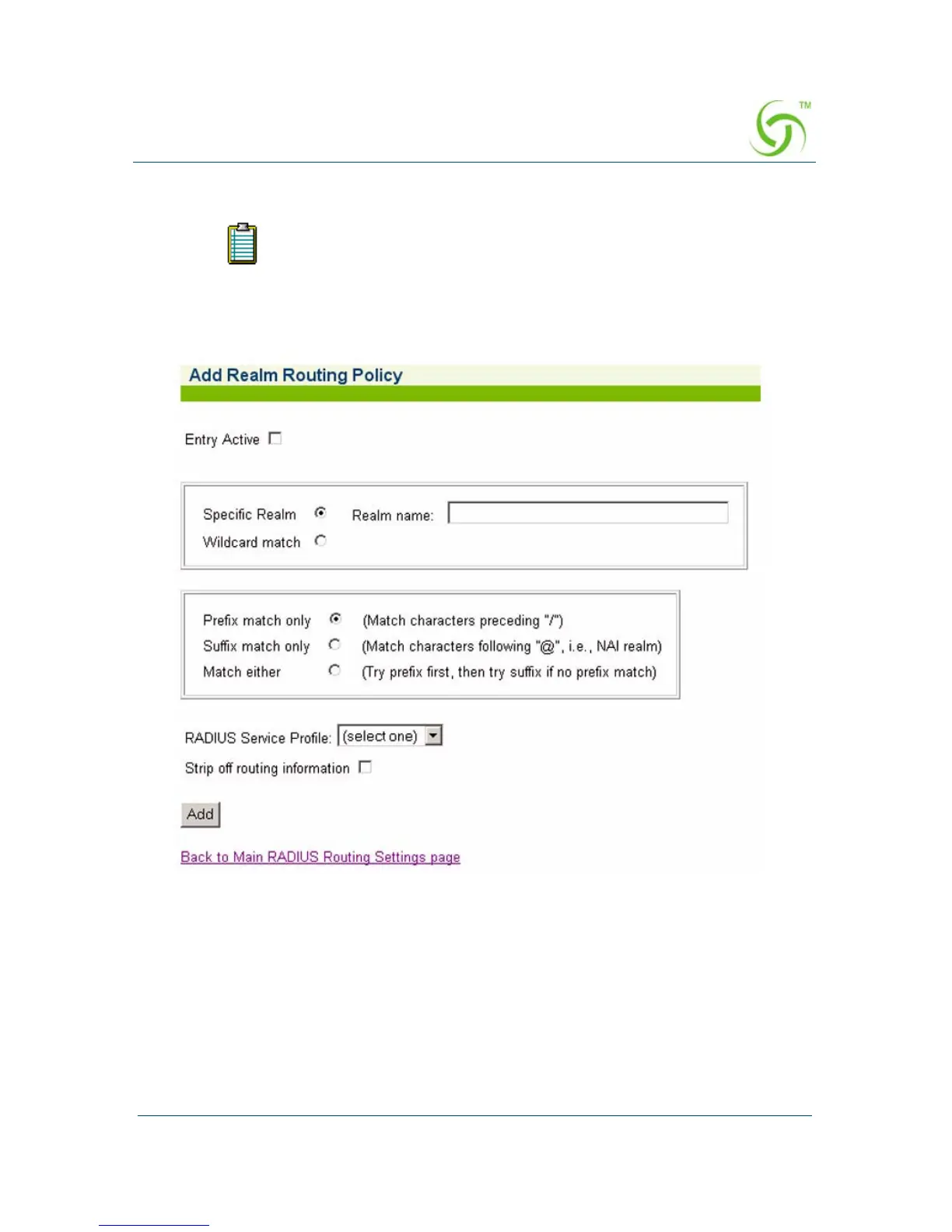
1. To add a RADIUS Service Profile, click on the appropriate Add button on the
Realm-Based Routing Settings screen. The Add Realm Routing Policy screen
appears:
2. To make this entry the “active” entry, click on the Entry Active check box.
3. To define a specific realm, choose the Specific Realm option and enter the
destination in the
Realm Name field. Alternatively, you can choose the Wildcard
match
option, then define your search options:
z Prefix match only
z Suffix match only
z Match either
Your product license may not support this feature.



 To Next Page