HOTSPOT GATEWAY
System Administration 127
Managing SMTP Redirection {SMTP}
When SMTP redirection is enabled (for misconfigured or properly configured
subscribers), the HSG redirects the subscriber’s E-mail through a dedicated SMTP
server, including SMTP servers which support login authentication. To the
subscriber, sending and receiving E-mail is as easy as it’s always been. This function
is transparent to subscribers.
1. From the Web Management Interface, click on Configuration, then SMTP.
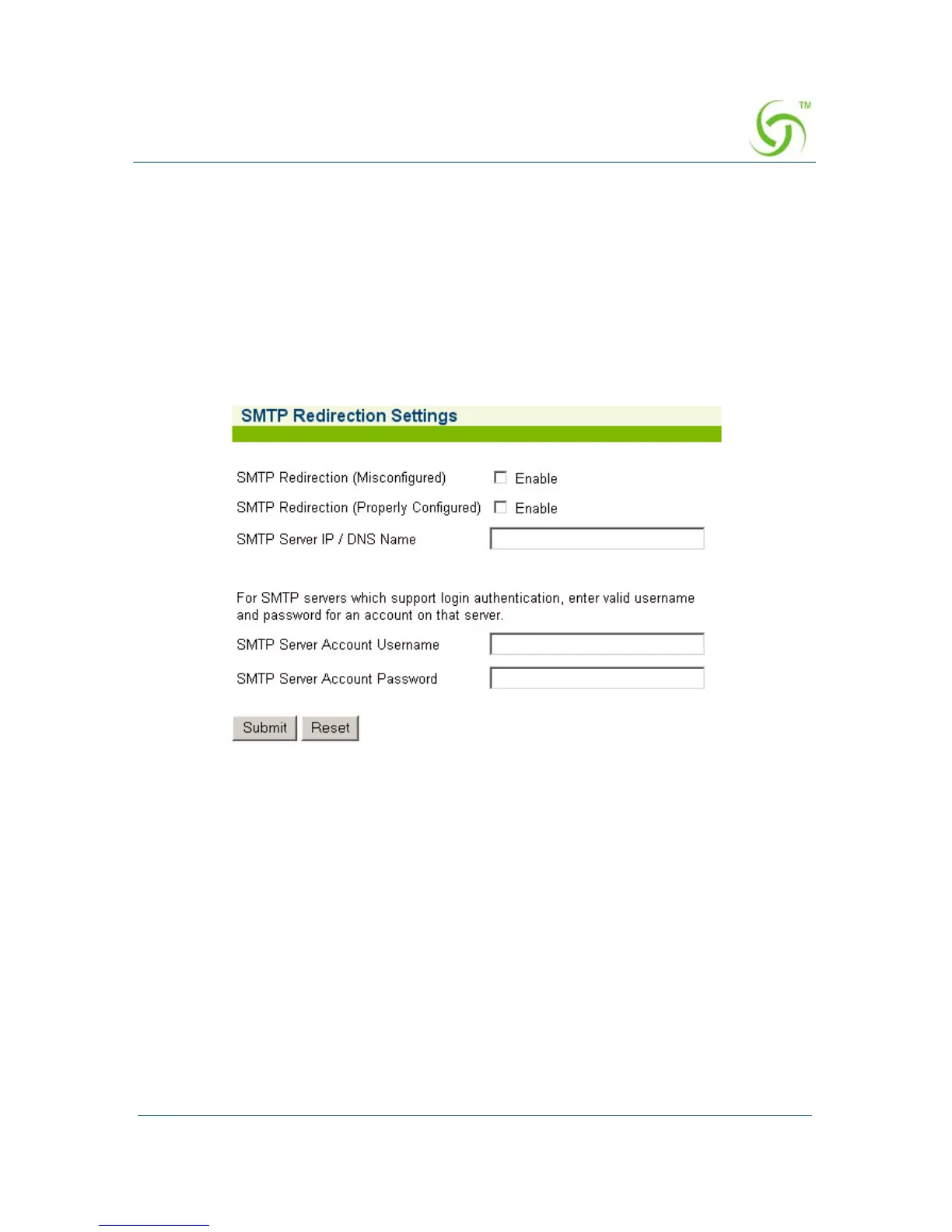
The SMTP Redirection Settings screen appears:
2. Click on the check box for SMTP Redirection (Misconfigured) to enable this
feature for “misconfigured” subscribers.
3. Click on the check box for SMTP Redirection (Properly Configured) to enable
this feature for “properly configured” subscribers. If you enable SMTP
redirection, you must provide the IP address of the SMTP server.
4. In the SMTP Server IP/DNS field, enter the address of the SMTP server you
want to use.
5. For SMTP servers which support login authentication, enter a valid username in
the SMTP Server Account Username field.
6. For SMTP servers which support login authentication, enter a valid password in
the
SMTP Server Account Password field.
7. Click on the Submit button to save your changes, or click on the Reset button if
you want to reset all the values to their previous state.



 To Next Page