116 / 374
SOCT User Manual Version 10.0 rev. A
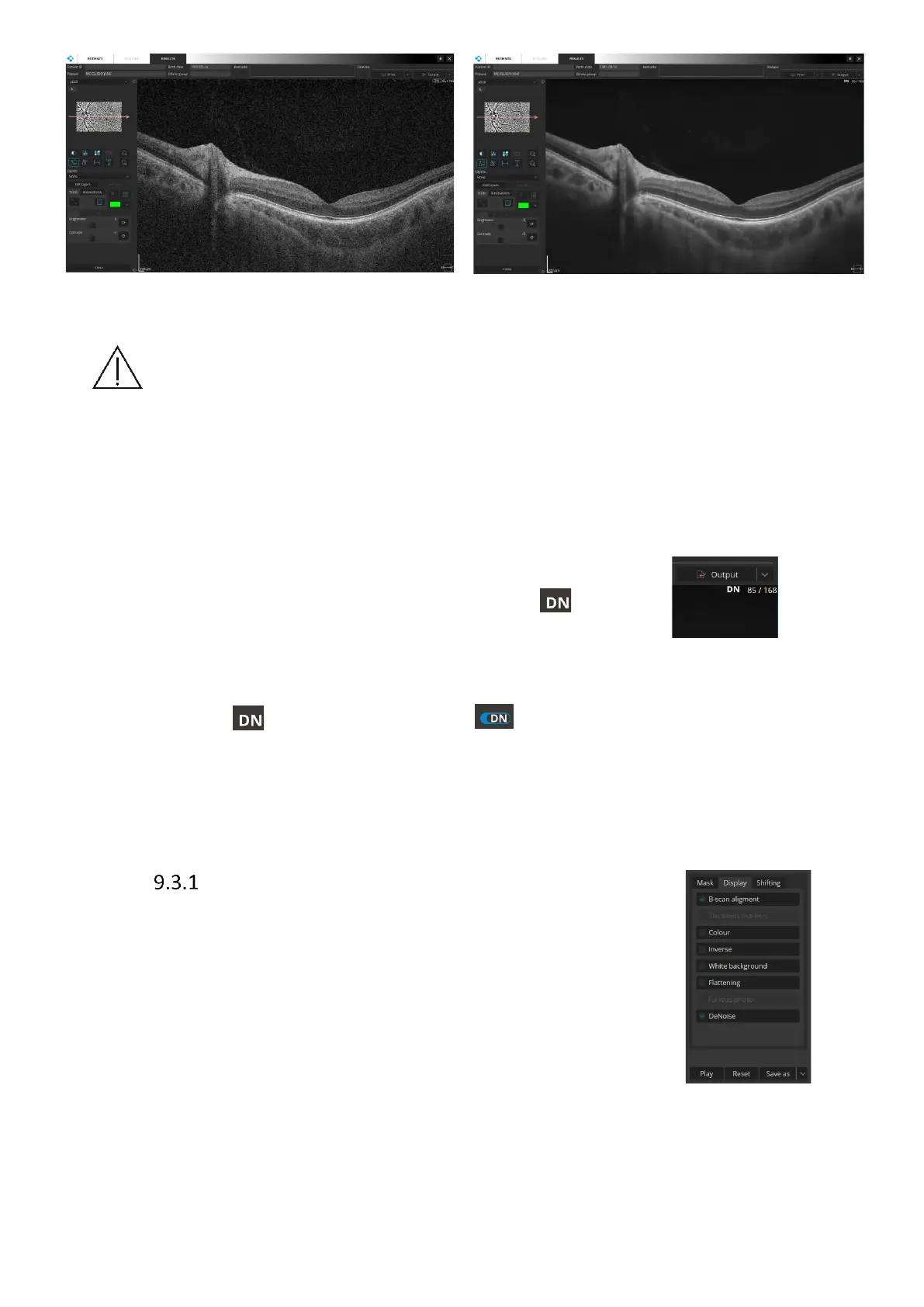
CAUTION The AI DeNoise algorithm works to enhance the visibility of morphological
structures by processing the original image. However, tomograms with very low
signal level or low QI may be challenging to be processed correctly. When working
with such tomograms it is recommended that the user always compares the denoised
image with the unprocessed image to make sure there is no variance between
morphological structures presented on both tomograms.
Turning AI DeNoise on and off
When the AI DeNoise function is on it is indicated by the sign in
the upper right-hand corner of the tomogram.
You can always turn the function off and go back to the original image. To do that hover your
mouse over the sign. It will change into the switch for you to click the function off.
Clicking the switch again turns the function back on.
The state of the switch on shutdown is remembered to be restored when you launch the
software again.
3D Tab
The AI DeNoise function in 3D tab is available in both the Solid and the
Volume view. To turn it on go to the settings section inside the tab and click
Display. At the bottom of the Display tab there is an AI DeNoise checkbox.
Select it to apply the AI DeNoise algorithm to the image. If you deselect the
checkbox the denoise function is turned off. The state of the checkbox
inside the 3D tab does not influence the AI DeNoise switch in other tabs.


 To Next Page