46 / 374
SOCT User Manual Version 10.0 rev. A
6 PATIENT WINDOW
The Patient tab will appear after login screen. Patient tab enables the user to easily manage
patients’ database:
- add new patients to the database,
- delete patients from the database,
- edit patients’ personal data,
- enter remarks regarding patients,
- import/export data.
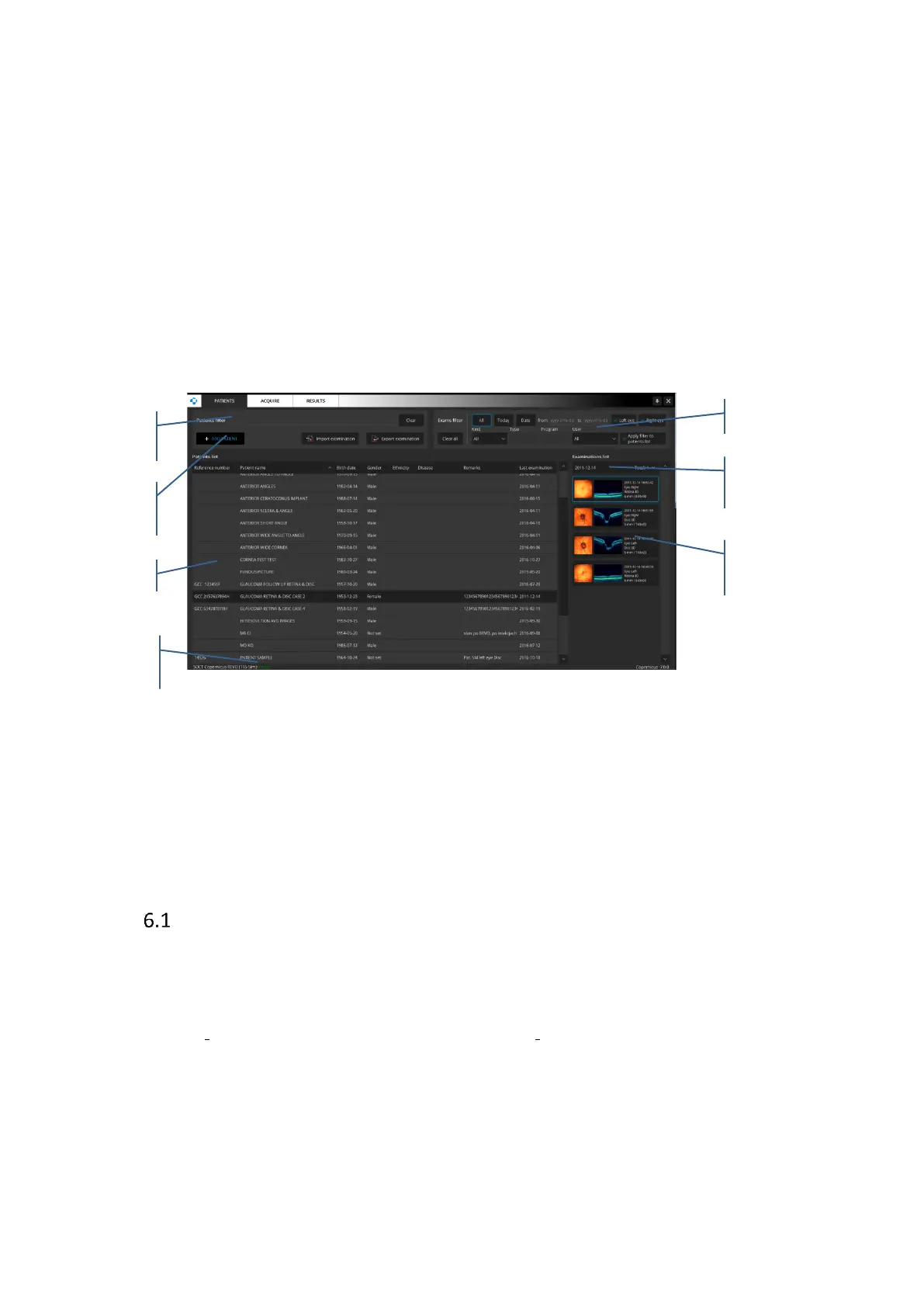
All the controls of main window with short description are shown in the picture below.
Result
Software version
Device Status and SN
It enables to preview and analyze taken examinations.
Version of application.
Device status (Ready, Busy or not connected) and Serial Number.
Patient list view
By default, patients are sorted in the list by Patient name. Click the Reference number header
to sort them by ID number. It is also possible to sort by another column.
In order to search a specific patient in the list you can enter a few first letters of the name in
patient filter box. System will show the closest matching record. Customization of the patient
list is available.
It is possible to customize the patients list view. To hide columns: Gender, Ethnicity, Disease
and remarks, Right Click over the header to open menu. Uncheck unwanted column from


 To Next Page