65 / 374
SOCT User Manual Version 10.0 rev. A
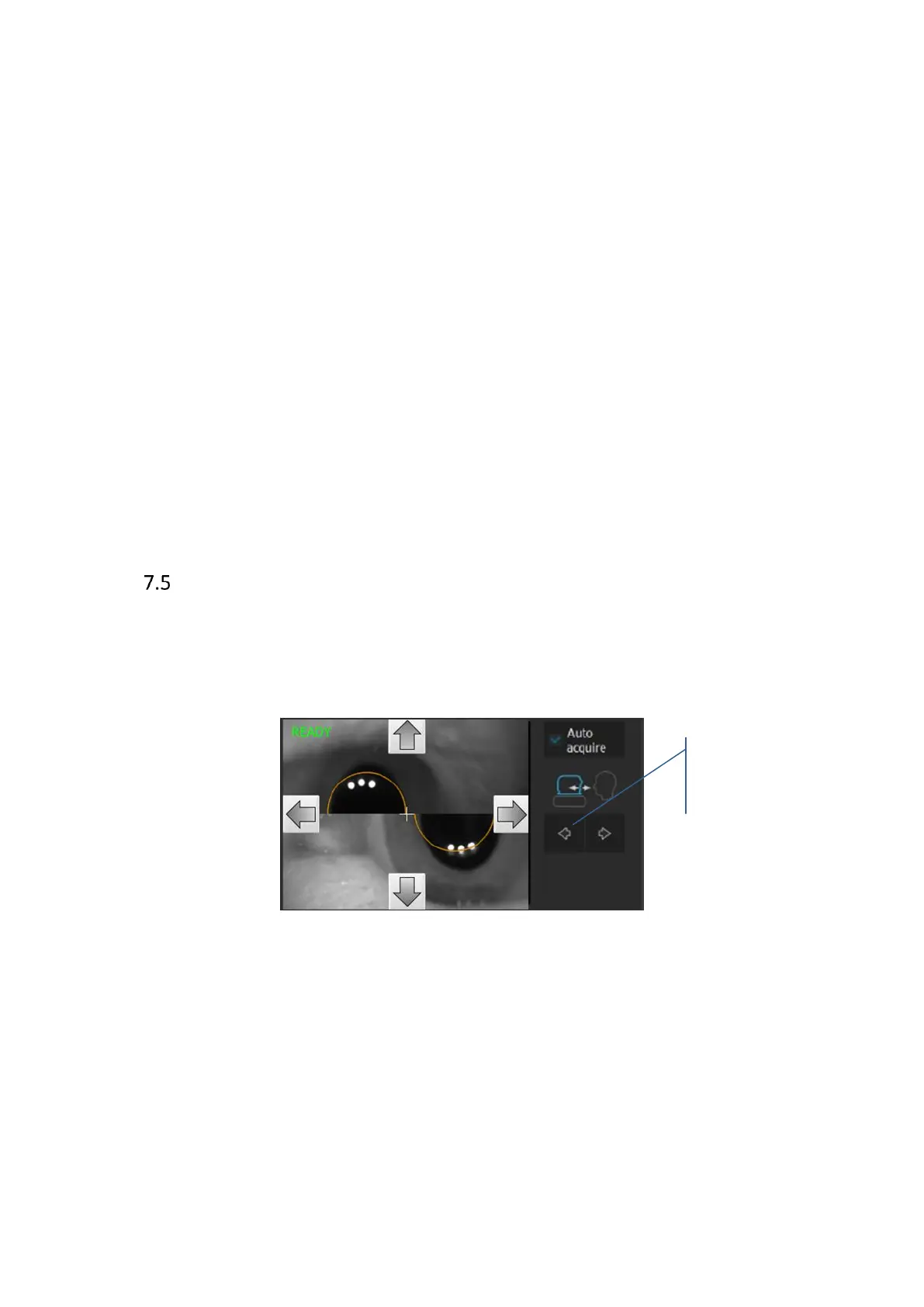
Up/Down Left/Right controls Movement controls buttons appear when the field is
active (click or place the mouse cursor over). They control
movement of the device’s head in Left, Right, Up, Down
directions.
Movement controls Movement controls buttons appear when eye preview
panel is active e.g. the mouse cursor is over it or user
touched the eye preview panel.
Auto Acquire When checked system will start acquisition of data
automatically after auto alignment of eye structure.
When the cursor is over Eye preview window: scrolling the mouse wheel moves the head back
and forth.
On Eye preview the device indicates the end of range movement, by display of red symbol and
playing ‘Prompt’ sound.
Eye preview
Eye preview window displays views from two cameras. In work distance position the image is
composed as single anterior view. System is detecting patient’s pupil. When pupil is detected,
status READY is visible and [START] button is active. Device has to be positioned in LEFT or
RIGHT side as central position will not allow to take proper exam.
Figure 18. Movement control buttons.
When the cursor is over the eye preview window: movement control buttons
(Up/Down/Righ/Left) are displayed, scrolling the mouse wheel or pressing movement buttons,
moves the scanning head back and forward. In working position X, Y, Z axis the white cross has
to be in the center of equally aligned pupil. When scanning head is in the working distance,
click on the pupil to move the scanning head across the center of the pupil (shift in X, Y axis).


 To Next Page