66 / 374
SOCT User Manual Version 10.0 rev. A
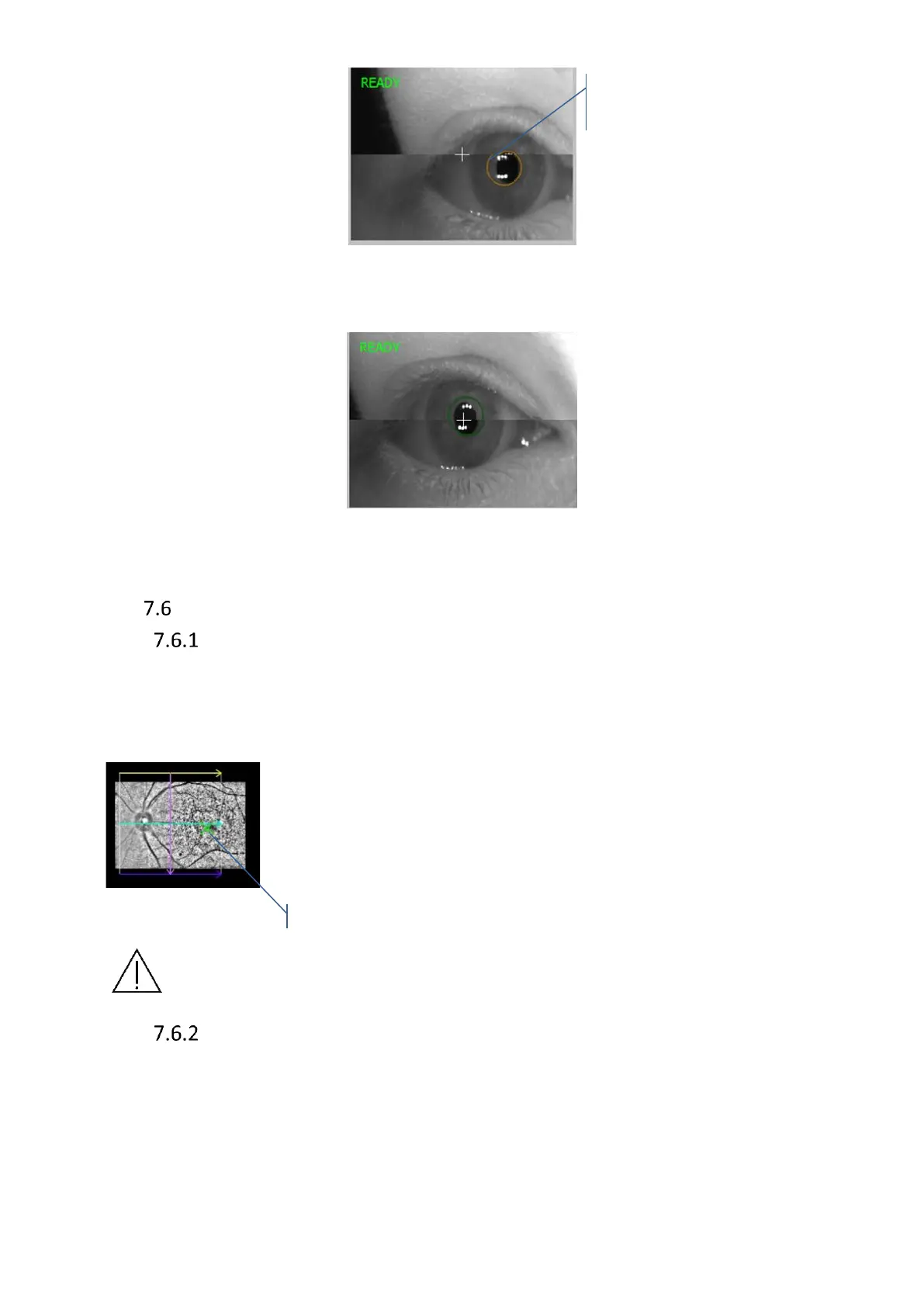
Figure 19.Device aligns to the place of clicking on the preview
Properly align the pupil to start searching for the oct signal.
Figure 20. Properly aligned measurement head position
Fundus preview
pSLO Live fundus preview
Pseudo SLO (pSLO) live image shows the enface view of fundus. pSLO image appears when
OCT signal is properly aligned. View is overlaid with a box indicating the location of the scan
pattern on the fundus and a green cross indicating the location of the fixation target. You can
adjust the patient’s fixation by moving the fixation target, and change scanner offset position.
Scrolling the mouse wheel over pSLO can change the working position
(compensate edge shadows effected by small pupil during wide and
peripheral scan of retina). Click and drag the box to adjust scan
placement. Pressing the right mouse button allows to select higher
resolution or higher refresh rate from the menu.
NOTE: During the alignment of OCT signal on the live tomogram preview pSLO
image is frozen during the tomogram alignment.
IR Preview
To optimize the image on the IR preview, move the scanning head to the optimal fundus
position in one of the following ways:
a. Over the eye preview window: by scrolling the mouse wheel or pressing the movement
buttons (Up, Down, Right, Left)


 To Next Page