72 / 374
SOCT User Manual Version 10.0 rev. A
The operator is able to save their own settings as a default program for example in order to:
reduce time of examination, obtain a more detailed reconstruction of the retina.
By selecting [Restore settings] it is possible to return to the default examination settings.
To optimize the image on the IR preview, see chapter 7.7.2 IR Preview.
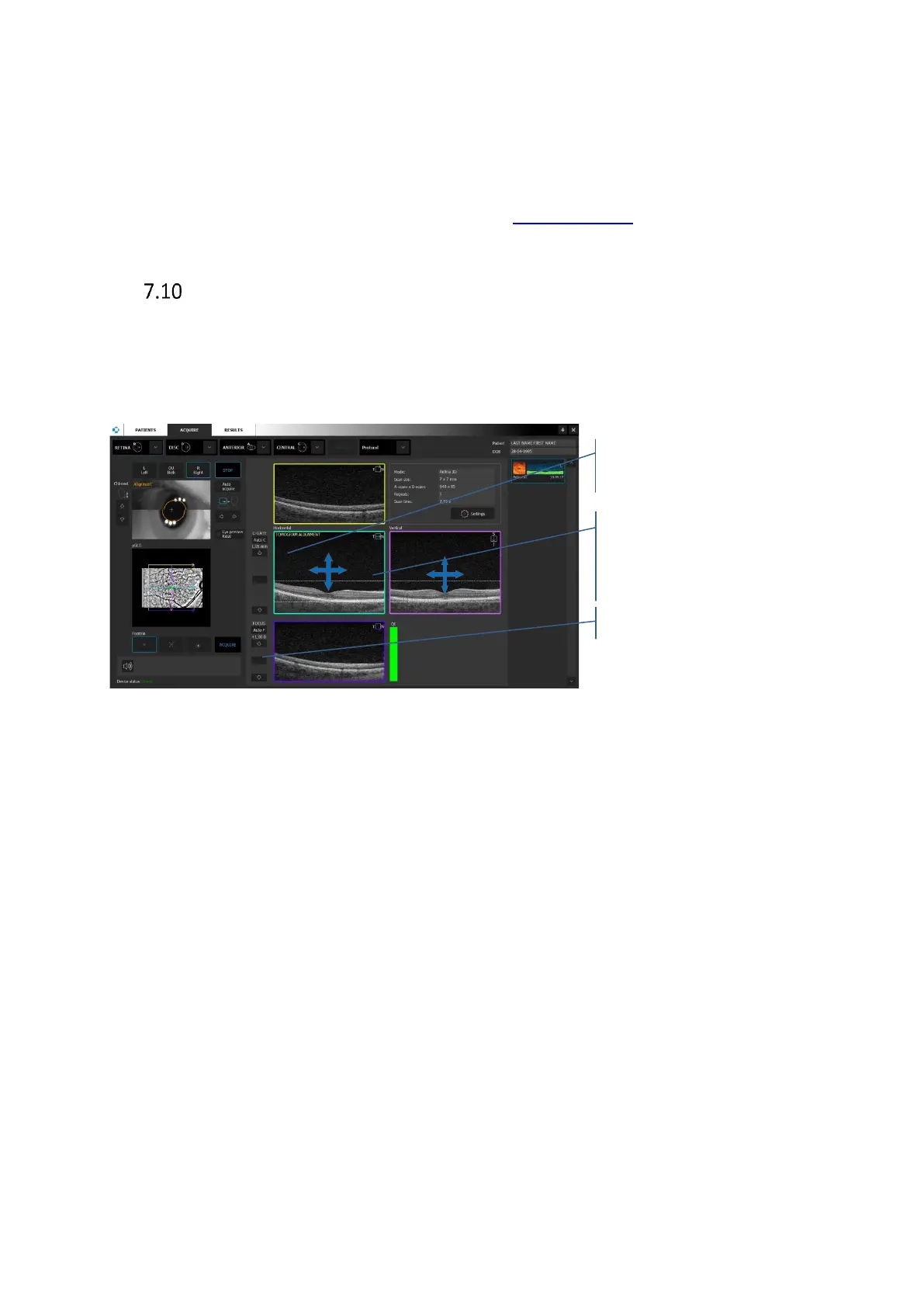
Live OCT preview
OCT live preview has four tomogram previews for the 3D scan types and two for viewports for
other type of scan. For 3D scans, each viewport includes a color-coded scan marker at upper
right, to identify each scan line. The color and orientation of each marker correspond to the
color and orientation of the lines that make up the scan pattern overlay in the pSLO preview.
Figure 28. Tomogram preview images, manual position adjustment
On the Horizontal and Vertical image, it is possible to correct position of the tomogram. Grab
and move the oct image (e.g. retina) to desired position. On the Horizontal preview left/right
movement corresponds to the left/right scan head movement. On the Vertical preview
left/right movement corresponds to up/down scanning head movement.
[Auto C-gate] compensates position of object on the OCT live window preview (length of
coherence gate) and [A-Focus] (Refraction compensation) buttons and sliders to the left help
you improve the scan image quality and center it vertically.
Grab and move the tomogram to
correct its position. Left/Right
movement corresponds to up/down


 To Next Page