85
Polyend Tracker+ Manual
NOTES
Sequencing Steps
5
Example of using a basic Fill
As a quick start introduction to creating lls and example to populate an
empty range with notes followed by lling the FX1 for the series of notes
with a pan variation effect. This will play a percussion segment,
▌ CREATING A NOTE FILL
1. Press [Pattern] to select the Pattern Mode page.
2. Press [Instrument] and select a percussive sound. The ‘606-ClosedHat’
sample has been loaded into the project instrument list and will be used
for this example.
3. Press [Rec] to switch to recording mode. The step bounding box will
turn red and allow editing of steps.
4. Select a range of empty steps: Hold [Shift] + [Up], [Down], [Left] or
[Right]. For this example select 8 step rows on a single track. The
option for selecting multiple rows and tracks is possible.
5. Ensure the notes step parameter is selected in the pattern range
selected: Press [Note], which will be highlighted solid red.
6. Press [Fill], 4
th
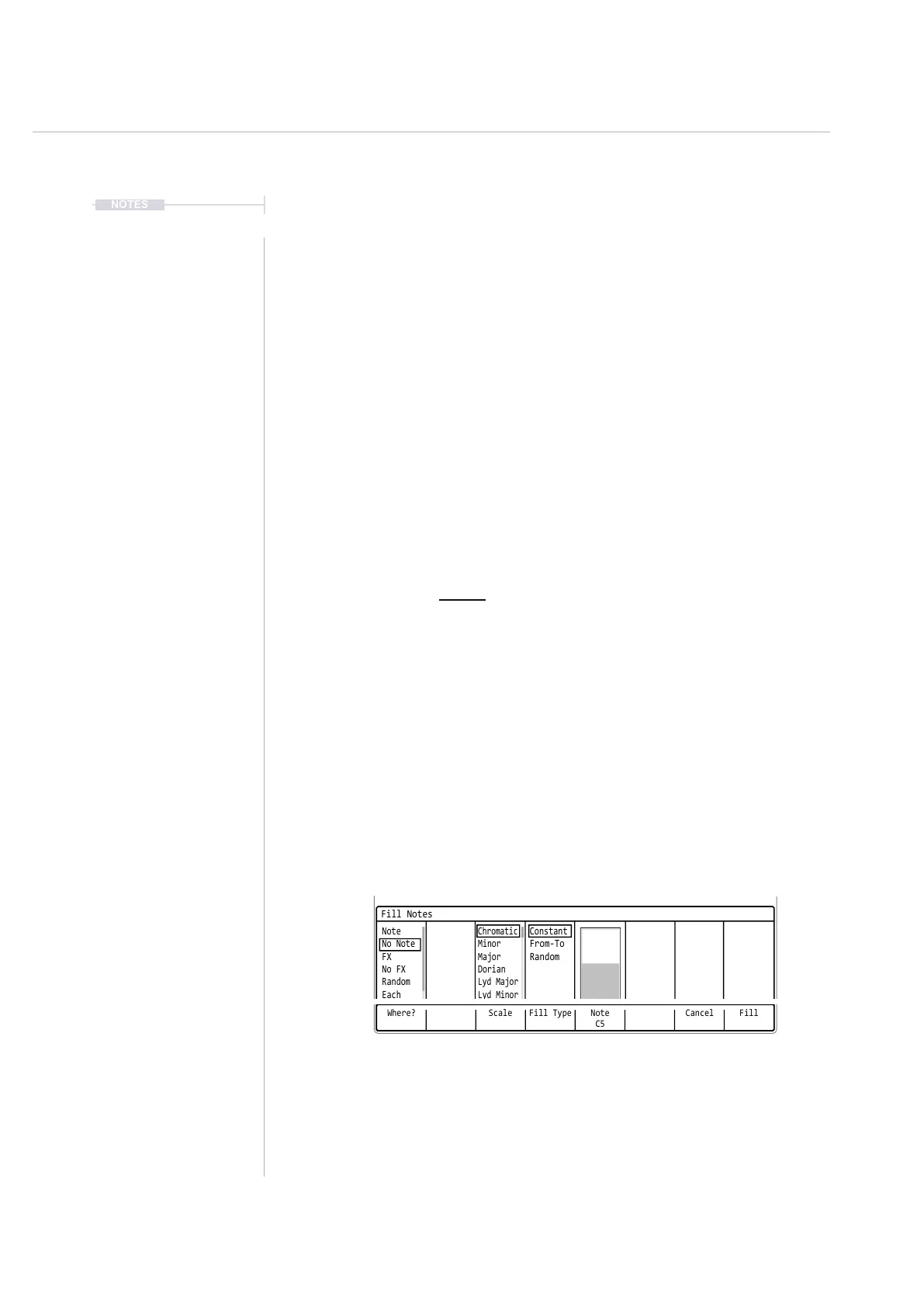
Screen button. This will open the Fill utility pop-up
window.
7. Press [Where?], 1
st
Screen button. Repeat presses will cycle through
the options. Also, with the ‘Where?’ section highlighted, [Up], [Down] or
Turning (Jog) will select options.
Where? Scale Fill Type CancelNote
C5
Fill
Fill Notes
Note
Chromatic
Constant
No Note
Minor
From-To
FX
Major
Random
No FX
Dorian
Random
Lyd Major
Each
Lyd Minor



 To Next Page