U.4.28
SEL-421 Relay User’s Guide Date Code 20090715
Basic Relay Operations
Making Simple Settings Changes
If you see no error message, the new settings are loaded
in the relay.
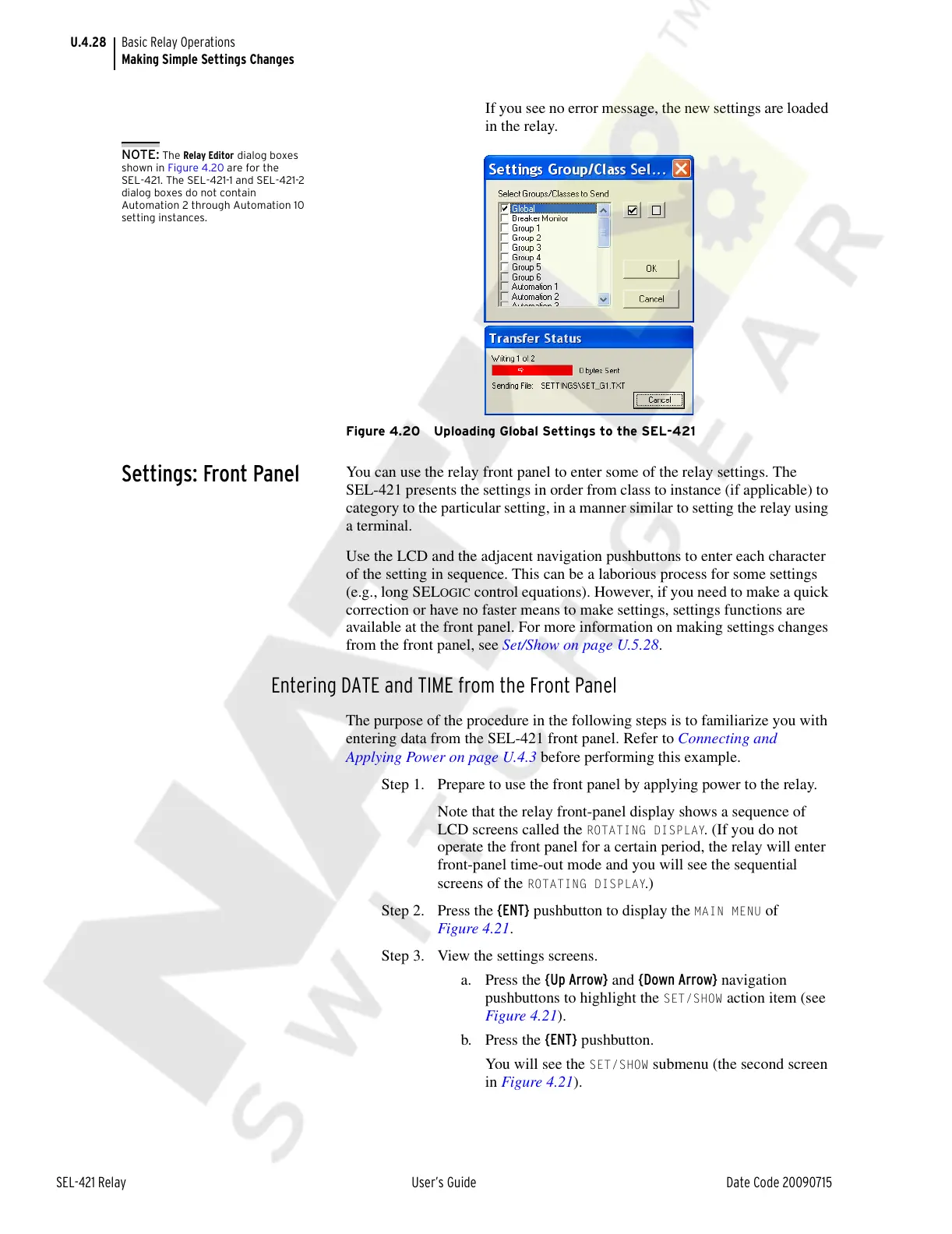
NOTE: The Relay Editor dialog boxes
shown in Figure 4.20 are for the
SEL-421. The SEL-421-1 and SEL-421-2
dialog boxes do not contain
Automation 2 through Automation 10
setting instances.
Figure 4.20 Uploading Global Settings to the SEL-421
Settings: Front Panel
You can use the relay front panel to enter some of the relay settings. The
SEL-421 presents the settings in order from class to instance (if applicable) to
category to the particular setting, in a manner similar to setting the relay using
a terminal.
Use the LCD and the adjacent navigation pushbuttons to enter each character
of the setting in sequence. This can be a laborious process for some settings
(e.g., long SEL
OGIC control equations). However, if you need to make a quick
correction or have no faster means to make settings, settings functions are
available at the front panel. For more information on making settings changes
from the front panel, see Set/Show on page U.5.28.
Entering DATE and TIME from the Front Panel
The purpose of the procedure in the following steps is to familiarize you with
entering data from the SEL-421 front panel. Refer to Connecting and
Applying Power on page U.4.3 before performing this example.
Step 1. Prepare to use the front panel by applying power to the relay.
Note that the relay front-panel display shows a sequence of
LCD screens called the
ROTATING DISPLAY. (If you do not
operate the front panel for a certain period, the relay will enter
front-panel time-out mode and you will see the sequential
screens of the
ROTATING DISPLAY.)
Step 2. Press the {ENT} pushbutton to display the
MAIN MENU of
Figure 4.21.
Step 3. View the settings screens.
a. Press the {Up Arrow} and {Down Arrow} navigation
pushbuttons to highlight the
SET/SHOW action item (see
Figure 4.21).
b. Press the {ENT} pushbutton.
You will see the
SET/SHOW submenu (the second screen
in Figure 4.21).
Courtesy of NationalSwitchgear.com


 To Next Page