U.5.3
Date Code 20090715 User’s Guide SEL-421 Relay
Front-Panel Operations
Front-Panel Layout
Select SEL-421 models feature auxiliary {TRIP}/{CLOSE} pushbuttons. These
pushbuttons are electrically isolated from the rest of the relay. See Auxiliary
{TRIP}
/
{CLOSE}
Pushbutton and Breaker Status LED Jumpers (select models
only) on page U.2.29 for more information about this feature.
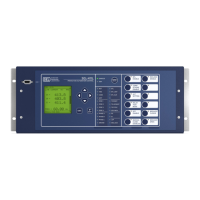
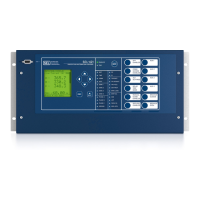
The SEL-421 front panel features large operator control pushbutton switches
with annunciator LEDs that facilitate local control. Factory default settings
associate specific relay functions with these direct-action pushbuttons and
LEDs. Using SEL
OGIC
®
control equations or front-panel settings PBn_HMI,
you can readily change the default direct-action pushbutton functions and
LED indications to fit your specific control and operational needs. Change the
pushbutton and pushbutton LED labels with the slide-in labels adjacent to the
pushbuttons. The asserted and deasserted colors for the LEDs are
programmable.
The SEL-421 front panel includes an EIA-232 serial port (labeled PORT F) for
connecting a communications terminal or using the
ACSELERATOR QuickSet
®
SEL-5030 software program. Use the common EIA-232 open ASCII
communications protocol to communicate with the relay via front-panel
PORT F. Other communications protocols available with the front-panel port are
M
IRRORED BITS
®
communications, and DNP3. For more information on
communications protocols and PORT F, see Communications Ports Connections
on page U.2.47 and Serial Communication on page R.4.2.
Front-Panel LCD
The LCD is the prominent feature of the SEL-421 front panel. Figure 5.3
shows the areas contained in the LCD:
➤ Title area
➤ Main area
➤ Message area
➤ Scroll bars
The scroll bars are present only when a display has multiple screens.
Figure 5.3 LCD Display and Navigation Pushbuttons
Front-Panel Inactivity Time Out
An LCD backlight illuminates the screen when you press any front-panel
pushbutton. This backlight extinguishes after a front-panel inactivity time out.
You can control the duration of the time out with relay setting FP_TO, listed in
Table 5.1.
Title Area
Main Area
Scroll Bars
Message Area
Navigation
Pushbuttons
Courtesy of NationalSwitchgear.com


 To Next Page