Unloading Material Connecting Material Coil Box To Printer
Page 119
© Copyright 2021 Stratasys. All rights reserved.
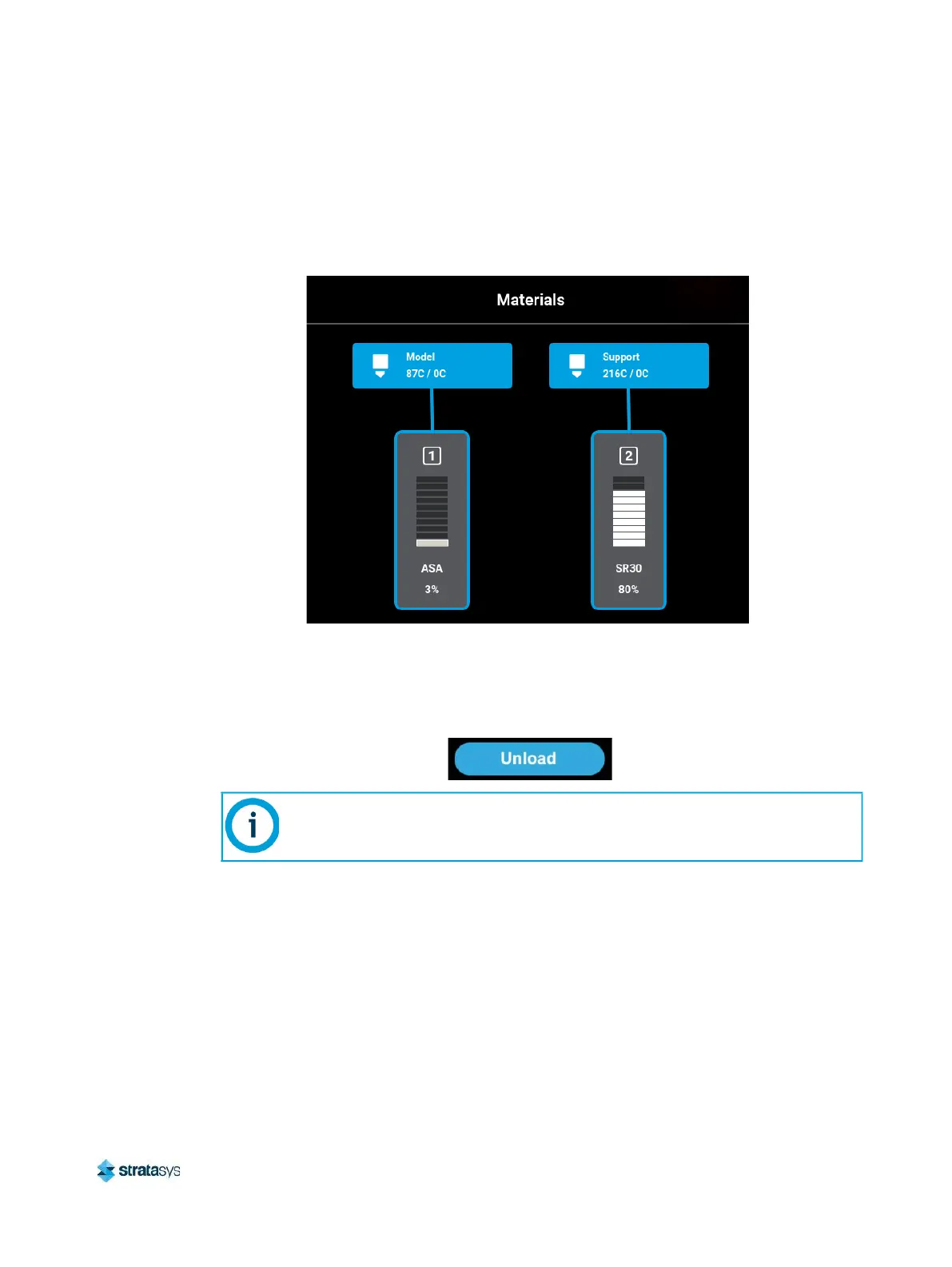
3. Observe the status information displayed for each of the Materials Status Icons. For a
loaded material, the pathway between the material’s Material Status Icon and
corresponding Head Status Icon will be solid blue, the Head Status Icon will be blue, and
the Material Status Icon will display a solid blue border.
Figure 15: Current Configuration - Unload Material
4. Open the Material Details page corresponding to the material you want to unload by
touching its Material Status Icon on the screen.
5. Press the Unload button within the Material Details page.
Figure 16: Unload Button
6. The F770 unload material wizard initializes and material begins to unload from the head.
The unload process will take several minutes; please be patient. During this process, the
corresponding LED will blink red.
• The pathway displayed between the Material Status Icon and the corresponding Head
Status Icon becomes highlighted to indicate unload progress (see
Figure 32 (page 35)).
• The Head Status Icon will refresh and become solid gray, indicating that material is no
longer loaded to the head.
7. When the material is unloaded from the head and the F770 material unload wizard has
completed its process. See Figure 18 (page 120).
Only one material can be unloaded at a time. If during the unload cycle a time out
condition occurs, the corresponding LED will display solid red.


 To Next Page
 Loading...