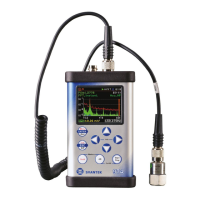
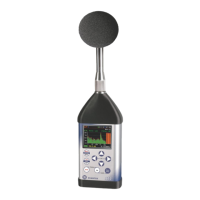
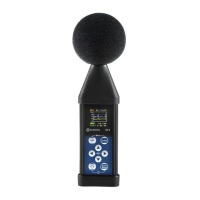
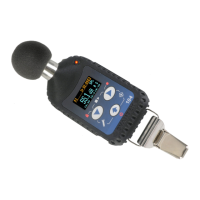
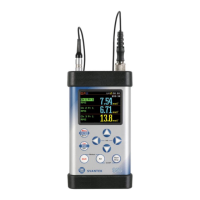
2.3 CONTROL KEYS ON THE FRONT PANEL
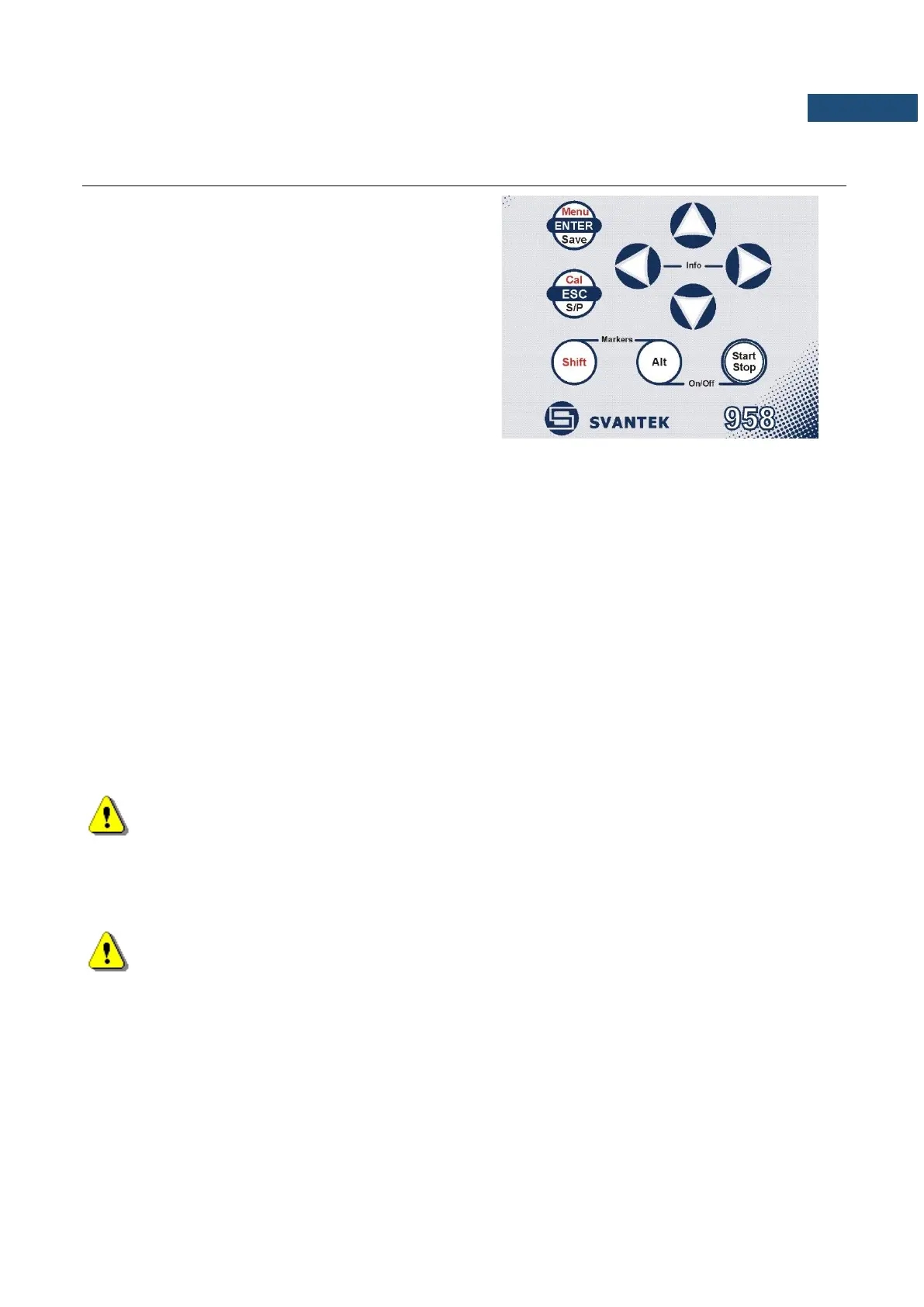
The following control keys are located on the front panel
of the instrument:
• <ENTER>, (<Menu>), [<Save>],
• <ESC>, (<Cal.>), [<S/P>],
• <Shift>, [Markers]
• <Alt>, [Markers]
• ▲,
• ◄,
• ►,
• ▼,
• <Start/Stop>.
The name given in (...) brackets denotes the second key function which is available after pressing it in
conjunction (or in sequence) with the <Shift> key. For the first two keys the name given in square brackets […]
denotes also the third key function which is available after pressing it in conjunction (or in sequence) with the
<Alt> key.
The second function of a key (written in red colour on a key) can be used when the <Shift>
key is pressed. This key can be used in two different ways:
• as Shift like in a computer keyboard (e.g. while typing the filename); both <Shift> and
the second key must be pressed together (two finger operation);
• as 2nd Fun; this key can be pressed and released before pressing the second one or
pressed in parallel (while operating in “2nd Fun” mode, see the following notice) with
the second key (one finger operation).
The <Shift> key pressed in conjunction with <Alt> enables the user to enter the Markers on
the plots during the measurement.
This key enables the user to choose the third key function in case of [<Save>] and [<Pause>]
keys. In order to select the third function the user must press the <Alt> and the second key
simultaneously.
Note: Simultaneously pressing the <Alt> and <Start/Stop> keys switches the instrument on or off.
This key enables the user to start the measurement process when the instrument is not
measuring or to stop it when the instrument is in course of the measurement. It is also possible
to set the mode of this key such that in order to start or stop the measurements the user has
to press it simultaneously with the <Shift> key.
Note: Changing the <Start/Stop> key mode is performed in the Keyboard Settings list of the
Instrument list (see description of the Instrument list).
This key enables the user to enter the selected position shown on the screen Menu list or to
confirm selected settings. Some additional functions of this key will be described in the
following chapters of this manual.
This key (pressed together with <Shift>) enables the user to enter the main list containing six
sub-lists: Function, Input, Display, File, Setup, Auxiliary Functions and Report. Each of
the mentioned above menu lists consists of sub-lists, elements and data lists. These main sub-
lists will be described in detail in the following chapters of the manual. Double pressing the
<Menu> key enters the History list containing the last eight opened sub-lists. It often speeds


 To Next Page