Starting measurement
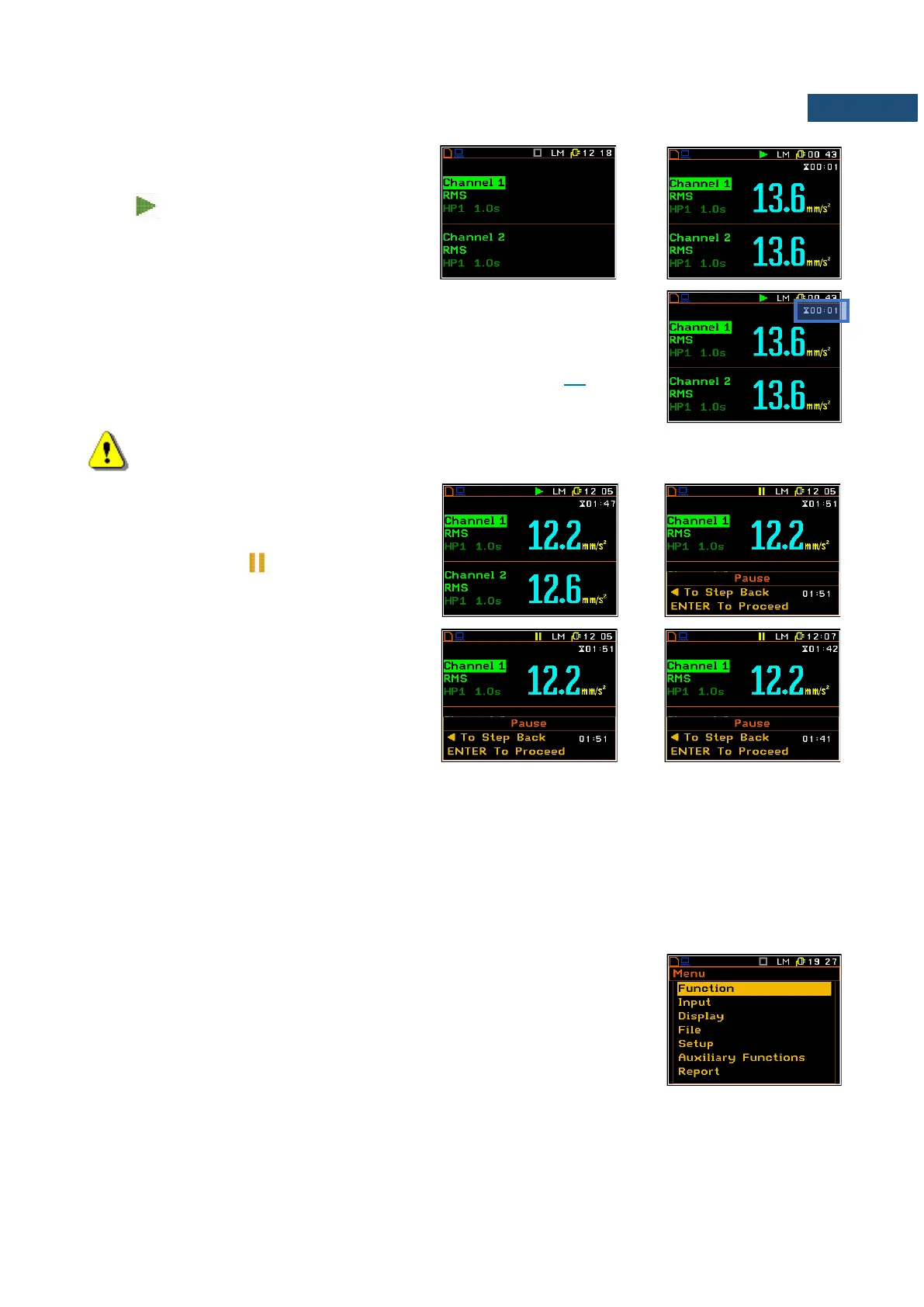
To start measurement, press the <Start> key.
The icon will appear, and the
measurement will be performed with the
current instrument settings, which are stored
in the instrument’s internal memory.
The time passed from the measurement start (elapsed time) is displayed in the
right upper corner of the measurement screen in the format
mm:ss in the
range from 00:00 to 59:59. After this limit, the hours and minutes are shown (i.e.
00:59). Its maximum value is equal to the Integration Period and the elapsed
time is zeroed when the new measurement cycle starts (see Chapter
4.1).
Note: The real time clock is always displayed on the display in all measurement modes.
Pausing measurement
To pause a measurement, press the <S/P>
key (<Alt>+<ESC>). The measurement will
be paused and the icon will appear
together with the Pause section at the bottom
of the screen.
The Pause mode allows you to erase up to 10
last seconds of the measurement with the ◄
key. One press deletes one second of the
measurement and this reduces also the
elapsed time.
It may be useful if, for example, the
measurement is temporarily disturbed by
some event that should not normally occur.
To continue the measurement, press
<ENTER>.
To configure a measurement or the instrument, use the menu mode, which is switched with the <Menu> key.
The menu consists of different type of screens, which include main menu, sub-menu, lists of options, lists of
parameters, text editor screens, information screens etc.
Main menu
The main Menu contains the headers of several sections (sub-menu), which
group configuration settings by feature. The main Menu is opened after pressing
the <Menu> (<Shift> + <ENTER>) key. The main Menu list contains the
following sections: Function, Input, Display, File, Setup and Auxiliary
Functions.


 To Next Page