The ▲ / ▼ key pressed in conjunction (or in sequence) with <Alt> enable the user specifically
to:
• change the mode of result presentation;
• change the year in the current date setup screen
The Markers enable the user to mark the special events, which occurred during the performed
measurements (i.e. the airplane flight, the dog’s barking, the train’s drive etc.). In order to enter
the markers the logger has to be switched on (path: Menu / Input / Logger Setup /
Logger Mode: On) and one or more logger options (PEAK, MAX, MIN, RMS in the case of
sound measurements and PEAK, P–P, MAX, RMS, VDV in the case of vibration
measurements) in channels have to be chosen (path: <Menu> / Input / Logger Setup /
Channel x).
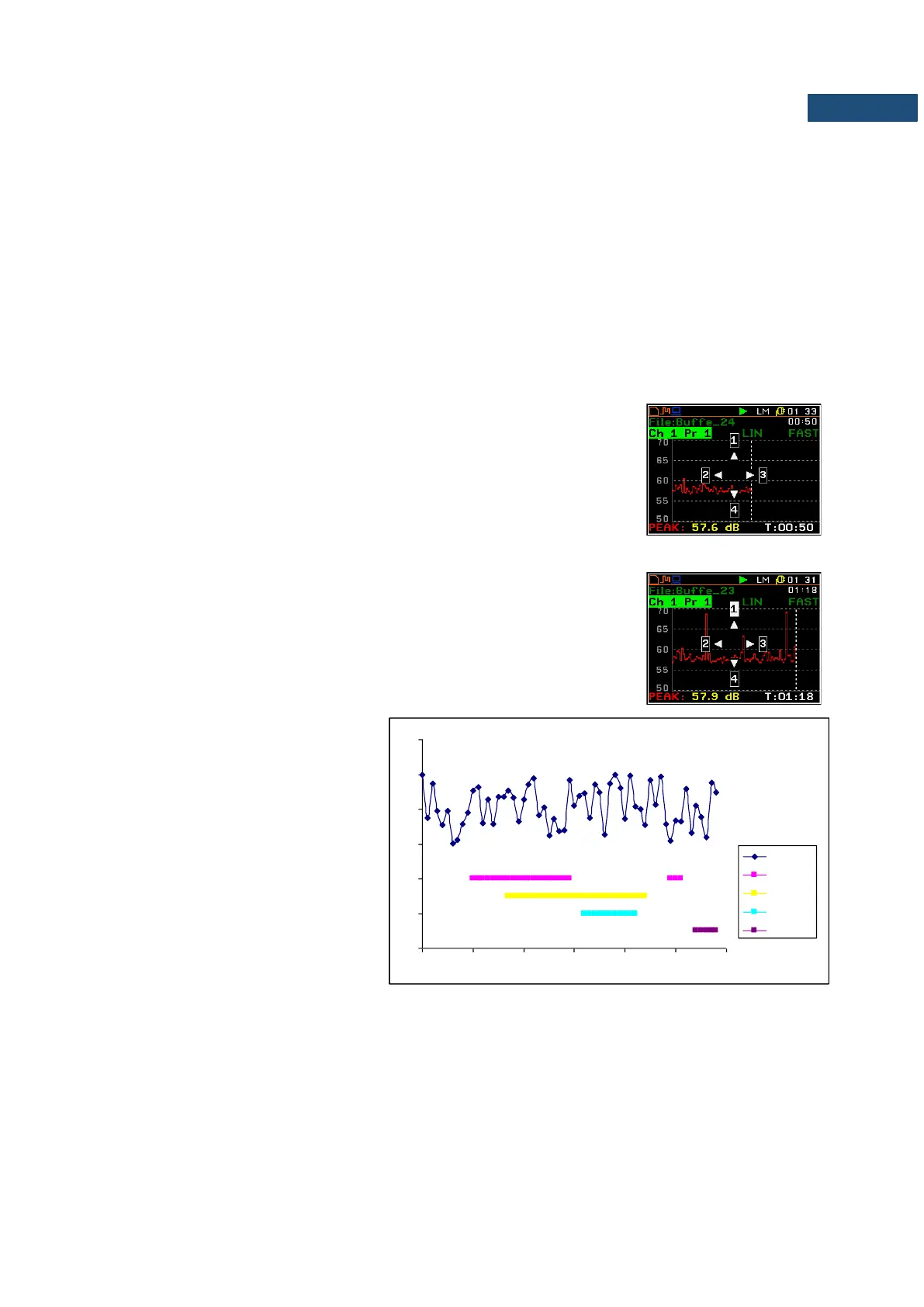
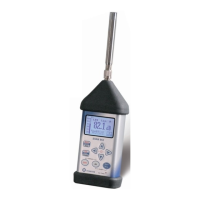
In order to enter the marker mode the user must press <Shift> and <Alt>
keys simultaneously during the measurement. The marker overlay with four
available marker numbers appears on the screen. To choose marker number
1 the user must press ▲ push button (number 2 - ◄, number - 3 ► and
number 4 - ▼).
The marker overlay closes automatically and chosen marker is activated
(after pressing <Shift> + <Alt> again active marker number will be
highlighted). In order to switch off the marker, the user has to activate the
marker overlay and press this key, which refers to the marker to be switched
off. Up to four markers can be switched on at the same time.
The current state of the markers is indicated in the logger file (cf. App. B for
details) and can be used to show them with the help of the dedicated
presentation software.
An example presentation of the markers
on the time history plot is shown below
(to view a plot with markers the user has
to transfer data to the appropriate
software such as SvanPC++).
20
30
40
50
60
70
80
13:30:00 13:30:09 13:30:17 13:30:26 13:30:35 13:30:43 13:30:52
Leq
Marker 1
Marker 2
Marker 3
Marker 4


 To Next Page