The following procedure describes how to create a L2TP VPN connection.
To create a L2TP VPN connection:
1. In the Connections page, click the New icon; the Connection Wizard opens.
2. Select the Connect to a Virtual Private Network over the Internet option, and then
click Next.
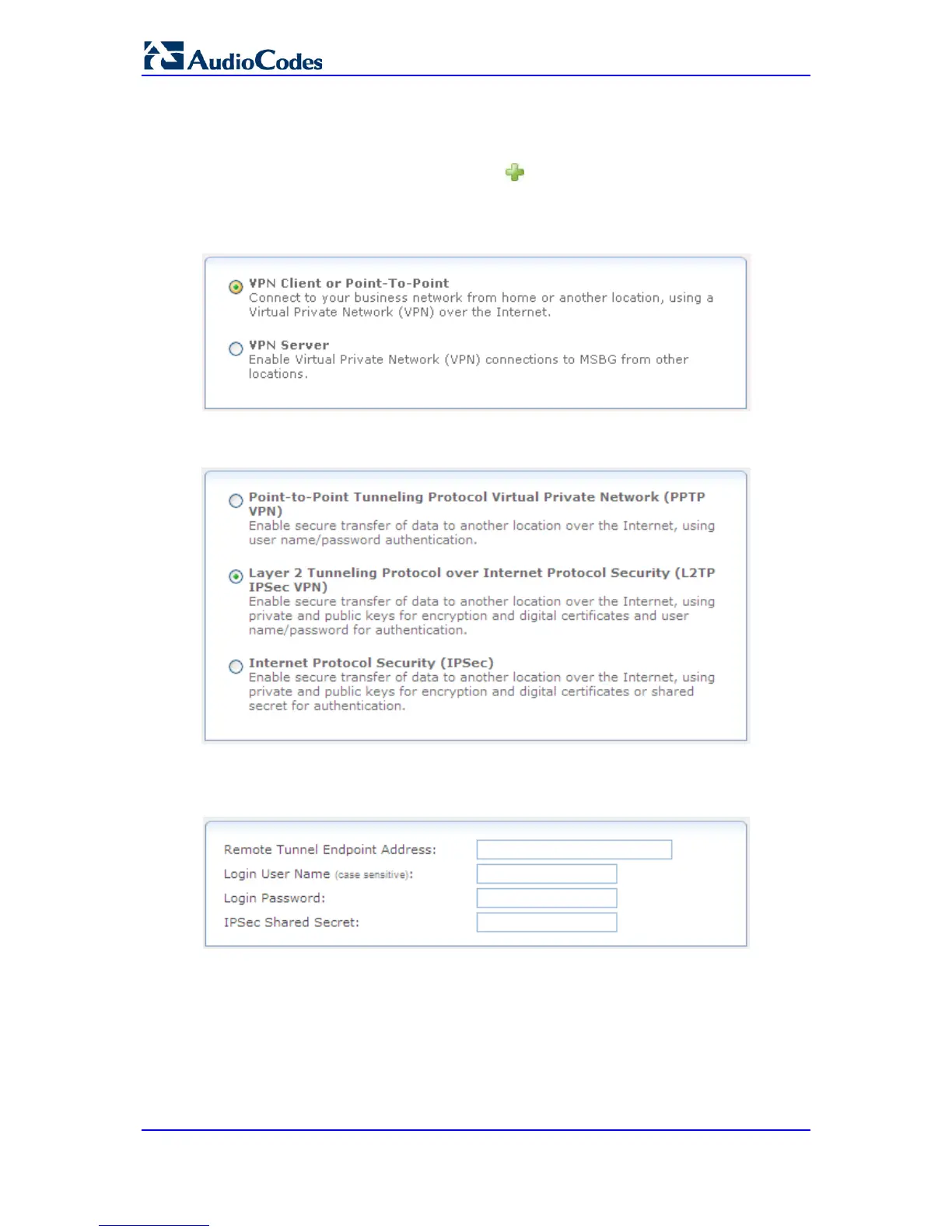
Figure 47-31: Selecting VPN Type for IPSec
3. Select the VPN Client or Point-To-Point option, and then click Next.
Figure 47-32: Selecting L2TP to Connect to Remote VPN Server
4. Select the Layer 2 Tunneling Protocol over Internet Protocol Security (L2TP
IPSec VPN) option, and then click Next.
Figure 47-33: Defining L2TP Properties
5. In the 'Remote Tunnel Endpoint Address' field, enter the remote tunnel endpoint
address. This is the IP address or domain name of the remote network computer,
which serves as the tunnel's endpoint.
6. In the 'Login User Name' and 'Login Password' fields, enter the username and
password provided by the administrator of the network you are trying to access.
7. In the 'IPSec Shared Secret' field, enter the IPSec shared secret, which is the
encryption key jointly decided upon with the network you are trying to access.


 To Next Page
 Loading...