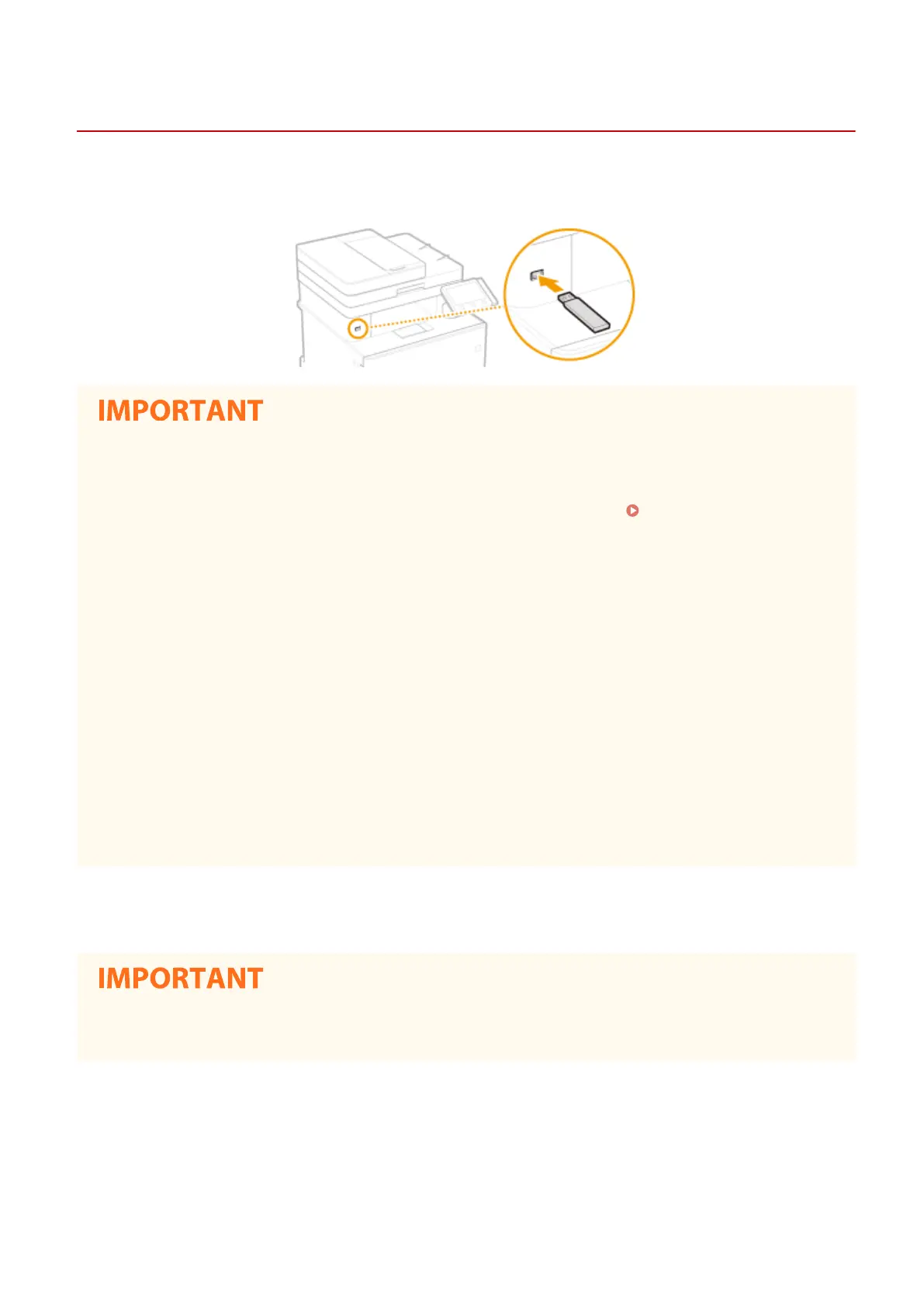
Insert a USB Memory Device
1647-0H0
Insert a USB memory into the USB port on the front side of the machine. You can directly print data from a USB
memory or directly save scanned originals on a USB memory.
Before using a USB memory device
● The supported formats of USB memory device are FAT16 and FAT32.
● It is necessary to set <Use Scan Function> and <Use Print Function> to <On>. <Memory Media
Settings>(P. 559)
The following devices and uses are not supported:
● USB memory devices that have security functions installed
● USB memory devices that do not meet the USB standards
● Memory card readers connected via a USB
● USB memory devices that are used with extension cables
● USB memory devices used via a USB hub
Handling of USB memory devices
● Make sure that the USB memory device is correctly oriented before inserting it. If you attempt to insert it in
incorrect orientation, the memory device and the machine may be damaged.
● Do not remove, bump or otherwise move the USB memory device while data is being imported or exported.
Also, do not turn OFF the machine while processing is in progress.
● You may not be able to save data properly on some USB memory devices.
◼ Remove the USB Memory Device
● Always use the following procedure when removing USB memory devices. Using other methods to remove
USB memory devices may result in damage to the device and the machine.
1
Select <Status Monitor>.
2
Select <Rmv. Mem. Media>.
➠ Wait until the <The memory media can be safely removed.> message is displayed.
3
Disconnect the USB memory device.
Basic Operations
106









 To Next Page