Setting the Department ID Management
1647-07W
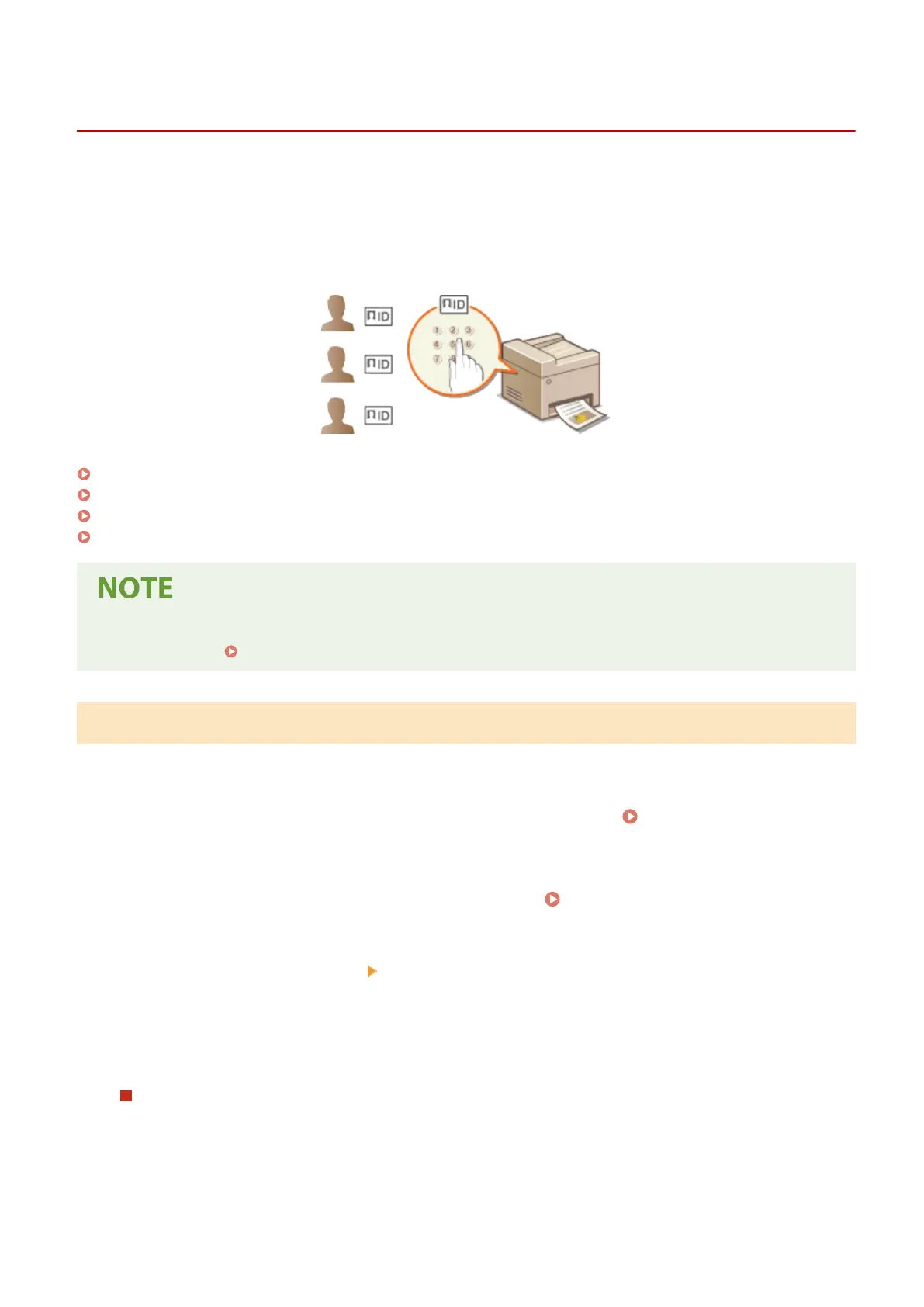
You can control access to the machine by using multiple IDs for multiple users or groups. If a user tries to operate the
machine when Department ID Management is enabled, a login screen is displayed, and the user must enter their own
Department ID and PIN to use the machine. When Department ID Management is enabled, usage of functions, such as
printing, is recorded for each Department ID. To congure Department ID Management, register department IDs as
necessary and then enable Department ID Management function. When you want to enable Department ID
Management for jobs from a computer, you need to congure additional settings on the computer side.
Registering/Editing Department ID and PIN(P. 356)
Enabling the Department ID Management(P. 358)
Enabling the Department ID Management for Jobs from a Computer(P. 359)
Blocking Jobs When Department ID Is Unknown(P. 360)
● For more information about the basic operations to be performed when setting the machine from the
Remote UI, see Setting Up Menu Options from Remote UI(P. 427) .
Registering/Editing Department ID and PIN
Register a Department ID and set a PIN for it. Register all the department IDs to be managed.
1
Start the Remote UI and log in to System Manager Mode. Starting Remote
UI(P. 419)
2
Click [Settings/Registration] on the Portal page. Remote UI Screen(P. 420)
3
Select [User Management] [Department ID Management].
4
Register or edit Department IDs.
Registering a Department ID
1
Click [Register New Department].
2
Specify the required settings.
Managing the Machine
356









 To Next Page