Conguring the Key and Certicate for TLS
1647-086
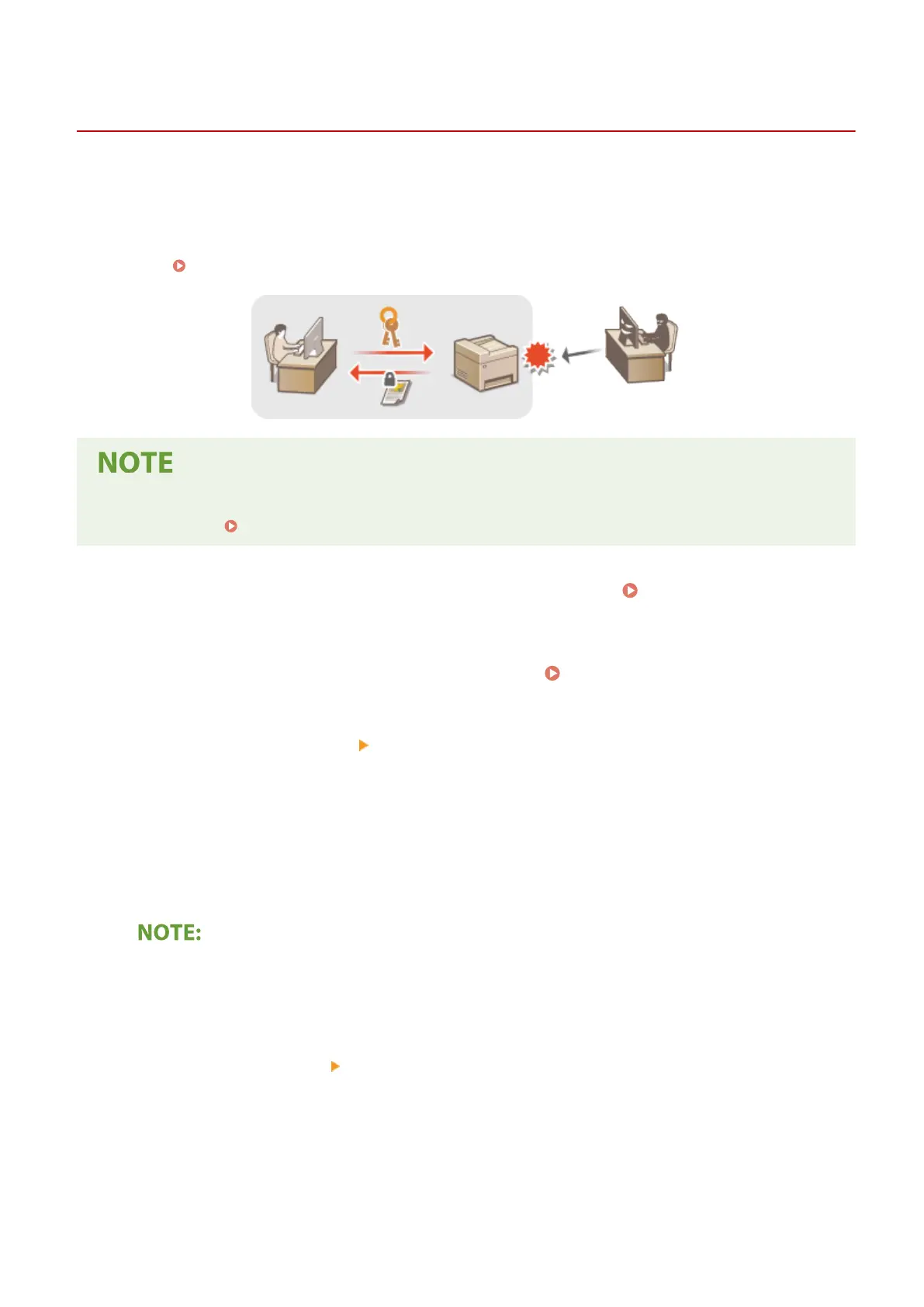
You can encrypt communication between the machine and a Web browser on the computer by using Transport Layer
Security (TLS). TLS is a mechanism for encrypting data sent or received over the network. TLS must be enabled when
the Remote UI is used for specifying settings for IPSec (Pre-Shared Key Method), IEEE 802.1X authentication (TTLS/
PEAP), or SNMPv3. To use TLS encrypted communication for the Remote UI, you need to specify a "key and certicate"
(server certicate) you want to use before enabling TLS. Generate or install the key and certicate for TLS before
enabling TLS (
Management Functions(P. 711) ).
● For more information about the basic operations to be performed when setting the machine from the
Remote UI, see Setting Up Menu Options from Remote UI(P. 427) .
1
Start the Remote UI and log in to System Manager Mode. Starting Remote
UI(P. 419)
2
Click [Settings/Registration] on the Portal page. Remote UI Screen(P. 420)
3
Select [Network Settings] [TLS Settings].
4
Click [Key and Certicate].
5
Click [Register Default Key] on the right of the key and certicate you want to use.
Viewing details of a certicate
● You can check the details of the certicate or verify the certicate by clicking the corresponding text link
under [Key Name], or the certicate icon.
6
Select [License/Other] [Remote UI Settings].
Managing the Machine
380









 To Next Page