Conguring E-Mail/I-Fax Communication Settings
1647-021
Use the Remote UI to congure the detailed send and receive settings, such as the settings for using the machine to
send and receive I-Faxes and the settings for POP authentication and encryption of communication before you send e-
mail or I-Faxes. Contact your provider or network administrator for the required settings.
● For more information about the basic operations to be performed when setting the machine from the
Remote UI, see Setting Up Menu Options from Remote UI(P. 427) .
1
Start the Remote UI and log in to System Manager Mode. Starting Remote
UI(P. 419)
2
Click [Settings/Registration] on the Portal page. Remote UI Screen(P. 420)
3
Select [TX Settings] [Network Settings - E-Mail/I-Fax Settings].
4
Click [Edit].
5
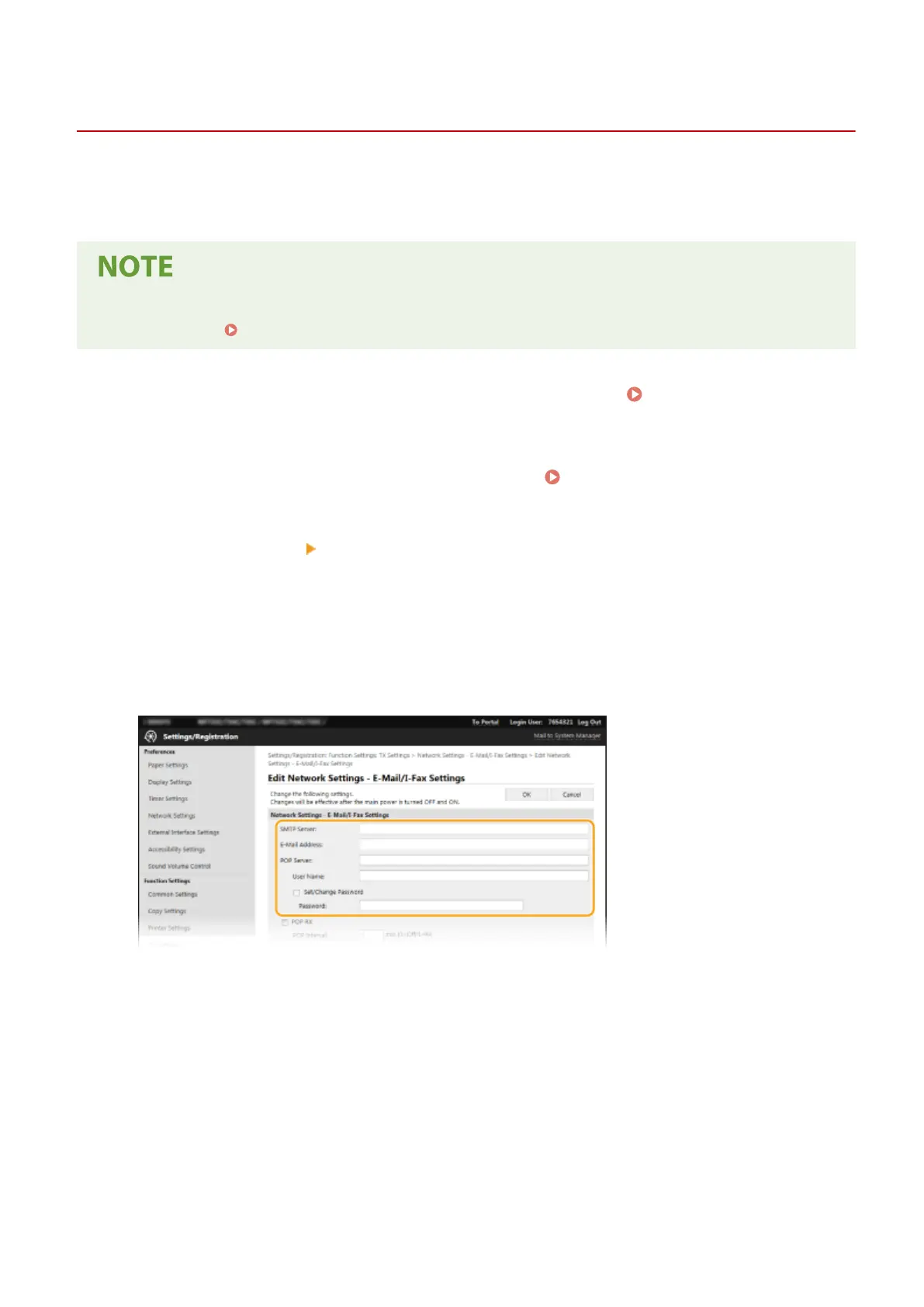
Specify the required settings.
[SMTP Server]
Enter alphanumeric characters as the SMTP server name (or IP address) for sending e-mail and I-Faxes.
[E-Mail Address]
Enter alphanumeric characters for the e-mail address that you want to use for the machine.
[POP Server]
Enter alphanumeric characters as the SMTP server name or IP address for sending e-mail and I-Faxes.
[User Name]
Enter alphanumeric characters as the user name for the specied e-mail account when a POP3 server is used.
[Set/Change Password]
To set or change the password when a POP3 server is used, select the check box and enter alphanumeric
characters in [Password].
Setting Up
89








 To Next Page