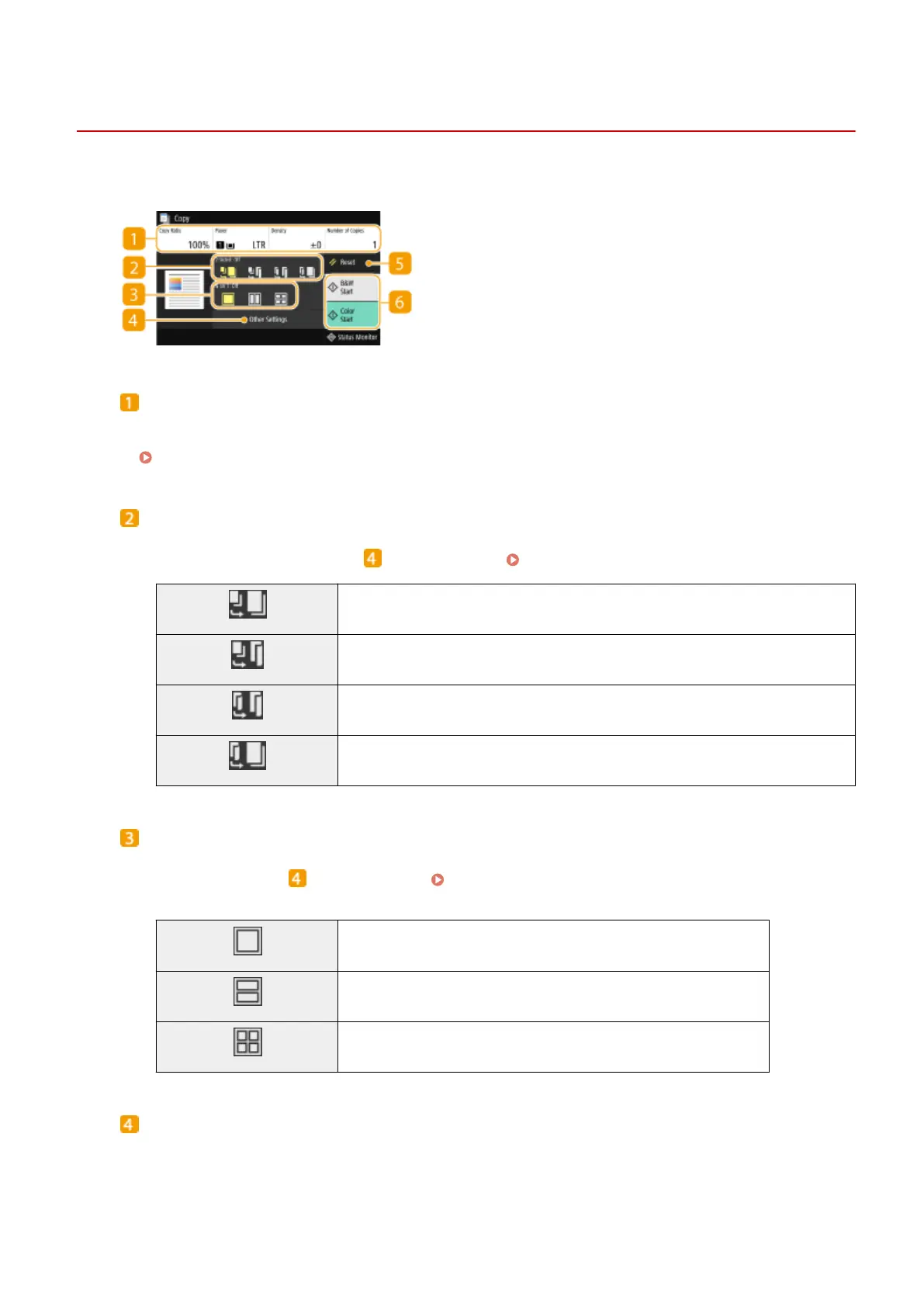
Copy Basic Features Screen
1647-03Y
When you select <Copy> in the Home screen, the Copy Basic Features screen appears.
Current setting status and setting buttons
The setting status, such as copy ratio, copy paper, and number of copies, are displayed. To copy correctly, be
sure to check the settings displayed here. When you want to change a setting, select the desired setting item.
Basic Copy Operations(P. 195)
<2-Sided>
You can select a combination of 1-sided copying and 2-sided copying for the original and printout paper.
Specify the detailed settings from <Other Settings>. Basic Copy Operations(P. 195)
Scans one side of an original and prints the scanned data on one side of the paper.
Scans one side of an original and prints the scanned data on both sides of the paper.
Scans both sides of an original and prints the scanned data on both sides of the paper.
Scans both sides of an original and prints the scanned data on one side of the paper.
<N on 1>
You can select an "N on 1" pattern to arrange multi-page originals on the same side of one sheet. Specify the
detailed settings from <Other Settings>. Copying Multiple Documents onto One Sheet (N on 1)
(P. 209)
Does not apply N on 1.
Prints data for two consecutive pages on one side of a sheet of original.
Prints data for four consecutive pages on one side of a sheet of original.
<Other Settings>
You can call the detailed settings or favorite settings that are not displayed in the Copy Basic Features screen.
Copying
193









 To Next Page