Checking the Printing Status and Log
1647-05W
You can check the current print statuses and the logs for printed documents.
● When <Display Job Log> is set to <Off>, you cannot check the print logs. <Display Job Log>(P. 566)
Useful in the Following Cases
● When your documents are not printed for a long time, you may want to see the waiting list of the
documents waiting to be printed.
● When you cannot nd your printouts that you thought had been printed, you may want to see whether an
error has occurred.
1
Select <Status Monitor>.
2
Select <Copy/Print Job>.
3
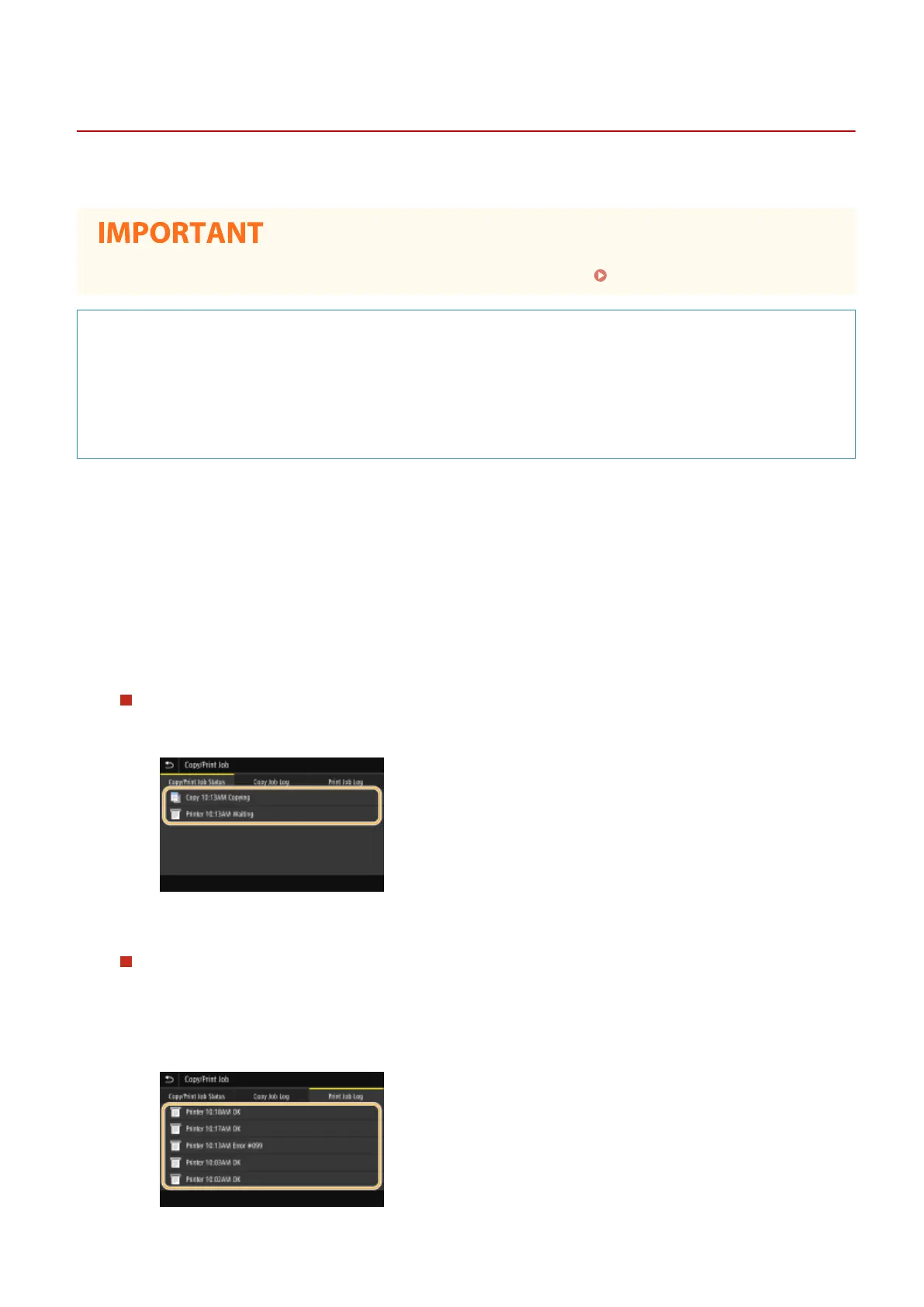
Check the print statuses and logs.
To check the print statuses
1
Select the document whose status you want to check in the <Copy/Print Job Status> tab.
➠ Displays detailed information about the document.
To check the print logs
1
Select the document whose log you want to check in the <Print Job Log> tab.
● <OK> is displayed when a document was printed successfully, and <Error> is displayed when a
document failed to be printed because it was canceled or there was some error.
Printing
263









 To Next Page