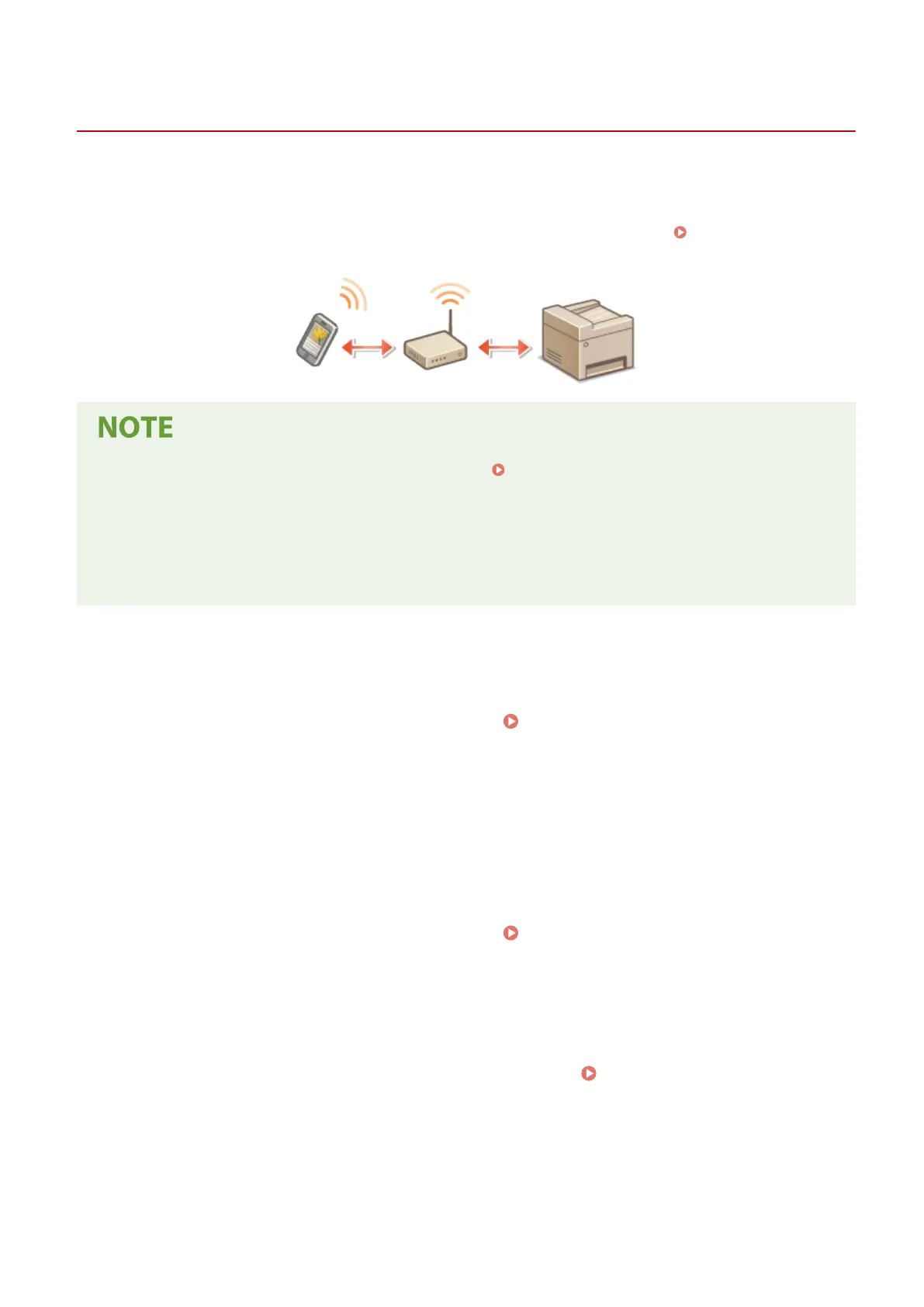
Connecting via a Wireless LAN Router (LAN Connection)
1647-077
If a wireless LAN router is connected to the network connected to the machine, you can establish a communication
with a mobile device via the wireless LAN router in the same way for a computer. For information about how to
connect a mobile device to your wireless LAN router, see the instruction manuals for your networking devices or
contact your manufacturer. Connect the machine to a router via the wired or wireless LAN.
Setting Up the Network
Environment(P. 13)
● To perform the procedures below, use the IPv4 address. Setting IPv4 Address(P. 31)
● Select <LAN Connection> and proceed with the procedure, if the <Direct Connection> screen is displayed
after <Mobile Portal> is selected in the procedure below.
● For information about the operating systems compatible with Canon PRINT Business, the detailed setting
procedure, and the operating procedure, please see the application's Help or the Canon website (http://
www.canon.com/gomp/).
◼
Connecting Manually
1
Select <Mobile Portal> in the Home screen. Home Screen(P. 122)
2
Connect from the mobile device to the IP address that appears on the screen.
◼ Connecting Using a QR Code
1
Select <Mobile Portal> in the Home screen. Home Screen(P. 122)
2
Select <QR Code>.
3
Launch Canon PRINT Business on the mobile device. Utilizing the Machine through
Applications(P. 332)
4
Read the QR code displayed on the screen using the mobile device.
Linking with Mobile Devices
326








 To Next Page