Checking Status and Log for Scanned Originals
1647-06K
You can check the status and log for scanned originals sent directly from the machine.
● When <Display Job Log> is set to <Off>, you cannot check the logs for sent documents. <Display Job
Log>(P. 566)
1
Select <Status Monitor>.
2
Select <TX Job>.
3
Check the statuses and logs for sent documents.
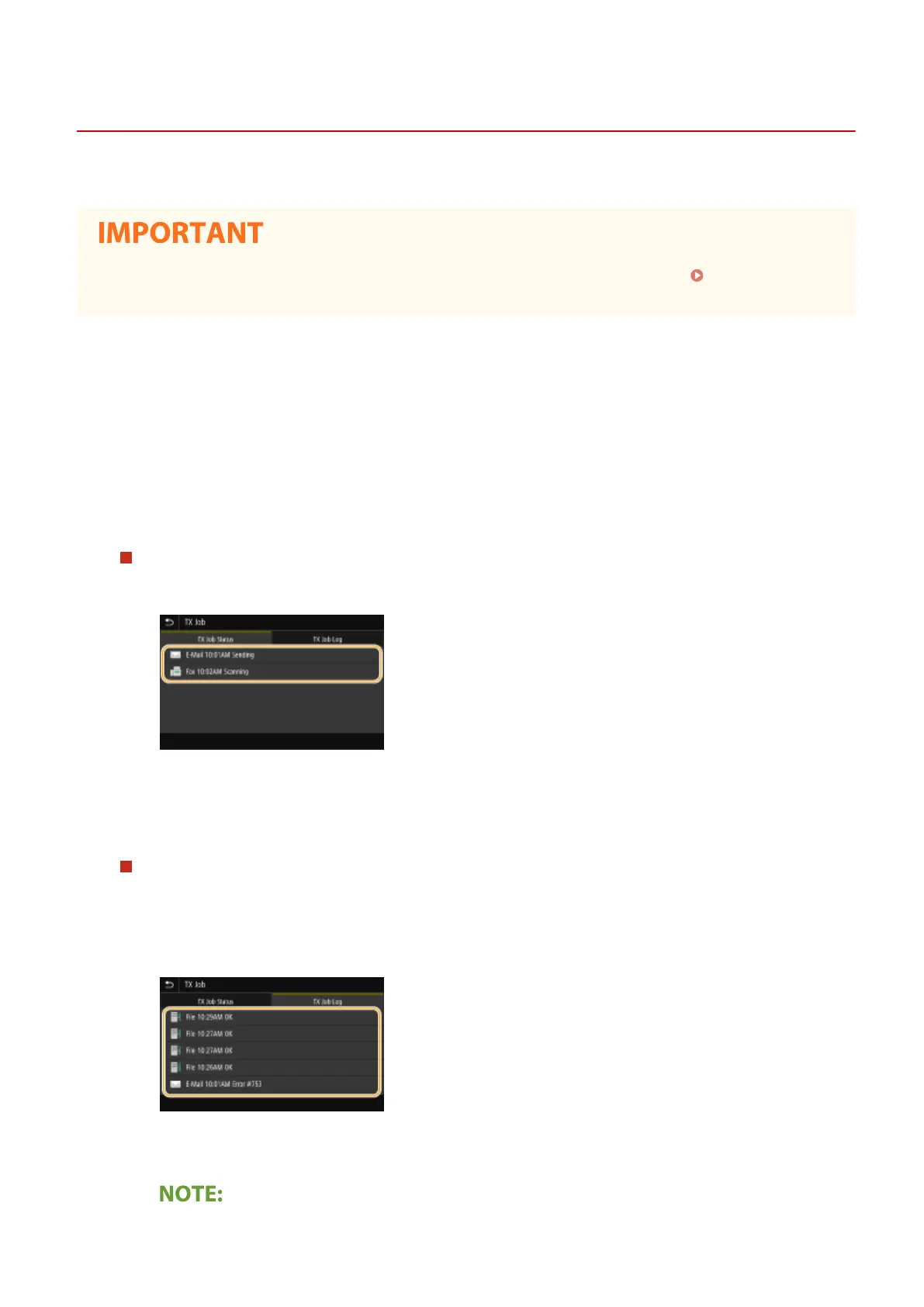
To check the statuses for sent documents
1
Select the document whose status you want to check in the <TX Job Status> tab.
➠ Displays detailed information about the document.
● If you specied multiple destinations, the number of specied destinations is displayed on the
screen. To check the details of specied multiple destinations, select <Destination>.
To check the logs for sent documents
1
Select the document whose log you want to check in the <TX Job Log> tab.
● <OK> is displayed when a document was sent successfully, and <Error> is displayed when a document
failed to be sent because it was canceled or there was some error.
➠ Displays detailed information about the document.
When a three-digit number is shown in the case of <Error>
Scanning
301









 To Next Page