Printing via Secure Print
1647-061
This section describes how to print a document from an application as a secured document. The rst part of this
section describes how to send a secured document to the machine, and the second part of this section describes how
to print the secured document on the machine.
Sending a Secured Document from a Computer to the Machine(P. 267)
Printing Out Secured Documents(P. 268)
Changing the Valid Time Period for Secured Documents(P. 269)
Sending a Secured Document from a Computer to the Machine
1
Open a document in an application and display the print dialog box.
2
Select the printer driver for this machine, and click [Preferences] or [Properties].
3
Select [Secured Print] in [Output Method].
➠
The [Information] pop-up screen is displayed. Check the message, and click [Yes] or [No].
4
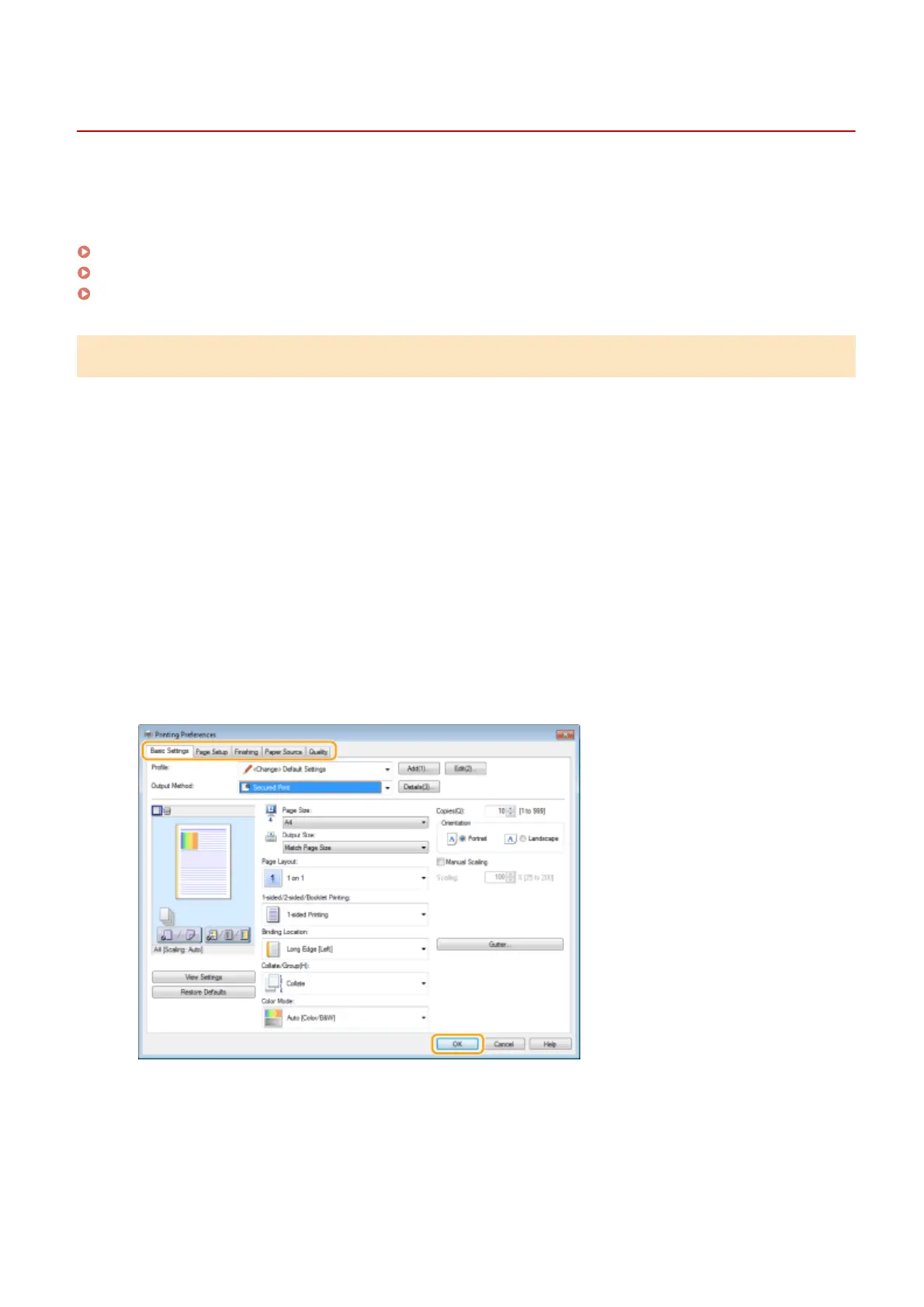
Specify the print settings as necessary, and click [OK].
● Switch the tab according to the settings.
5
Click [Print] or [OK].
➠ After the secured document is sent to the machine, it is held in the memory of the machine waiting to be
printed.
Printing
267









 To Next Page