● Do not turn OFF the machine while the restart is in progress.
Updating from a Computer
When you have downloaded the latest rmware version from the Canon website, use "User Support Tool" utility
software to update the rmware from a computer. For how to perform rmware update from a computer, see the
"User Support Tool Operation Guide" included with the rmware.
To Put the Machine into a Firmware Update Waiting State
<Menu> <Management Settings> <License/Other>/<Remote UI Settings/Update
Firmware> <Update Firmware> <Via PC> <Yes>
Checking the Firmware Version
1
Select <Menu> in the Home screen. Home Screen(P. 122)
2
Select <Management Settings>.
● If the login screen appears, enter the correct ID and PIN. Logging in to the Machine(P. 133)
3
Select <License/Other>/<Remote UI Settings/Update Firmware> <Update
Firmware>.
4
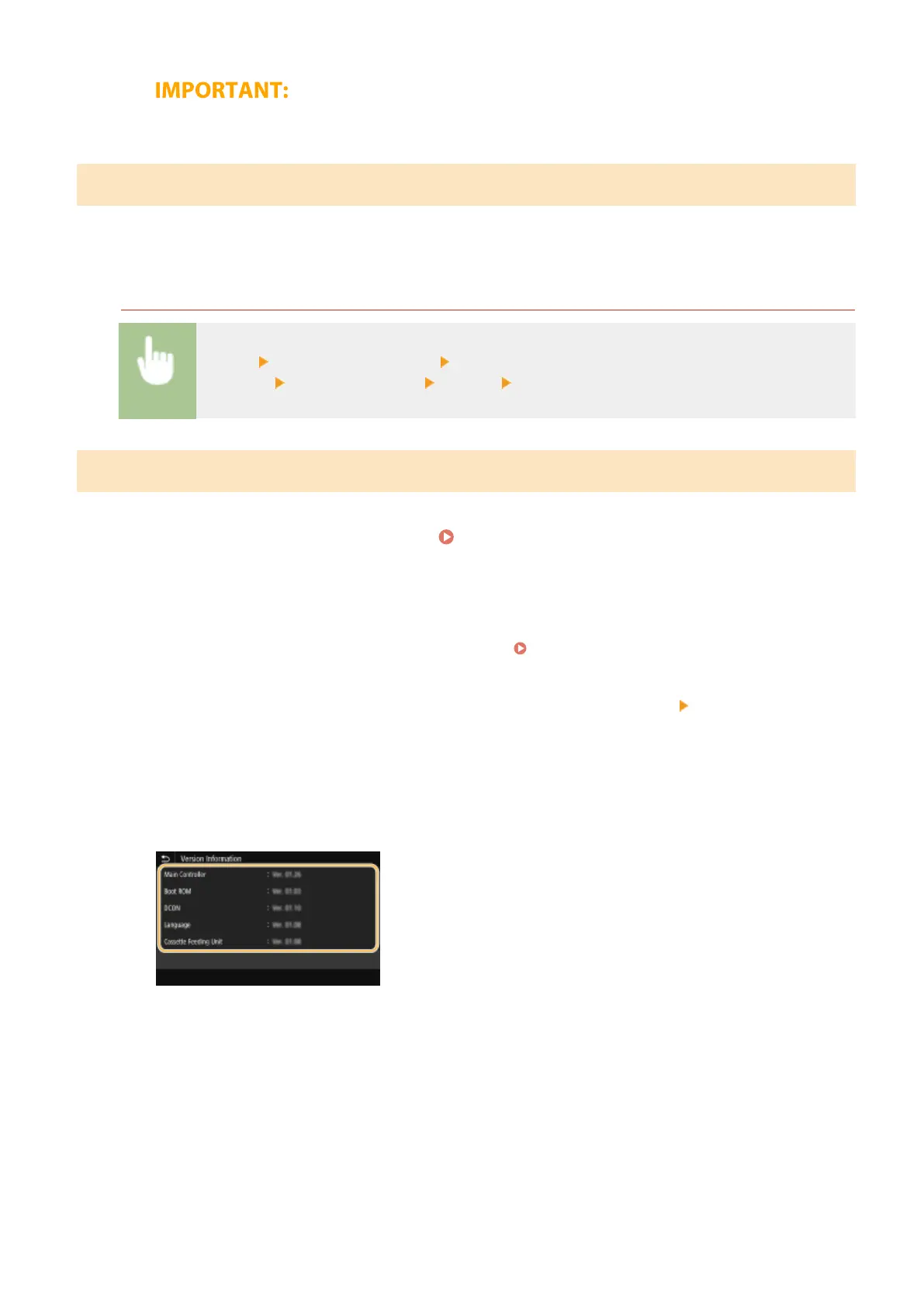
Select <Version Information>.
➠
The current rmware version is displayed.
Managing the Machine
438









 To Next Page