Starting Remote UI
1647-093
To operate remotely, you need to input the IP address of the machine into a Web browser and start the Remote UI.
Check the IP address set to the machine in advance ( Viewing Network Settings(P. 37) ). If you have any questions,
ask your Network Administrator.
1
Start the Web browser.
2
Enter "http://<the IP address of the machine>/" in the address eld, and press the
[ENTER] key.
● If you want to use an IPv6 address, enclose the IPv6 address with brackets (example: http://
[fe80::2e9e:fcff:fe4e:dbce]/).
If a security alert is displayed
● A security alert may be displayed when the Remote UI communication is encrypted (
Conguring the
Key and Certicate for TLS(P. 380) ). When certicate settings or TLS settings have no errors, continue
browsing the Web site.
3
Log in to the Remote UI.
When the Department ID Management is disabled
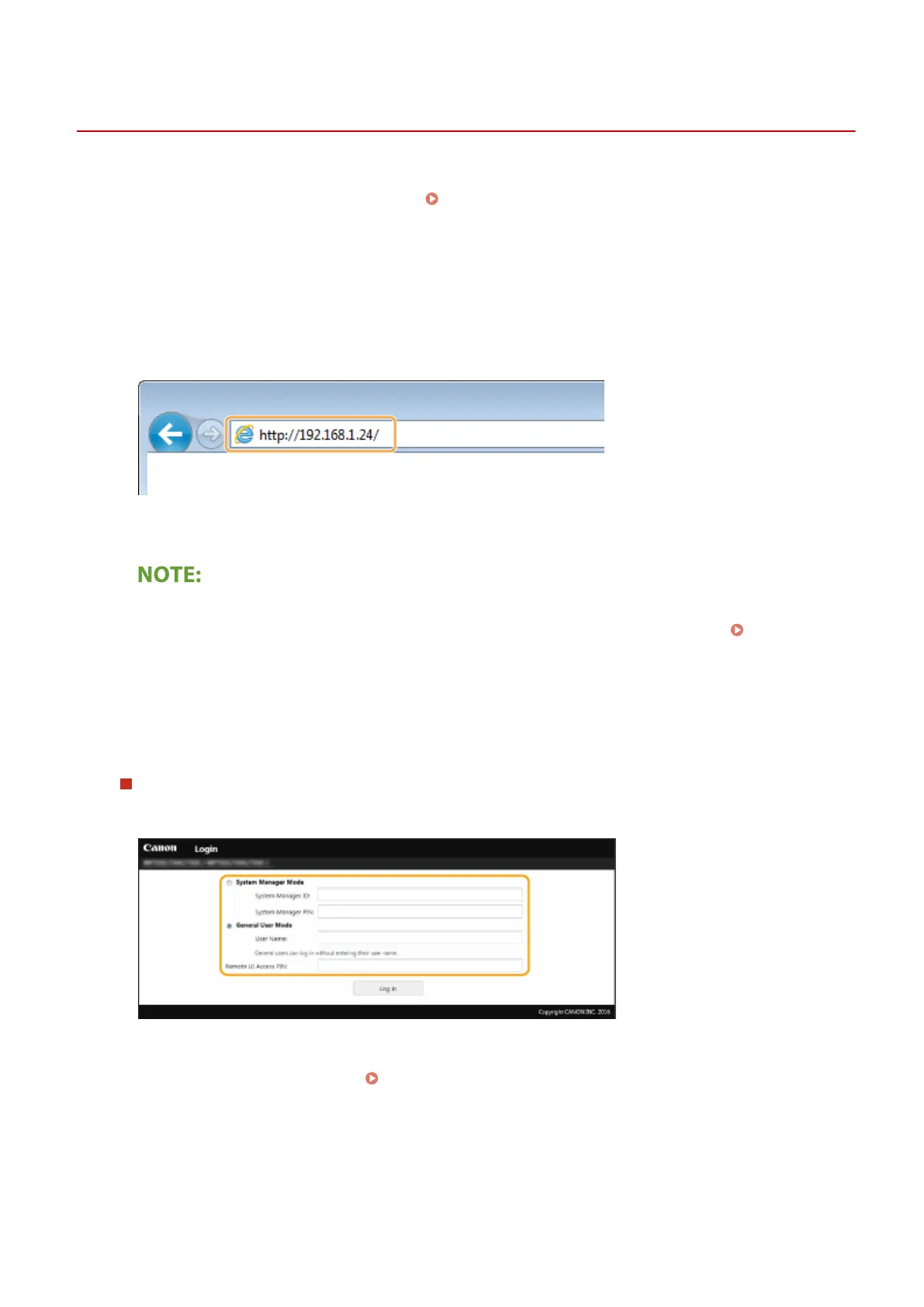
Select [System Manager Mode] or [General User Mode], and enter a value in [Remote UI Access PIN] as
necessary.
[System Manager Mode]
You can perform all the Remote UI operations and settings. Enter the appropriate ID in [System Manager ID]
and PIN in [System Manager PIN]. Setting the System Manager ID and PIN(P. 354)
[General User Mode]
You can check the status of documents or the machine, and you can also change some of the settings. When
you want to check if a specic document of yours is in the print queue or cancel the printing of a document
of yours in the print queue, enter the user name of the document in [User Name]. The user name is
automatically set to print documents based on information such as your computer name or computer login
name.
[Remote UI Access PIN]
Managing the Machine
419









 To Next Page