Canceling Prints
1647-05U
You can cancel printing from your computer or on the operation panel of the machine.
From a Computer(P. 261)
From the Operation Panel(P. 262)
From a Computer
You can cancel printing from the printer icon displayed on the system tray on the desktop.
1
Double-click the printer icon.
When the printer icon is not displayed
● Open the printer folder ( Displaying the Printer Folder(P. 728) ), right-click the printer driver icon for
this machine, and click [See what's printing] (or double-click the icon of the printer driver for this machine).
2
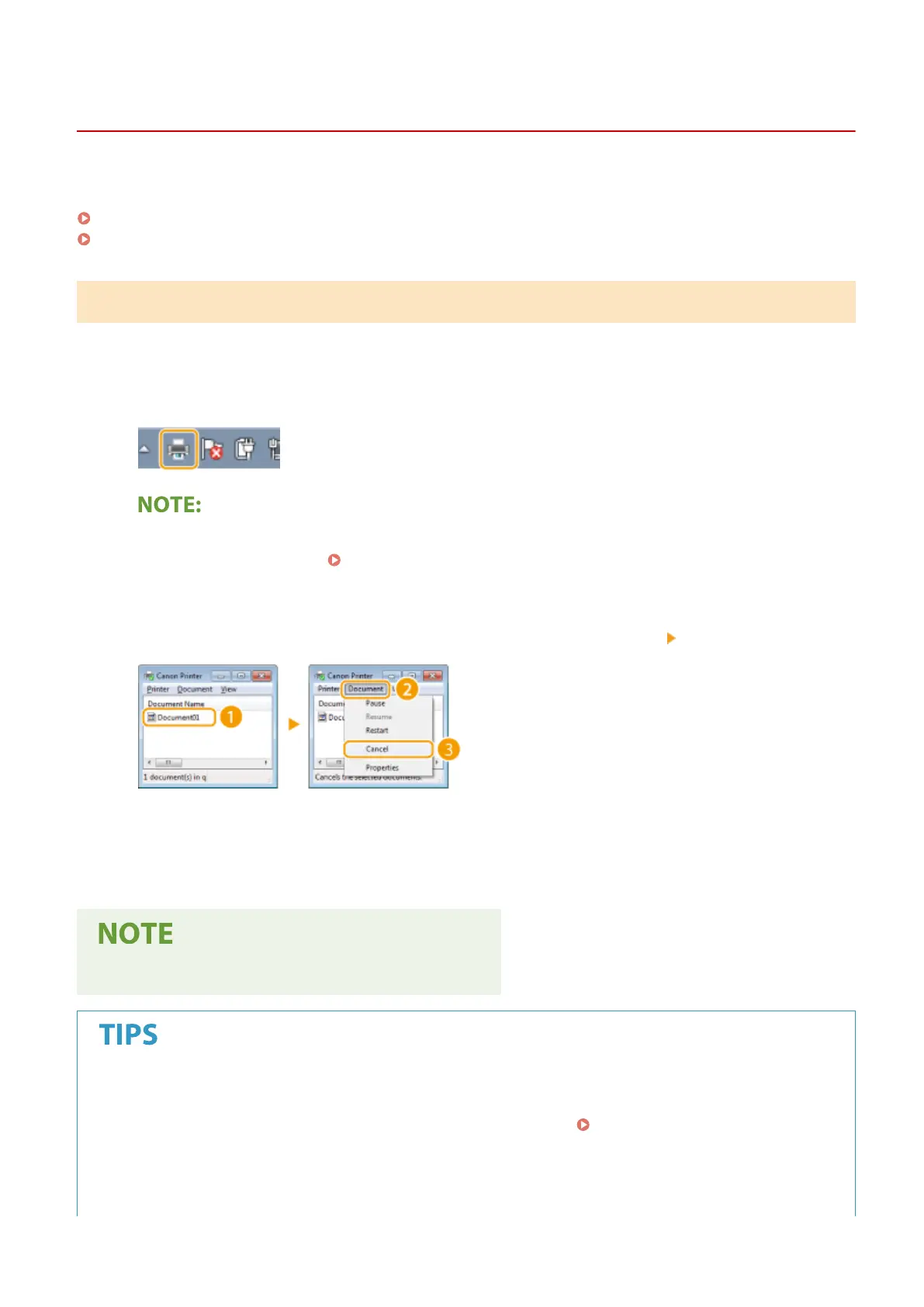
Select the document you want to cancel, and click [Document] [Cancel].
3
Click [Yes].
➠ Printing of the selected document is canceled.
● Several pages may be output after you cancel printing.
Canceling from the Remote UI
● You can cancel printing from the [Job Status] page on the Remote UI: Checking Current Status of Print
Documents(P. 422)
Canceling from an application
● On some applications, a screen like shown below appears. You can cancel printing by clicking [Cancel].
Printing
261









 To Next Page