6
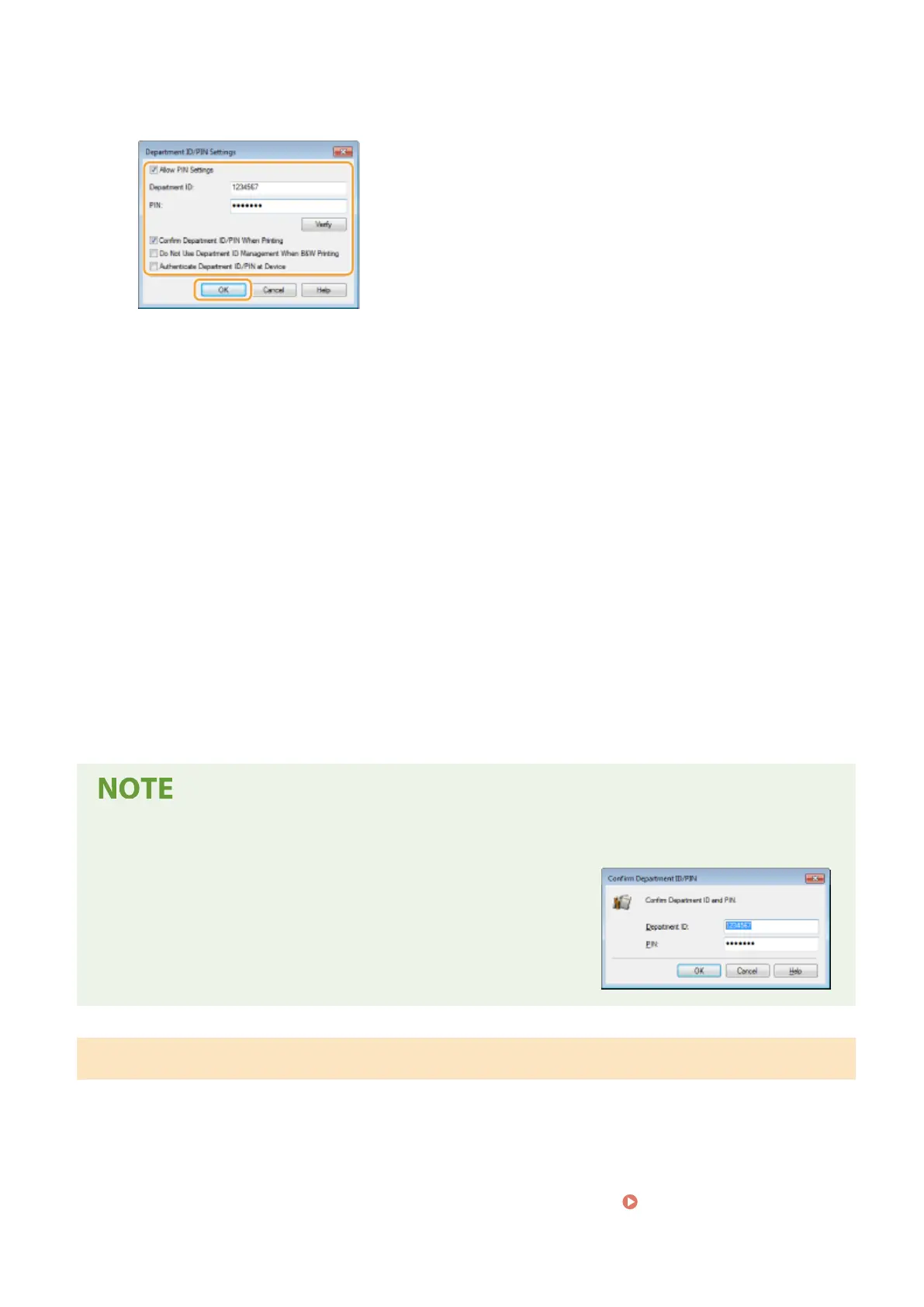
Specify the settings as necessary and click [OK].
[Allow PIN Setting]
Select the check box to enable the PIN setting.
[Department ID]
Enter the Department ID number.
[PIN]
Enter the PIN corresponding to the Department ID as necessary.
[Verify]
Click to verify that the correct ID and PIN are entered. This function is not available if the machine and the
computer are connected via a USB or WSD (Web Services on Devices) port.
[Conrm Department ID/PIN When Printing]/[Conrm Department ID/PIN When Sending Faxes]
Select the check box to display the [Conrm Department ID/PIN] pop-up screen each time you send job from
a computer.
[Do Not Use Department ID Management When B&W Printing]
Select the check box to send black and white print data as an unknown ID job.
[Authenticate Department ID/PIN at Device]
Select the check box if the machine and the computer are connected via a USB or WSD port.
7
Click [OK].
Logging in to the machine
● When you try to send job from a computer when Department ID
Management is enabled, the following pop-up screen is displayed
(unless the [Conrm Department ID/PIN When Printing]/[Conrm
Department ID/PIN When Sending Faxes] check box is cleared):
Blocking Jobs When Department ID Is Unknown
If you do not change the default settings, any user can print from a computer, scan (via <Computer> and <Remote
Scanner>), send a PC fax from a computer, or make black and white copies without entering an ID and PIN even when
Department ID Management is enabled for the machine. You can change the default settings so that the machine
cannot be used for these functions without a correct ID and PIN.
1
Start the Remote UI and log in to System Manager Mode. Starting Remote
UI(P. 419)
Managing the Machine
360









 To Next Page