● When loading paper with a logo, see Loading Preprinted Paper(P. 157) .
4
Insert the paper drawer into the machine.
● When you insert the paper drawer with <Notify to Check Paper Settings> set to <On>, a conrmation screen
is displayed. <Notify to Check Paper Settings>(P. 567)
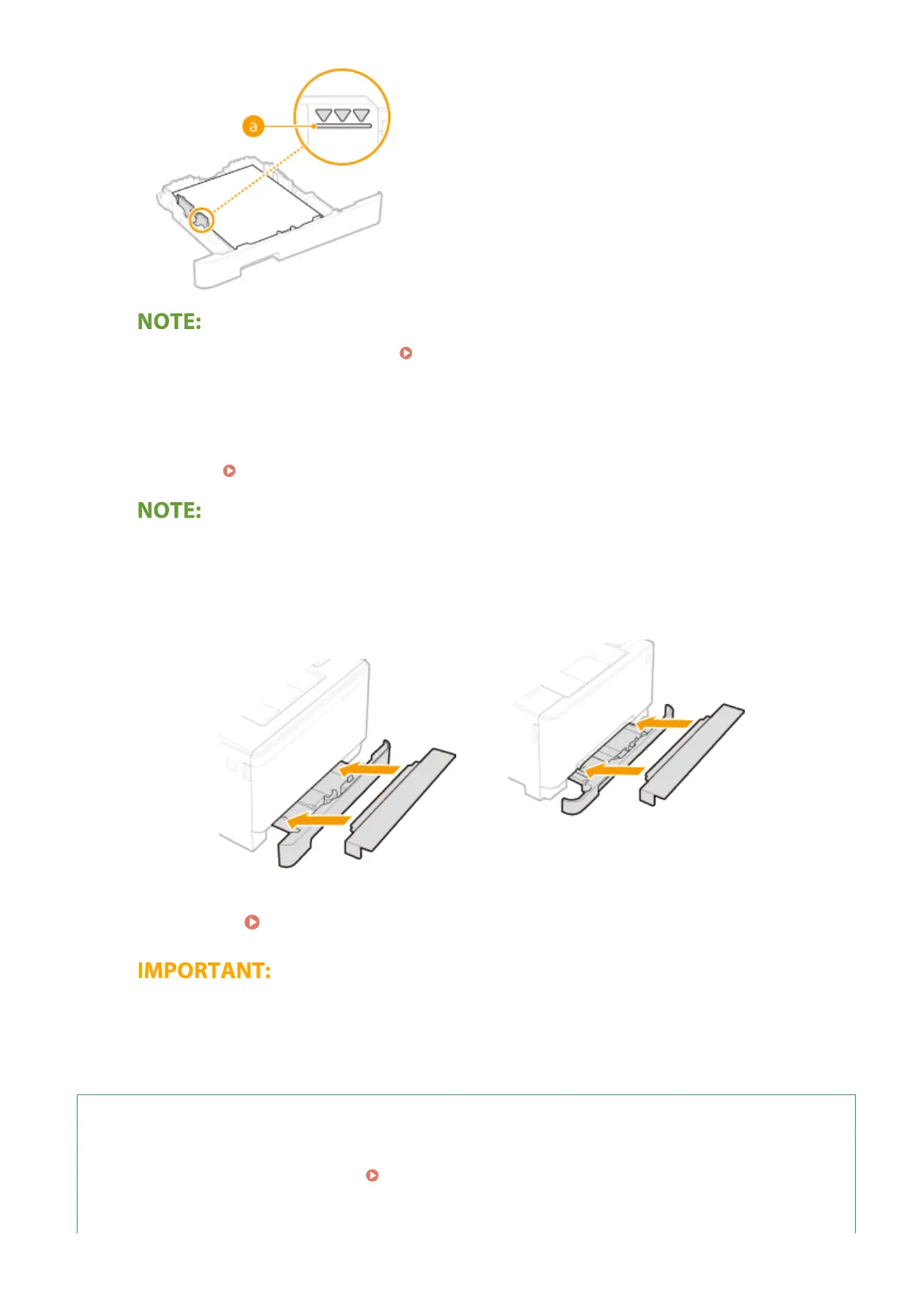
When Legal size paper is loaded
● The front side of the paper drawer is not ush with the machine when the extended paper drawer is
inserted. Place the legal dust cover over the open part of the paper drawer.
MF735Cdw / MF733Cdw / MF731Cdw
MF634Cdw / MF632Cdw
»
Continue to Specifying Paper Size and Type in the Paper Drawer(P. 160)
When changing the paper size or type
● The factory default settings for paper size and type are <LTR> and <Plain 2>, respectively. If you load a
different size or type of paper into the machine, make sure to change the settings. If you do not change
the settings, the machine cannot print properly.
Printing on the Back Side of Printed Paper (Manual 2-Sided Printing)
● You can print on the back side of printed paper. Flatten any curls on the printed paper and insert it into the
paper drawer or multi-purpose tray ( Loading Paper in the Multi-Purpose Tray(P. 149) ), with the side to
print face up (previously printed side face down).
- When using the multi-purpose tray, load one sheet of paper each time you print.
Basic Operations
144









 To Next Page