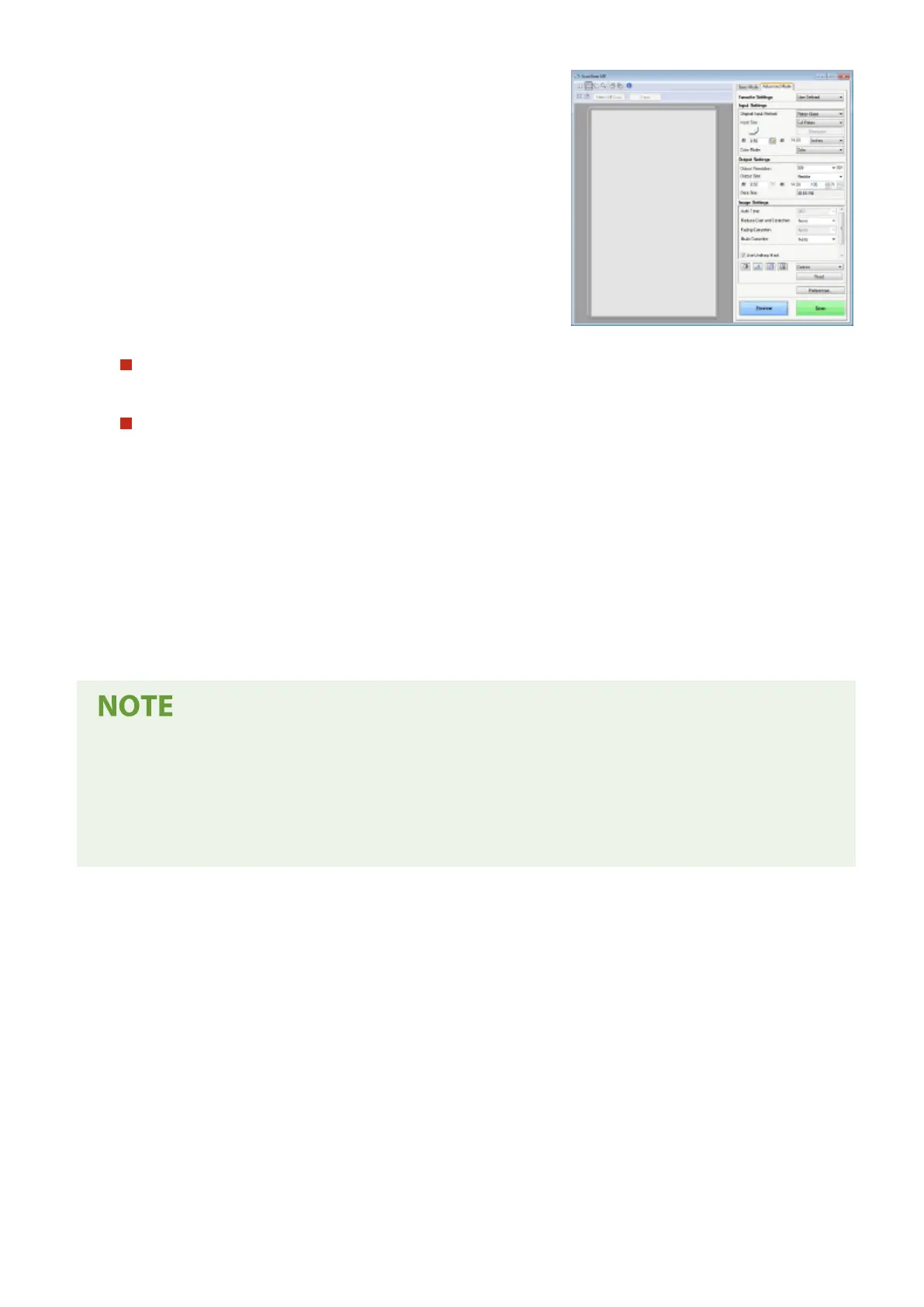
When placing originals in the feeder in step 1
When scanning is complete, the save destination folder is displayed on the computer.
When placing originals on the platen glass in step 1
When scanning is complete, follow the procedures below (except if you selected JPEG as a le format).
1
If there are additional pages of originals to be scanned, place the next original on the platen glass, and
select <Scan Next>.
● Repeat this step until you nish scanning all of the pages.
● When there is only one page to be scanned, proceed to the next step.
2
Select <Finish>.
➠ The save destination folder is displayed on the computer.
About the save destination folder
● By default, the scanned data is saved to the My Documents folder. A subfolder named with the scanning
date is created, and the data is saved to that folder.
● You can change the save destination from the MF Scan Utility. For more information, click [Instructions] on
MF Scan Utility.
Scanning
286









 To Next Page