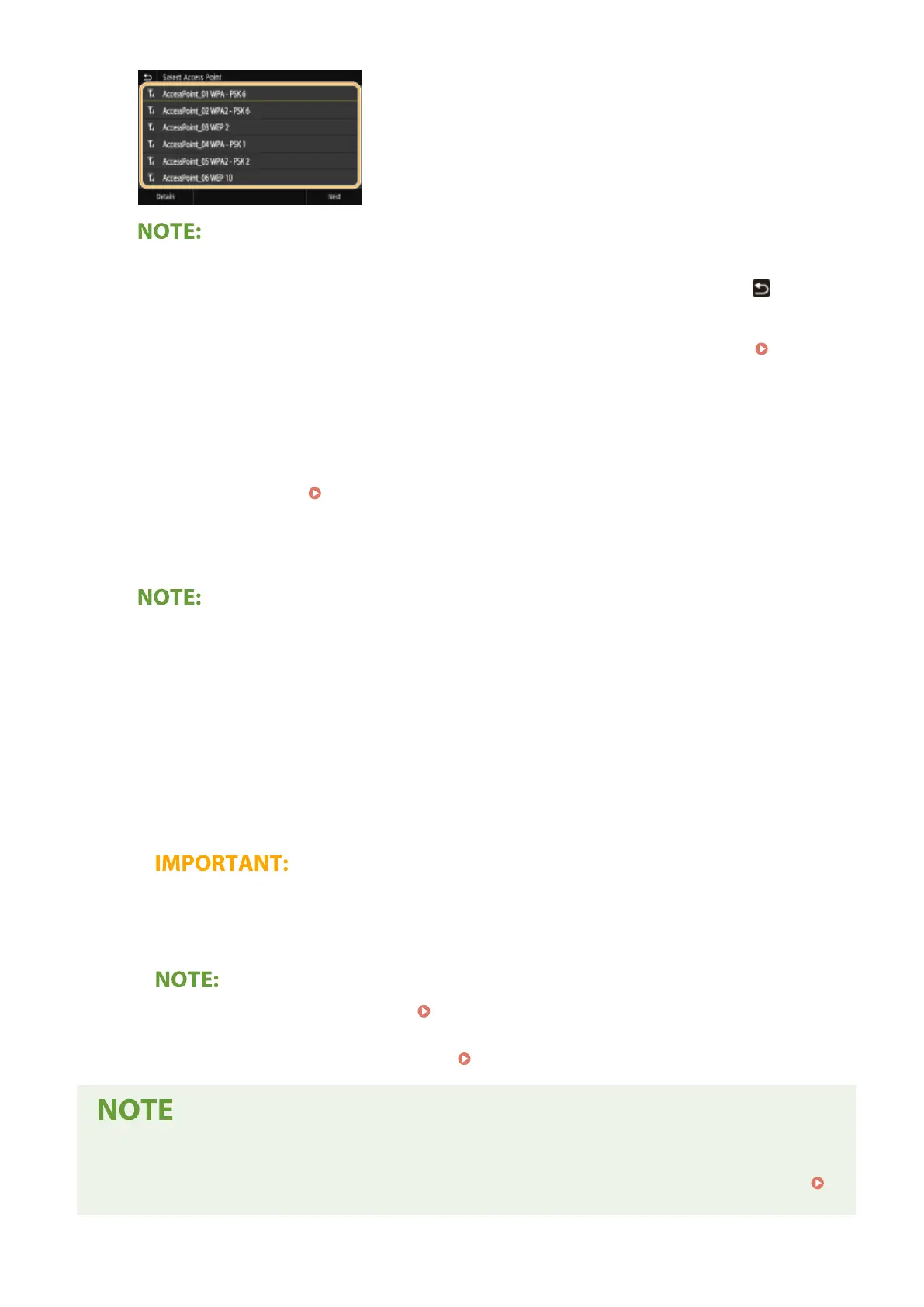
To view details of security settings
● Select the wireless LAN router, and select <Details>. To return to the original screen, select
.
If your wireless router is not found
● Check whether the machine is properly installed and ready to connect to the network.
Installation/
Settings Problems(P. 617)
8
Enter the network key that you have written down.
● Enter the network key, and select <Apply>.
● On how to enter text, see Entering Text(P. 131) .
9
Select <Yes>.
If an error message is displayed during setup
● Select <Close>, check whether the network key is correct, and return to step 5.
10
Wait until message <Connected.> is displayed.
11
Select <Close>.
➠
Wait several minutes until the IP address and other items are set automatically.
Signal strength
● When more than one wireless router is available for connection, the machine connects to the device
with the strongest signal. Signal strength is measured using RSSI (Received Signal Strength Indication).
● You can set the IP address manually. Setting IP Addresses(P. 30)
● While the machine is connected to the wireless LAN, the Wi-Fi icon is displayed in the Home screen or
the Basic Features screen of each function. Basic Screens(P. 121)
Reducing power consumption
● You can set the machine to enter <Power Save Mode> based on signals emitted from the wireless router.
<Power Save Mode>(P. 454)
Setting Up
24









 To Next Page